


Top Solutions to Resolve the “Excel Cannot Paste the Data” Issue
If you’ve ever tried copying and pasting data in Microsoft Excel, only to see the frustrating error message “Microsoft Excel cannot paste the data,” you’re not alone. This problem can interrupt your workflow, especially when managing large datasets or transferring information between workbooks. Fortunately, this issue is common and can usually be fixed with a few simple adjustments.
In this guide, we’ll explore why this error occurs and provide expert tips and solutions to help you get back to working efficiently in Excel.
Understanding the “Cannot Paste the Data” Error
When you try to copy and paste data, Excel may refuse to complete the action and display this message. The causes can vary depending on the version of Excel, the data you’re handling, or how the destination sheet is formatted.
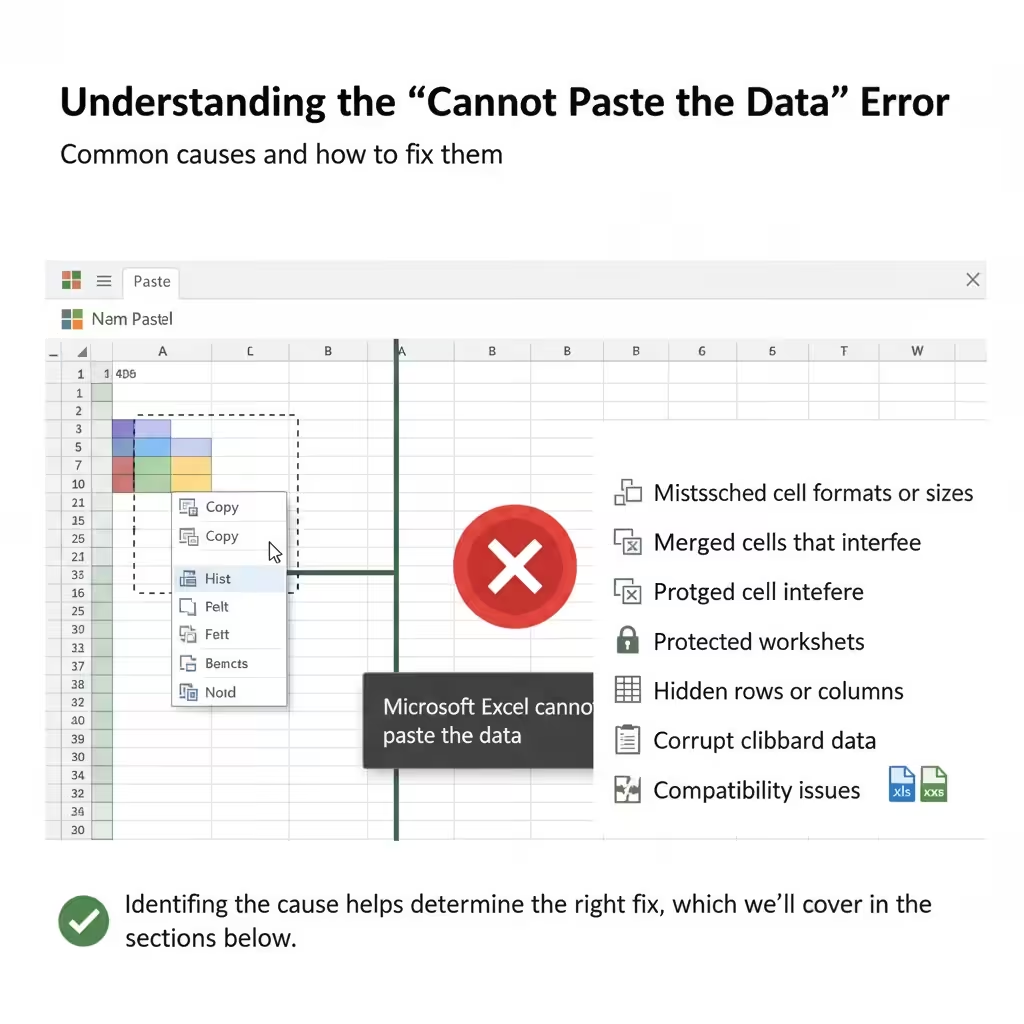
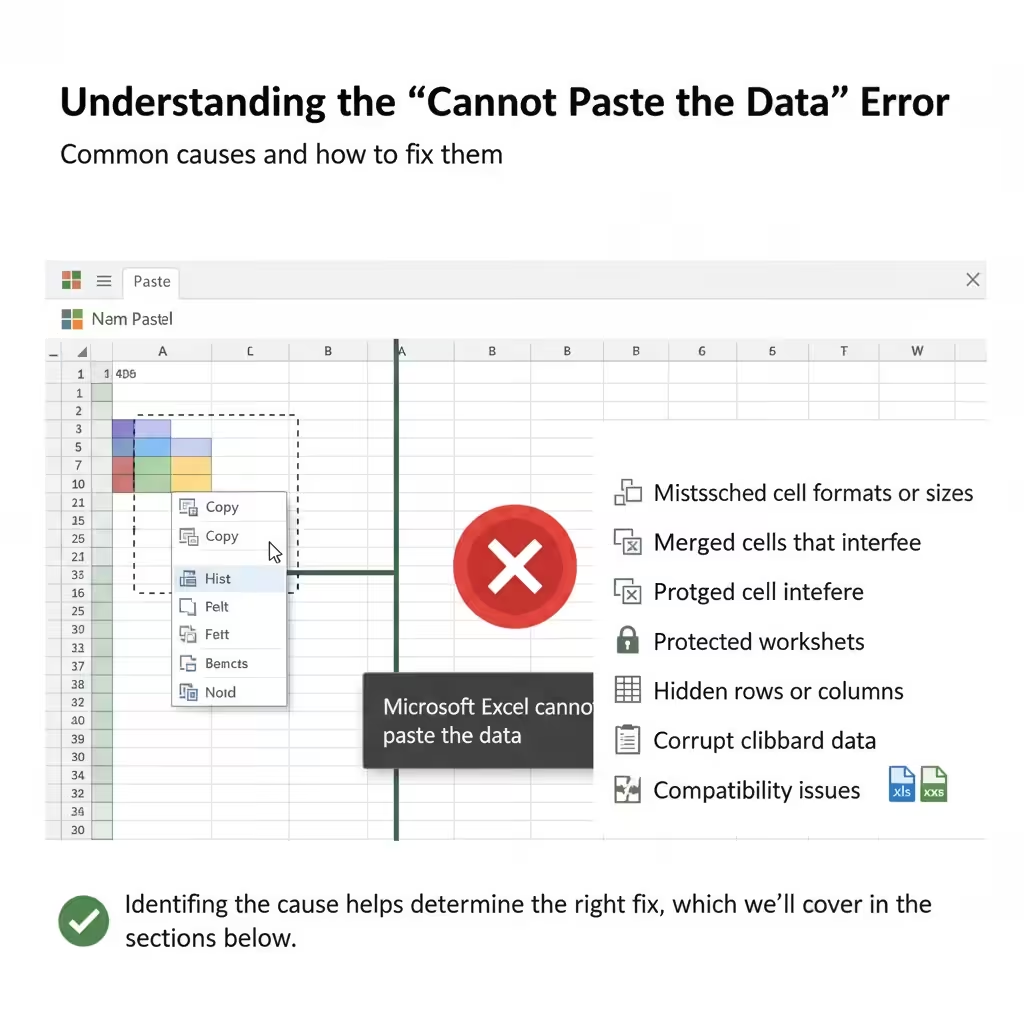
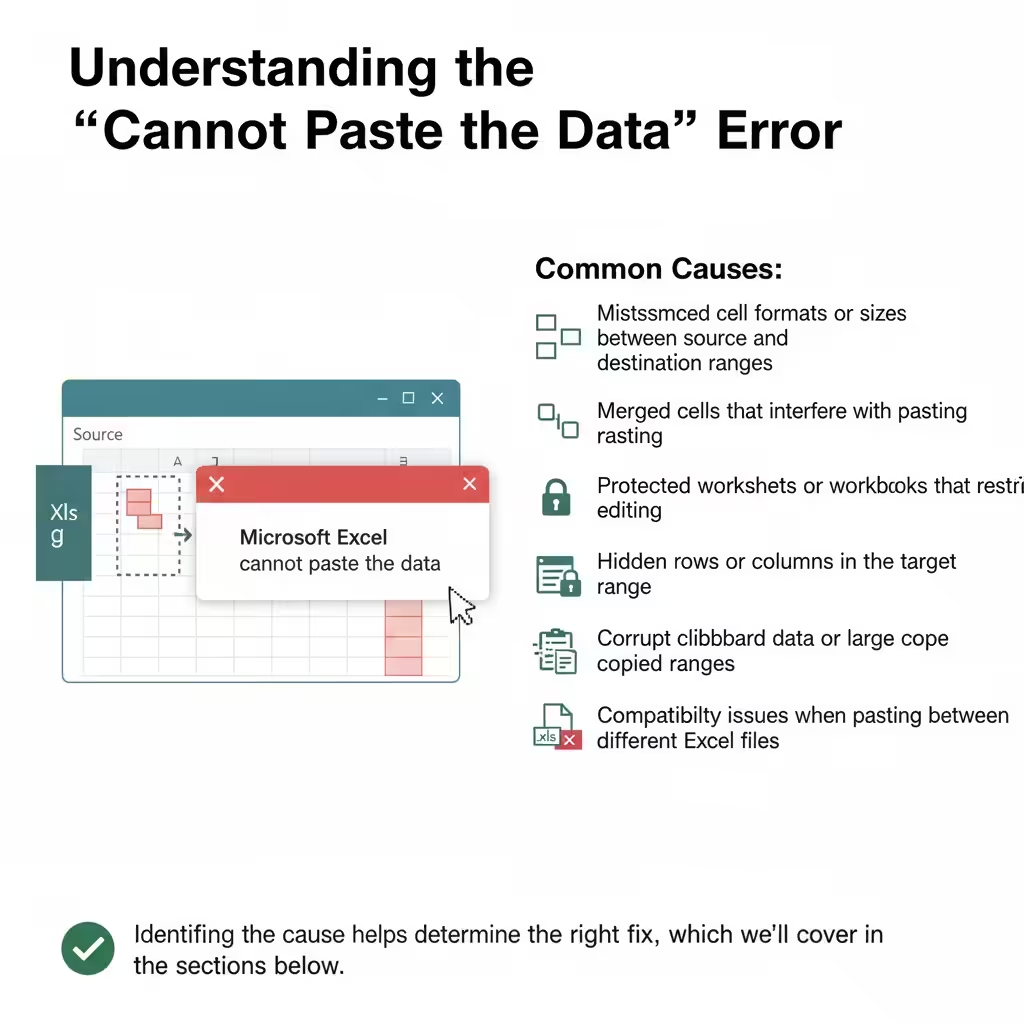
Common causes include:
-
Mismatched cell formats or sizes between source and destination ranges.
-
Merged cells that interfere with pasting.
-
Protected worksheets or workbooks that restrict editing.
-
Hidden rows or columns in the target range.
-
Corrupt clipboard data or large copied ranges.
-
Compatibility issues when pasting between different Excel files (e.g., .xls and .xlsx).
Identifying the cause helps determine the right fix, which we’ll cover in the sections below.
1. Check for Merged Cells
One of the most common reasons Excel can’t paste data is due to merged cells. When you copy a range that includes merged cells into an area that doesn’t match the merge pattern, Excel won’t know how to align the data.
Solution:
-
Select the range you’re copying.
-
Go to the Home tab.
-
Click Merge & Center → Unmerge Cells.
-
Try copying and pasting again.
If you need merged formatting, paste first, then reapply merging afterward.
2. Match the Paste Area Size
If the area you’re trying to paste into doesn’t match the size of the copied range, Excel may throw an error. For instance, if you copy a 5×5 block but select only a 3×3 destination range, Excel cannot fit the data.
Solution:
-
Make sure you select the same number of rows and columns in the destination area as in the source range.
-
If unsure, click the first cell in your target range instead of selecting a full block — Excel will automatically adjust the range.
3. Clear Filters Before Pasting
If your worksheet has filters applied, Excel might block certain paste operations because filtered rows are hidden.
Solution:
-
Go to the Data tab.
-
Click Clear under the Filter group to remove all filters.
-
Paste your data again.
Afterward, you can reapply filters as needed.
4. Unhide Rows and Columns
Hidden rows or columns in your target range can also prevent data from being pasted correctly.
Solution:
-
Select all rows and columns in the worksheet by clicking the top-left corner of the grid.
-
Right-click and choose Unhide.
-
Try the paste operation again.
Once done, you can re-hide rows or columns if needed.
5. Remove Worksheet Protection
If the worksheet or workbook is protected, certain actions like pasting or formatting might be restricted.
Solution:
-
Go to the Review tab.
-
Click Unprotect Sheet or Unprotect Workbook.
-
Enter the password if prompted.
Once protection is disabled, retry your paste. You can always protect it again after you finish editing.
6. Use Paste Special Options
Sometimes, Excel cannot paste data normally due to formatting conflicts. Using Paste Special allows you to paste only specific data types (like values, formulas, or formats) to avoid issues.
Solution:
-
Copy your data as usual (Ctrl + C).
-
Right-click in the destination area.
-
Select Paste Special.
-
Choose an appropriate option such as Values, Formulas, or Formats.
This can often bypass the error and help isolate which data component caused the issue.
7. Check for Data Validation Rules
If your destination cells have data validation settings (for example, restricting entries to numbers or specific text), Excel may block pasted data that doesn’t meet the rules.
Solution:
-
Select the target cells.
-
Go to Data > Data Validation.
-
Review the validation criteria.
-
Either adjust the rules or clear them by selecting Clear All.
Then, try pasting your data again.
8. Clear the Clipboard
If you’ve been copying and pasting large or complex ranges, your system clipboard might be overloaded or corrupted.
Solution:
-
Copy something small (like a single word) to refresh the clipboard.
-
Alternatively, restart Excel or your computer.
-
Try copying and pasting again.
This can often resolve temporary clipboard issues.
9. Save and Reopen the Workbook
Sometimes, Excel experiences memory or file corruption issues that can cause the paste operation to fail. Saving and reopening your workbook can refresh its state.
Solution:
-
Save your work.
-
Close Excel completely.
-
Reopen the workbook and try the paste operation again.
If the problem persists, try copying data into a new Excel workbook to determine if the original file is corrupted.
10. Disable Add-Ins
Faulty or conflicting Excel add-ins can interfere with normal clipboard functions.
Solution:
-
Go to File > Options > Add-ins.
-
At the bottom, select COM Add-ins from the dropdown and click Go.
-
Uncheck all add-ins and click OK.
-
Restart Excel and try the paste again.
If this fixes the problem, re-enable add-ins one at a time to identify the culprit.
11. Check Compatibility Mode
If you’re working on an old Excel file format (like .xls) in a newer version of Excel, some features may be limited, including paste operations.
Solution:
-
Save the file as a newer version by going to File > Save As.
-
Choose Excel Workbook (*.xlsx).
-
Reopen the new file and try pasting.
This ensures full compatibility with current Excel features.
12. Repair Microsoft Office
If none of the above solutions work, there might be a deeper issue with your Office installation.
Solution:
-
Open Control Panel.
-
Go to Programs > Programs and Features.
-
Select Microsoft Office, then click Change.
-
Choose Quick Repair or Online Repair.
After the repair is complete, restart your computer and try again.
13. Alternative Workaround: Paste into Notepad
As a quick workaround, you can paste your data into Notepad first to remove any formatting that may be causing issues.
-
Copy your data in Excel.
-
Paste it into Notepad.
-
Copy it again from Notepad.
-
Paste it back into Excel.
This ensures only raw text is transferred, which often resolves paste conflicts.
Conclusion
The “Microsoft Excel cannot paste the data” error is one of those small but frustrating issues that can disrupt productivity. The good news is that it’s usually easy to fix once you identify the cause — whether it’s merged cells, data validation, filters, or hidden rows.
By applying the expert tips and solutions outlined in this guide — from checking worksheet protection and adjusting paste options to repairing Office itself — you can resolve the issue and continue working smoothly in Excel.