


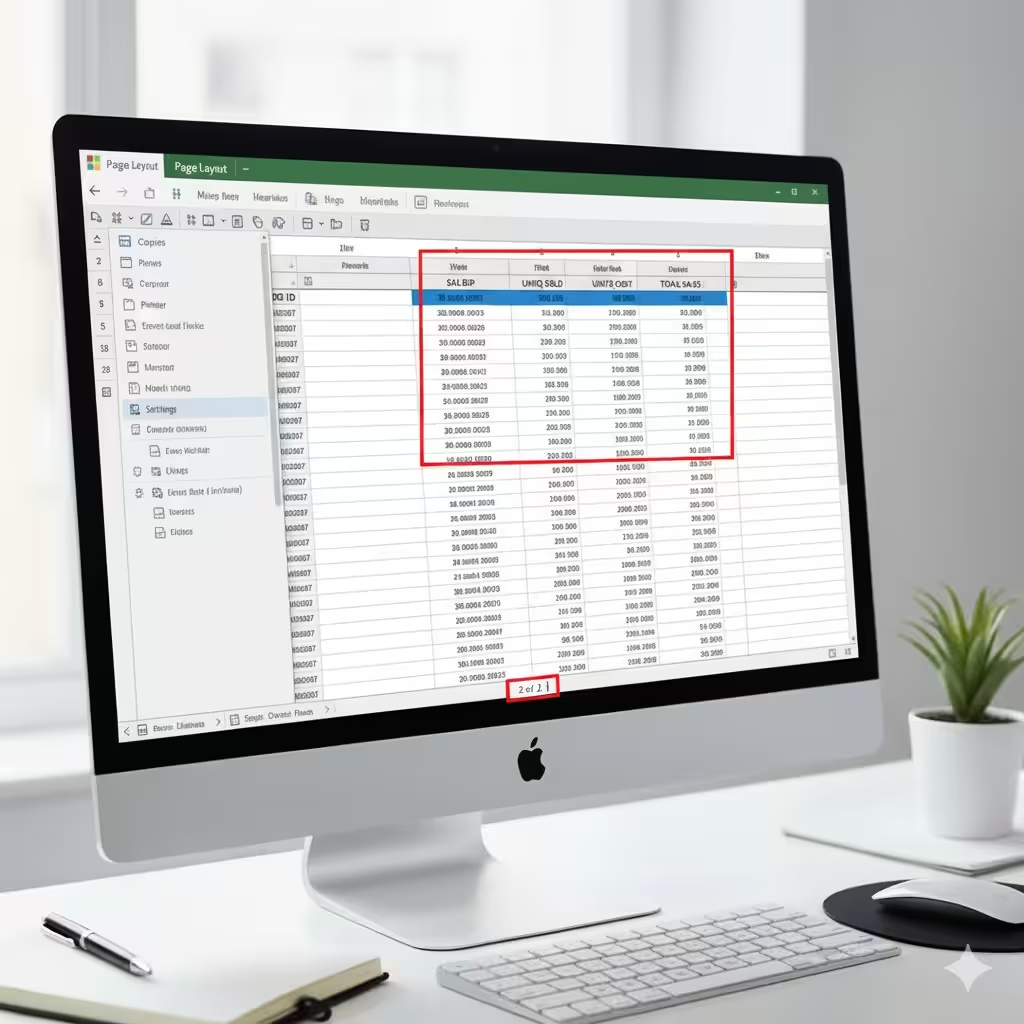
Set Up Excel to Print Sheet Titles on All Pages | Complete Guide
When printing large Excel spreadsheets, it’s easy to lose track of what each column or row represents. You might have headers on the first page, but when you print multiple pages, the rest of the sheets lack those column titles — making the data hard to follow. Fortunately, Excel has a built-in feature that allows you to print titles (row and column headers) on every page, ensuring your printouts are easy to read and understand.
In this detailed step-by-step guide, you’ll learn how to print Excel titles on every page, how to customize the settings, and how to troubleshoot common printing issues.
Why Print Titles on Every Page in Excel?
When working with large datasets, column headers and row labels act as reference points for your data. Without them, your printed pages can become confusing. Printing titles on every page ensures:
-
Consistency across all printed pages
-
Improved readability
-
Easier data analysis and review
-
Professional-looking reports
This feature is especially useful for:
-
Financial statements
-
Inventory lists
-
Sales reports
-
Employee records
-
Academic data sheets
Now, let’s go step by step on how to do it.
Step 1: Open Your Excel Workbook
First, open the Excel workbook that you want to print. It can be any worksheet containing rows and columns with headers that need to appear on all printed pages.
Make sure that your data includes clearly defined header rows or header columns that serve as titles. Typically, the first row (e.g., row 1) contains your column headers such as “Name,” “Date,” “Amount,” etc.
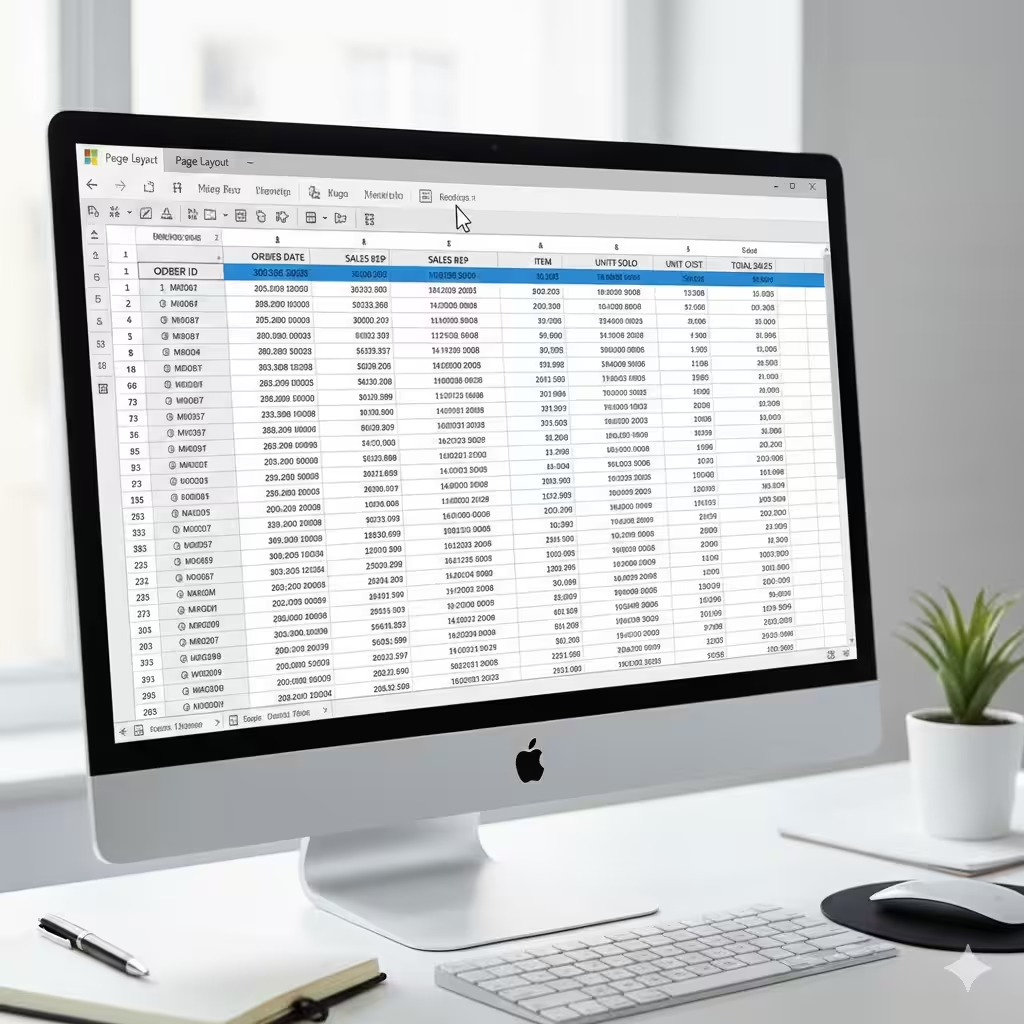
Step 2: Go to the Page Layout Tab
To access the print title settings, you’ll need to use the Page Layout tab in the Excel ribbon.
-
Click the Page Layout tab at the top of Excel.
-
Look for the Page Setup group in the ribbon.
-
You’ll see several options like Margins, Orientation, Size, and most importantly, Print Titles.
This is where you can define which rows or columns will repeat on every page.
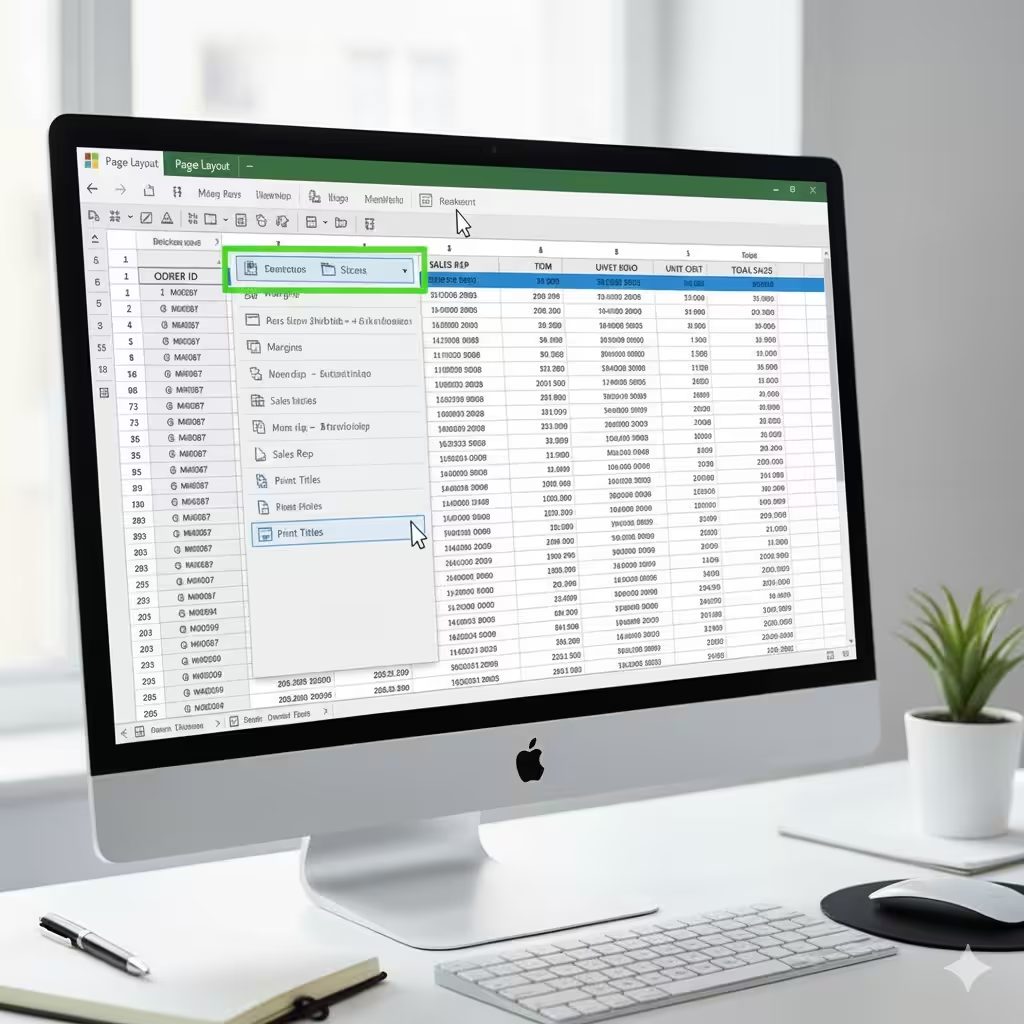
Step 3: Open the Page Setup Dialog Box
Now, you’ll need to open the Page Setup dialog box to define your print title rows or columns.
-
In the Page Layout tab, click the small arrow icon in the bottom-right corner of the Page Setup group.
-
A dialog box will appear with four tabs: Page, Margins, Header/Footer, and Sheet.
-
Select the Sheet tab.
This tab contains the settings that control how Excel prints your sheet, including the option to print specific titles on every page.
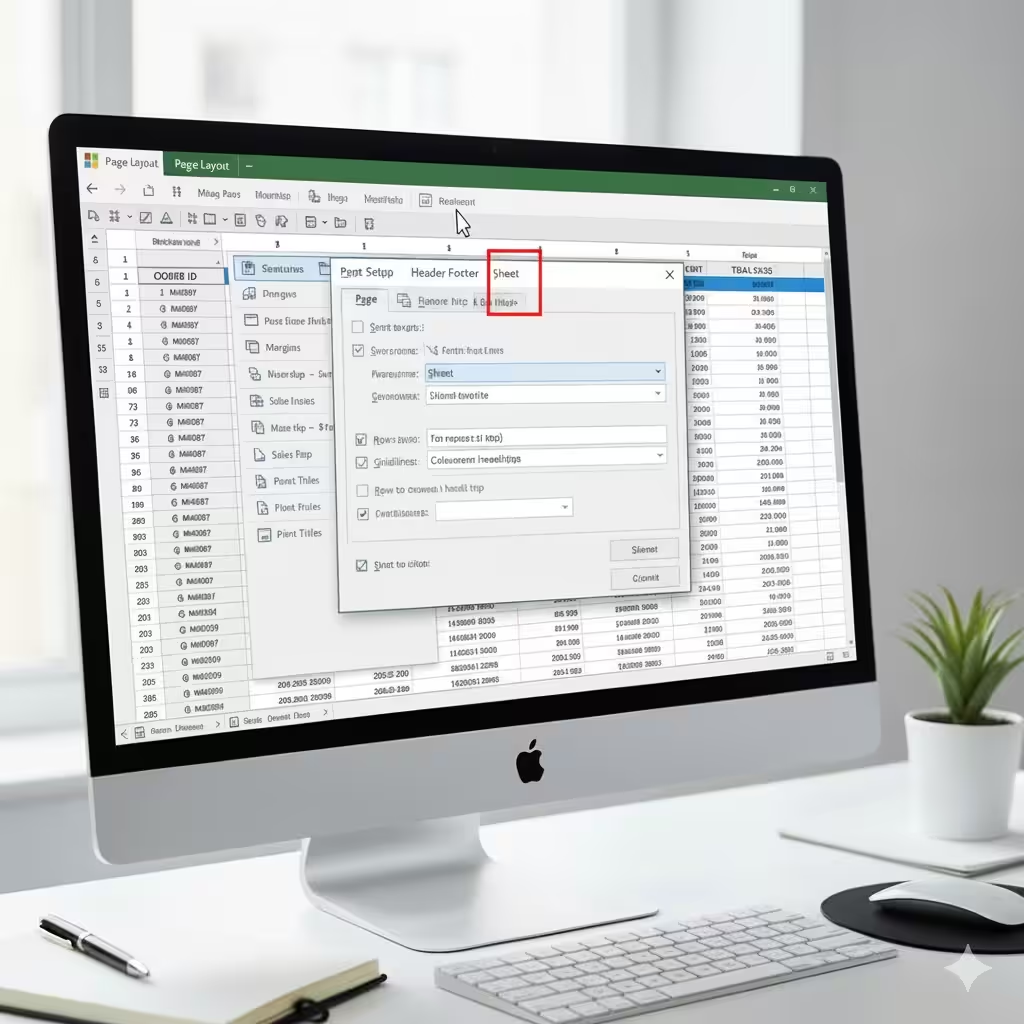
Step 4: Set Titles to Print on Every Page
Under the Sheet tab, look for the two important options:
-
Rows to repeat at top
-
Columns to repeat at left
These fields let you specify which rows or columns will repeat on every printed page.
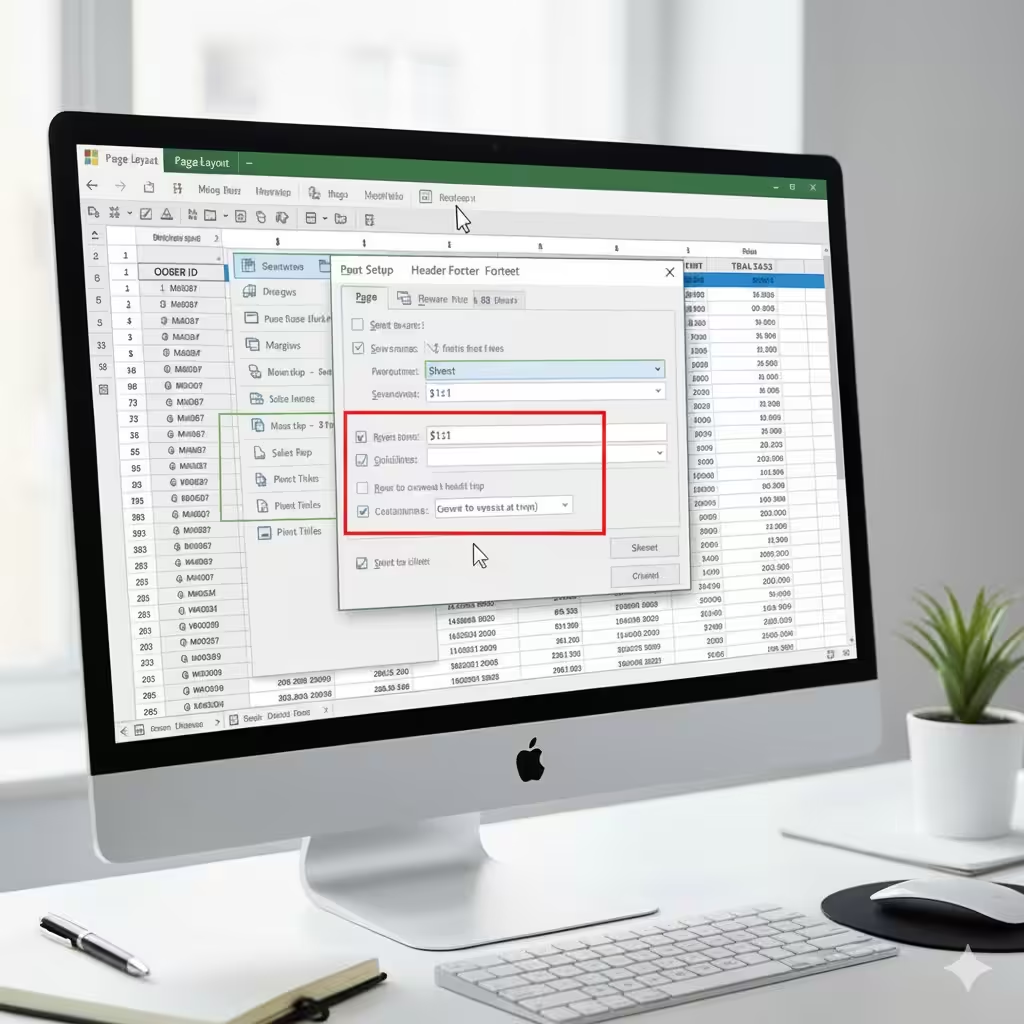
To Repeat Rows (for Column Headers):
-
Click the box next to Rows to repeat at top.
-
Then, click the row number(s) you want to repeat. For example, if your headers are in row 1, click on row 1.
-
Excel will automatically insert the reference like
$1:$1.
-
-
Press Enter or click the small arrow again to return to the dialog box.
To Repeat Columns (for Row Headers):
-
Click the box next to Columns to repeat at left.
-
Then, click on the column letter(s) you want to repeat. For example, if your titles are in column A, click column A.
-
Excel will insert something like
$A:$A.
-
-
Press Enter to return to the dialog box.
After you’ve set these, the selected rows and columns will repeat automatically on every printed page.
Step 5: Preview Before Printing
Before you actually print your document, it’s always a good idea to preview it to make sure your titles are appearing correctly on each page.
How to Preview:
-
Click File → Print (or press Ctrl + P).
-
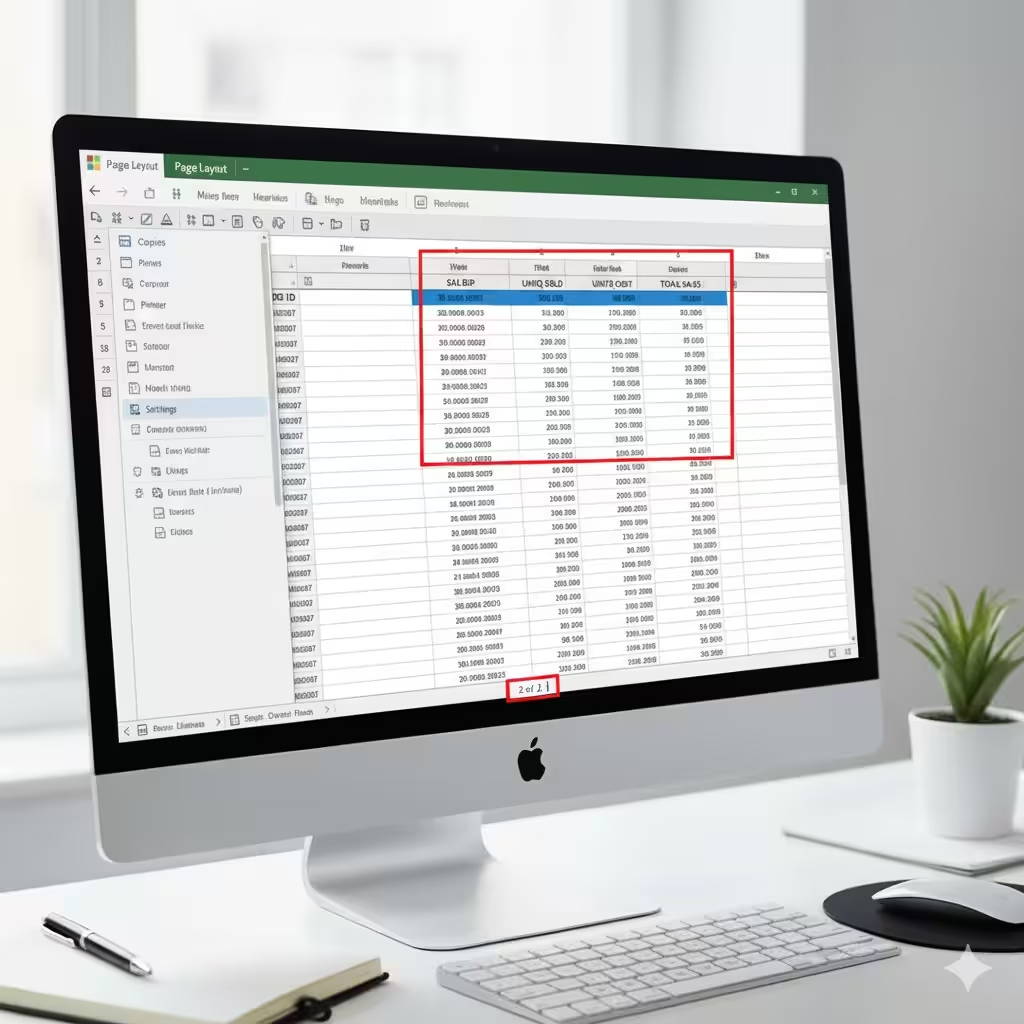
In the Print Preview window, use the arrow buttons at the bottom to navigate through the pages.
-
You should see your chosen header row or column repeated at the top or side of each page.
If the titles don’t appear, double-check your Page Setup settings under the Sheet tab.
Step 6: Print the Document
Once everything looks correct in the preview, it’s time to print your document.
-
In the Print Preview screen, choose your printer.
-
Set the number of copies and adjust the orientation (portrait or landscape) if needed.
-
Click Print.
Your Excel sheet will now print with the selected titles appearing consistently across all pages.
Step 7: Save the Settings for Future Use
Excel remembers the Print Titles settings for each worksheet individually. If you want to keep them for later printing:
-
Save your workbook after setting up the print titles.
-
Next time you print the same worksheet, Excel will automatically apply the same print title settings.
If you copy the worksheet into another workbook, the print title settings will also be copied.
Advanced Options
Excel also offers a few more printing options that can help you format your document neatly and professionally.
Include Gridlines and Headings
To make your printed sheets easier to read:
-
Go to the Page Layout tab.
-
Under Sheet Options, check the boxes for Print under Gridlines and Headings.
This will print cell borders and row/column headings like A, B, C, and 1, 2, 3.
Adjust Page Breaks
Sometimes your titles might not align well due to awkward page breaks. You can manually adjust them:
-
Go to the View tab.
-
Click Page Break Preview.
-
Drag the blue lines to adjust where Excel splits pages.
This ensures that your repeating titles remain visible and aligned on every page.
Scaling to Fit
If your sheet is too wide or too long, some columns or rows may spill onto new pages. To fix this:
-
Go to Page Layout → Scale to Fit group.
-
Adjust the Width and Height to “1 page.”
This setting compresses your data so everything fits neatly, with your repeated titles still in place.
Troubleshooting Common Issues
If your Excel titles aren’t printing correctly, here are a few common fixes:
Titles Don’t Repeat on Some Pages
-
Make sure you selected the correct row or column reference.
-
Check if your print area is set correctly (Page Layout → Print Area → Clear Print Area).
Print Titles Option Is Grayed Out
-
You might be in Page Break Preview or Page Layout View mode. Switch back to Normal View first.
Titles Print Too Small or Too Large
-
Check your scaling options. If you’ve set “Fit to One Page,” Excel may shrink the content. Try adjusting manually.
Headers Not Visible in Print Preview
-
Confirm that Rows to repeat at top or Columns to repeat at left are correctly set in the Sheet tab of Page Setup.
Example Scenario
Let’s say you’re printing a monthly sales report with the following headers:
| Product | Category | Units Sold | Price | Total |
Your data spans 200 rows. Without repeating titles, only the first page will display these headers. But if you set Rows to repeat at top: $1:$1, Excel will print this header row at the top of every page, making it easy to track which column corresponds to which data point.
Final Tips
-
Always use Print Preview before printing large datasets.
-
Use Page Layout View to visually check how your titles appear on each page.
-
For professional reports, consider adding your company name or logo in the Header/Footer section.
-
Combine Print Titles with Freeze Panes (View → Freeze Panes) for easier on-screen navigation.
Conclusion
Learning how to print Excel titles on every page can save you time, frustration, and confusion when working with long spreadsheets. With just a few steps in the Page Layout and Page Setup options, you can ensure that your headers or labels appear consistently on each printed page.
This feature not only improves readability but also gives your printed reports a polished and professional look. Once you’ve mastered it, printing structured, clear Excel documents will be easier than ever.