


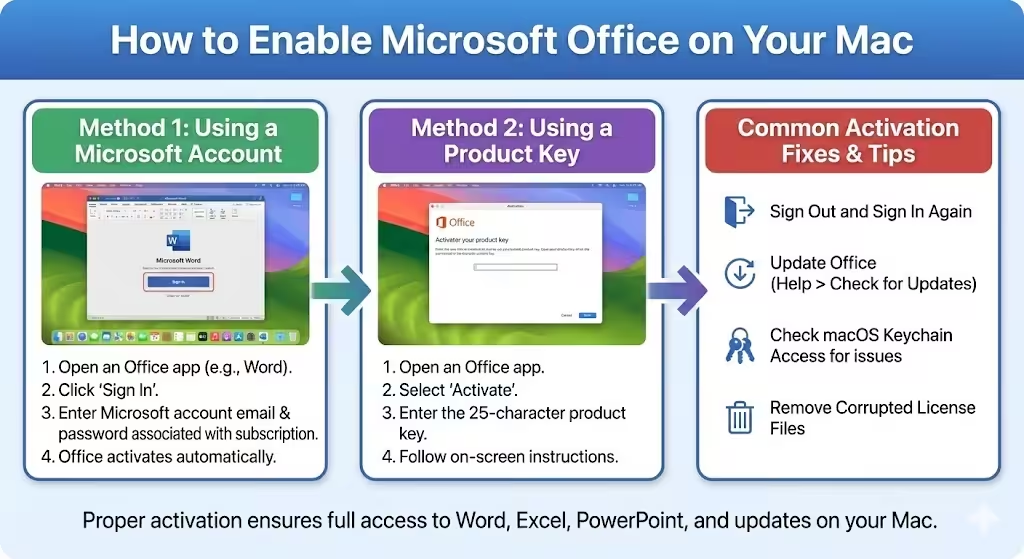
How to Enable Microsoft Office on Your Mac
Activating Microsoft Office on macOS is an essential step to unlock all features and ensure your applications work without limitations. Whether you are using Office for work, study, or personal tasks, proper activation guarantees access to updates, security patches, and full functionality. This guide explains in detail how to activate Office for Mac, common activation methods, potential problems you may encounter, and how to fix them.
Understanding Office Activation on Mac
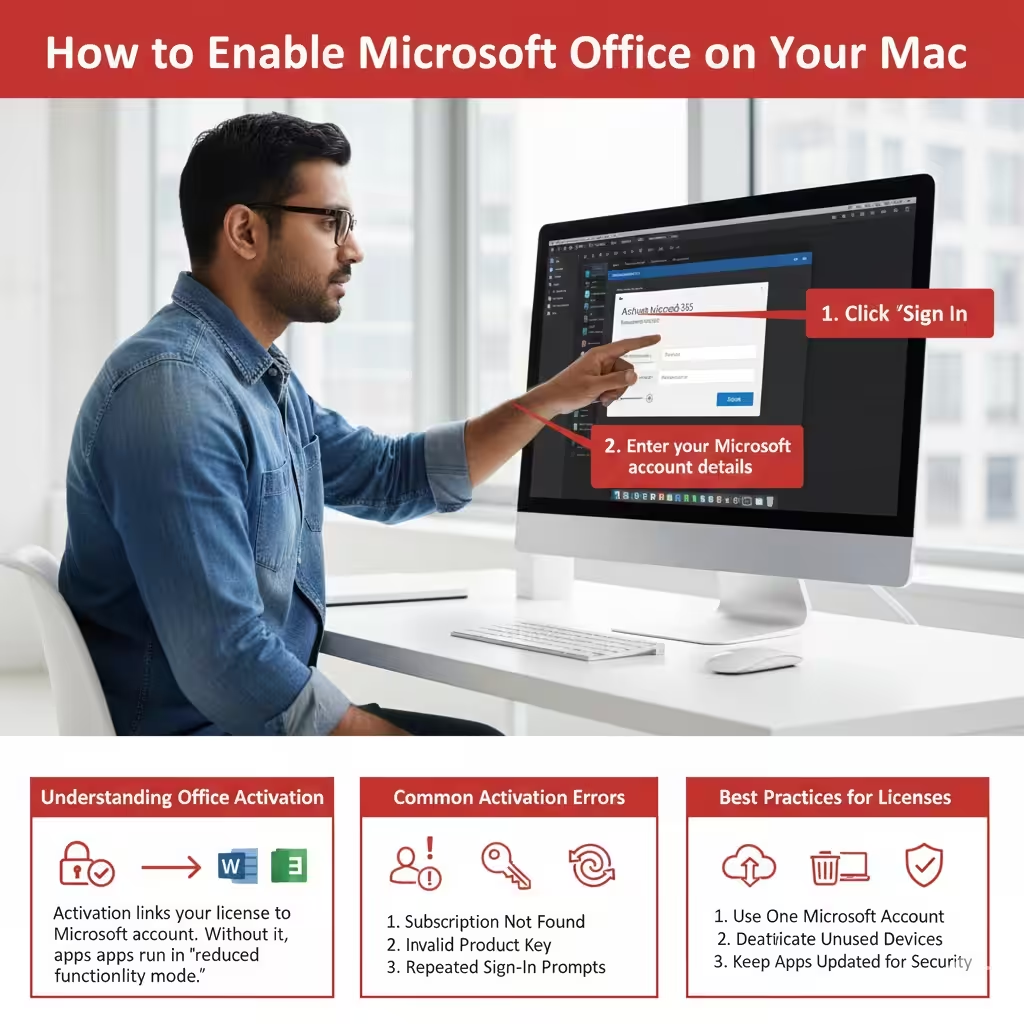
Office activation is a verification process that confirms your copy of Microsoft Office is genuine and licensed. Without activation, Office apps such as Word, Excel, and PowerPoint may open in reduced functionality mode, allowing you to view documents but not edit or save them.
On macOS, activation is typically linked to a Microsoft account rather than a traditional product key. However, some volume license and older versions still rely on license keys. Understanding which license type you have will help you activate Office correctly.
System Requirements Before Activation
Before activating Office for Mac, ensure your system meets the basic requirements to avoid errors during the process.
Check macOS Version
Microsoft Office supports specific macOS versions depending on the Office release. Make sure your macOS version is compatible with your installed Office edition.
Stable Internet Connection
A stable internet connection is required to sign in to your Microsoft account and verify the license.
Valid Microsoft Account or License
Ensure that the Microsoft account you plan to use has an active Office subscription or a valid license assigned to it.
Method 1: Activate Office for Mac Using a Microsoft Account
This is the most common and recommended activation method for Microsoft 365 and newer Office versions.
Step-by-Step Activation
- Open any Office application, such as Word or Excel.
- When prompted, click Sign In.
- Enter the Microsoft account email associated with your Office subscription.
- Enter your password and complete any verification steps.
- Once signed in, Office will automatically activate.
After activation, you should see a confirmation message, and all features will become available.
Method 2: Activate Office for Mac Using a Product Key
Some standalone Office versions or volume licenses require a product key instead of a subscription-based account.
How to Use a Product Key
- Open an Office application.
- Select Activate when the activation window appears.
- Enter the 25-character product key.
- Follow the on-screen instructions to complete activation.
In many cases, you may be redirected to sign in with a Microsoft account to associate the key with your account.
Activating Office After Reinstallation or Device Change
If you reinstall macOS or switch to a new Mac, Office may require reactivation.
What to Do
- Sign in using the same Microsoft account previously used
- Deactivate Office on old devices if license limits are reached
- Download Office from the official Microsoft account page
Microsoft allows activation on a limited number of devices depending on your license type.
Common Office for Mac Activation Errors
Despite following the correct steps, you may encounter activation issues.
Office Says Subscription Not Found
This usually means you are signed in with the wrong Microsoft account. Verify the account used to purchase Office.
Activation Keeps Prompting to Sign In
Repeated sign-in prompts may indicate corrupted license files or keychain issues.
Product Key Is Invalid
Ensure the key is entered correctly and matches the Office version installed.
How to Fix Office for Mac Activation Problems
Sign Out and Sign In Again
Open any Office app, sign out of your Microsoft account, close the app, then reopen and sign in again.
Remove Office License Files
Sometimes corrupted license files cause activation failures. Removing them forces Office to recreate fresh license data during activation.
Update Office
Open an Office app, go to Help > Check for Updates, and install any available updates.
Check macOS Keychain Access
Office stores credentials in Keychain. Clearing outdated Office entries can resolve repeated activation loops.
Best Practices for Managing Office Licenses on Mac
- Keep track of which Microsoft account owns your license
- Deactivate unused devices regularly
- Keep macOS and Office updated
- Avoid unofficial installers or cracks
Proper license management ensures smooth activation and long-term stability.
Conclusion
Activating Office for Mac is a straightforward process when you understand the type of license you own and follow the correct steps. Whether you activate using a Microsoft account or a product key, ensuring proper activation allows you to fully utilize Word, Excel, PowerPoint, and other Office applications. By applying the solutions and best practices outlined in this guide, you can avoid common activation issues and enjoy a reliable Office experience on macOS.