


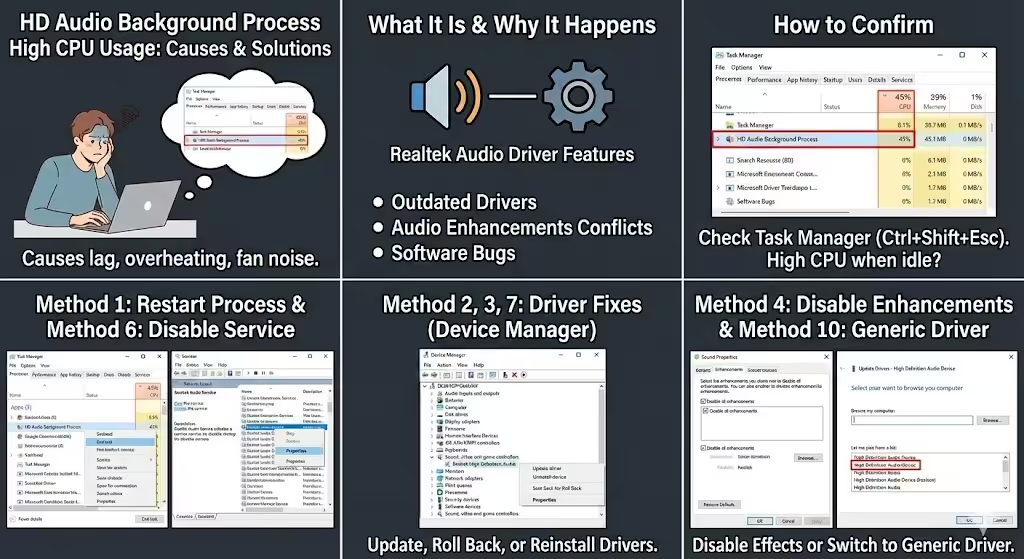
HD Audio Background Process High CPU Usage: Causes and Solutions
Many Windows users notice their computer slowing down and discover in Task Manager that HD Audio Background Process is consuming an unusually high amount of CPU. This issue can cause lag, overheating, fan noise, and poor overall system performance, especially during normal tasks like browsing or watching videos.
This guide explains what the HD Audio Background Process is, why it sometimes causes high CPU usage, and provides clear, effective solutions to fix the problem on Windows systems.
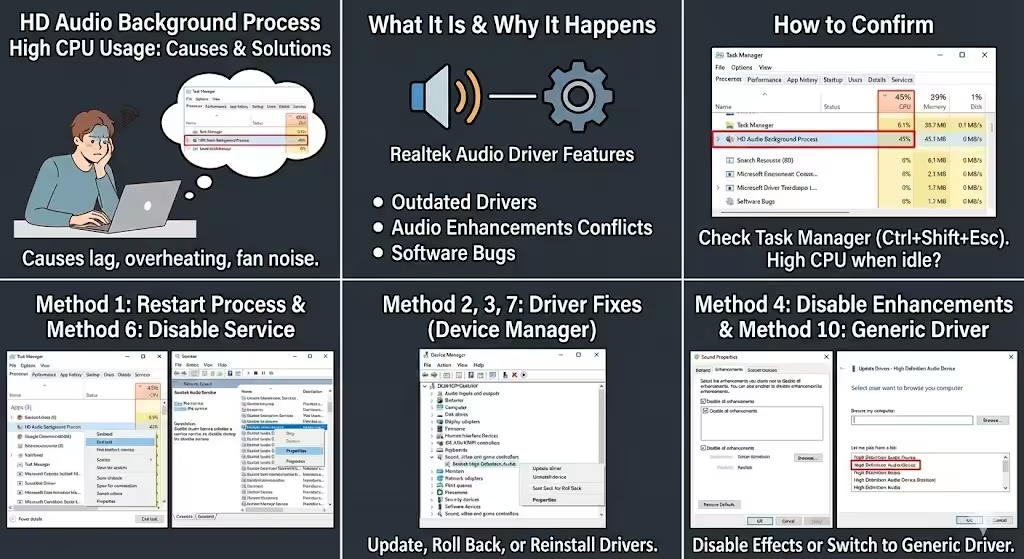
What Is HD Audio Background Process
The HD Audio Background Process is usually associated with audio drivers, most commonly Realtek High Definition Audio. It runs in the background to support features such as:
-
Audio enhancements
-
Jack detection
-
Sound effects and equalizers
-
Audio control panels
Under normal conditions, this process uses very little CPU. When usage spikes, something is not working correctly.
Why HD Audio Background Process Uses High CPU
High CPU usage typically occurs due to:
-
Outdated or corrupted audio drivers
-
Conflicts between audio enhancements and Windows updates
-
Bugs in Realtek audio software
-
Incompatible sound settings
-
Faulty background services
Identifying the cause helps determine the right fix.
How to Confirm the Issue
Before making changes, confirm that this process is responsible.
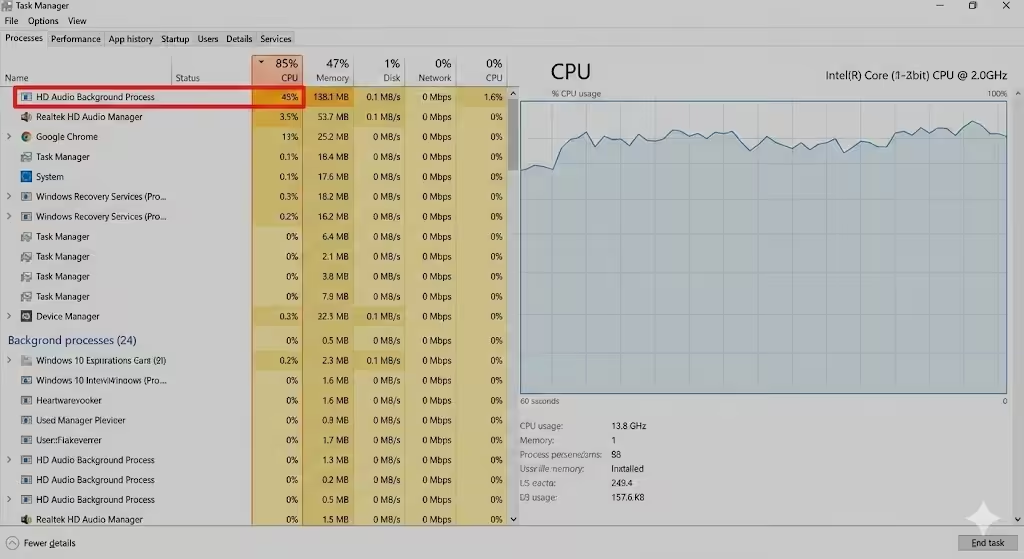
Check in Task Manager
-
Press Ctrl + Shift + Esc
-
Go to the Processes tab
-
Look for HD Audio Background Process
-
Check CPU usage
If CPU usage stays high even when no audio is playing, the issue needs attention.
Method 1: Restart the HD Audio Background Process
Sometimes the problem is temporary and can be fixed by restarting the process.
Steps to Restart
-
Open Task Manager
-
Find HD Audio Background Process
-
Right-click it
-
Select End task
Windows will automatically restart the process. Check CPU usage afterward.
Method 2: Update Realtek Audio Drivers
Outdated drivers are one of the most common causes of high CPU usage.
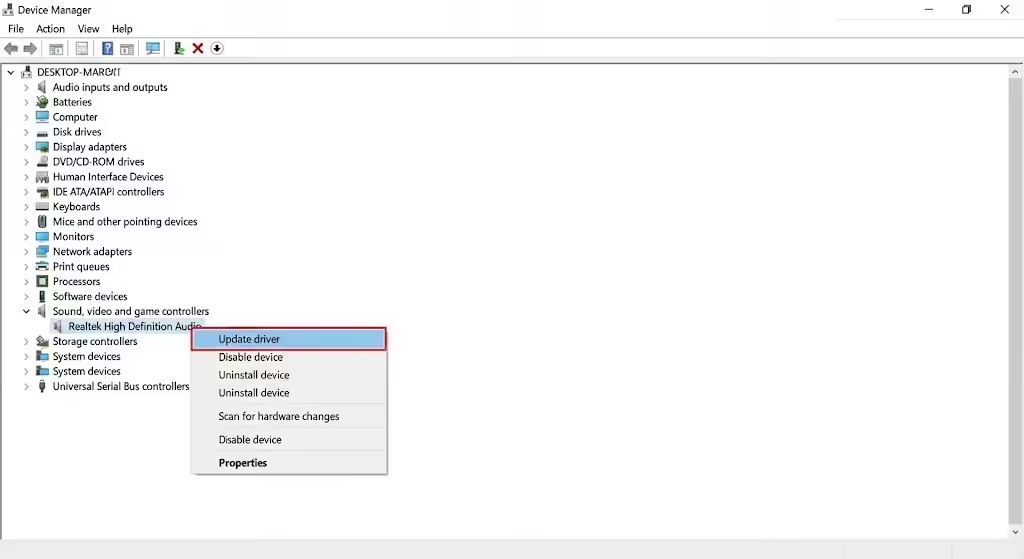
How to Update Audio Drivers
-
Right-click Start
-
Open Device Manager
-
Expand Sound, video and game controllers
-
Right-click Realtek High Definition Audio
-
Select Update driver
Choose automatic update or install the latest driver from your PC manufacturer..
Why This Works
Updated drivers often fix bugs and compatibility issues that cause excessive CPU usage.
Method 3: Roll Back the Audio Driver
Sometimes a recent update introduces new problems.
How to Roll Back
-
Open Device Manager
-
Right-click Realtek High Definition Audio
-
Select Properties
-
Go to the Driver tab
-
Click Roll Back Driver (if available)
Restart your system after rolling back.
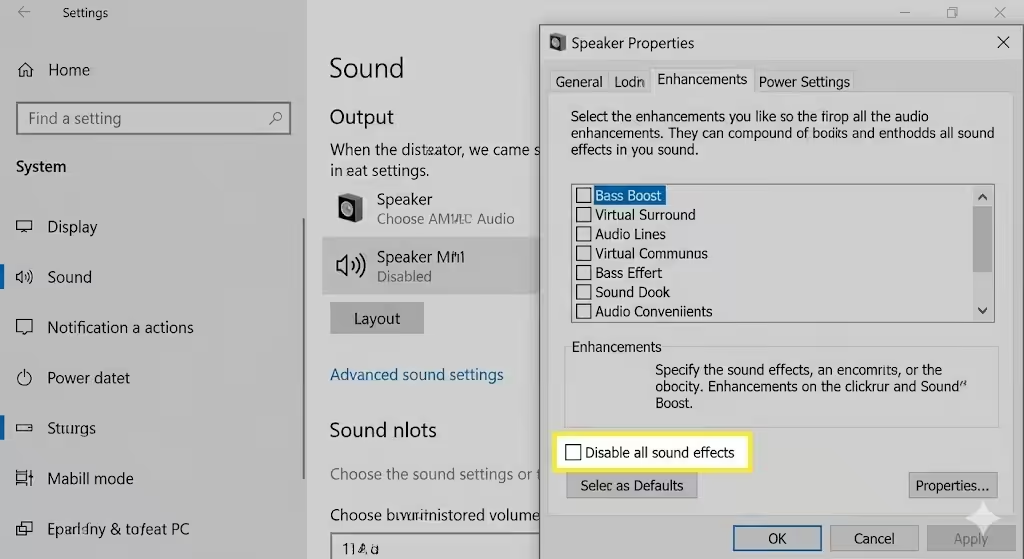
Method 4: Disable Audio Enhancements
Audio enhancements often cause conflicts with Windows.
Disable Enhancements
-
Right-click the speaker icon
-
Choose Sound settings
-
Open More sound settings
-
Select your playback device
-
Click Properties
-
Go to Enhancements
-
Check Disable all enhancements
Apply the changes and monitor CPU usage.
Method 5: Disable HD Audio Background Process at Startup
Preventing the process from starting automatically can reduce CPU spikes.
Steps
-
Open Task Manager
-
Go to the Startup tab
-
Look for Realtek HD Audio
-
Disable it
Note that this may disable some advanced audio features.
Method 6: Disable Realtek Audio Services
Realtek installs background services that may malfunction.
How to Disable Services
-
Press Windows + R
-
Type
services.msc -
Press Enter
-
Find Realtek Audio Service
-
Right-click and select Stop
-
Set startup type to Disabled
Restart your PC and test performance.
Method 7: Reinstall the Audio Driver Completely
If updating or rolling back does not help, a clean reinstall may fix the issue.
Reinstallation Steps
-
Open Device Manager
-
Uninstall Realtek High Definition Audio
-
Restart your PC
-
Let Windows install the default audio driver
This removes corrupted files and resets audio configuration.
Method 8: Check for Windows Updates
Sometimes the issue is caused by Windows itself.
Why Updates Matter
Windows updates often include:
-
Driver compatibility fixes
-
Performance improvements
-
Bug patches
Install all available updates and restart your system.
Method 9: Scan for Malware
Malware can disguise itself as system processes.
What to Do
-
Run a full antivirus scan
-
Use Windows Security or a trusted antivirus tool
-
Remove any detected threats
If malware is present, CPU usage may normalize after removal.
Method 10: Use Windows Generic Audio Driver
If Realtek drivers continue causing issues, switching to a generic driver can help.
How to Switch
-
Open Device Manager
-
Update driver for your audio device
-
Choose Browse my computer
-
Select Let me pick from a list
-
Choose High Definition Audio Device
This disables Realtek-specific features but improves stability.
How to Monitor CPU Usage After Fixes
After applying a fix:
-
Restart your PC
-
Use the system normally
-
Check Task Manager periodically
CPU usage should remain low during idle and normal use.
Preventing Future High CPU Issues
To avoid similar problems:
-
Keep drivers up to date
-
Avoid unnecessary audio enhancements
-
Install updates carefully
-
Monitor startup programs
Regular maintenance keeps your system stable.
Common Mistakes to Avoid
Avoid these errors:
-
Disabling all audio services permanently without testing
-
Installing drivers from unreliable sources
-
Ignoring hardware issues
-
Running multiple audio managers simultaneously
A careful approach leads to better results.
When High CPU Usage Is Normal
Temporary CPU spikes can happen:
-
When switching audio devices
-
During system startup
-
After driver updates
Persistent high usage is the real concern.
Conclusion
High CPU usage caused by the HD Audio Background Process is usually linked to driver issues, audio enhancements, or background services. While the problem can be frustrating, it is rarely permanent or dangerous.