


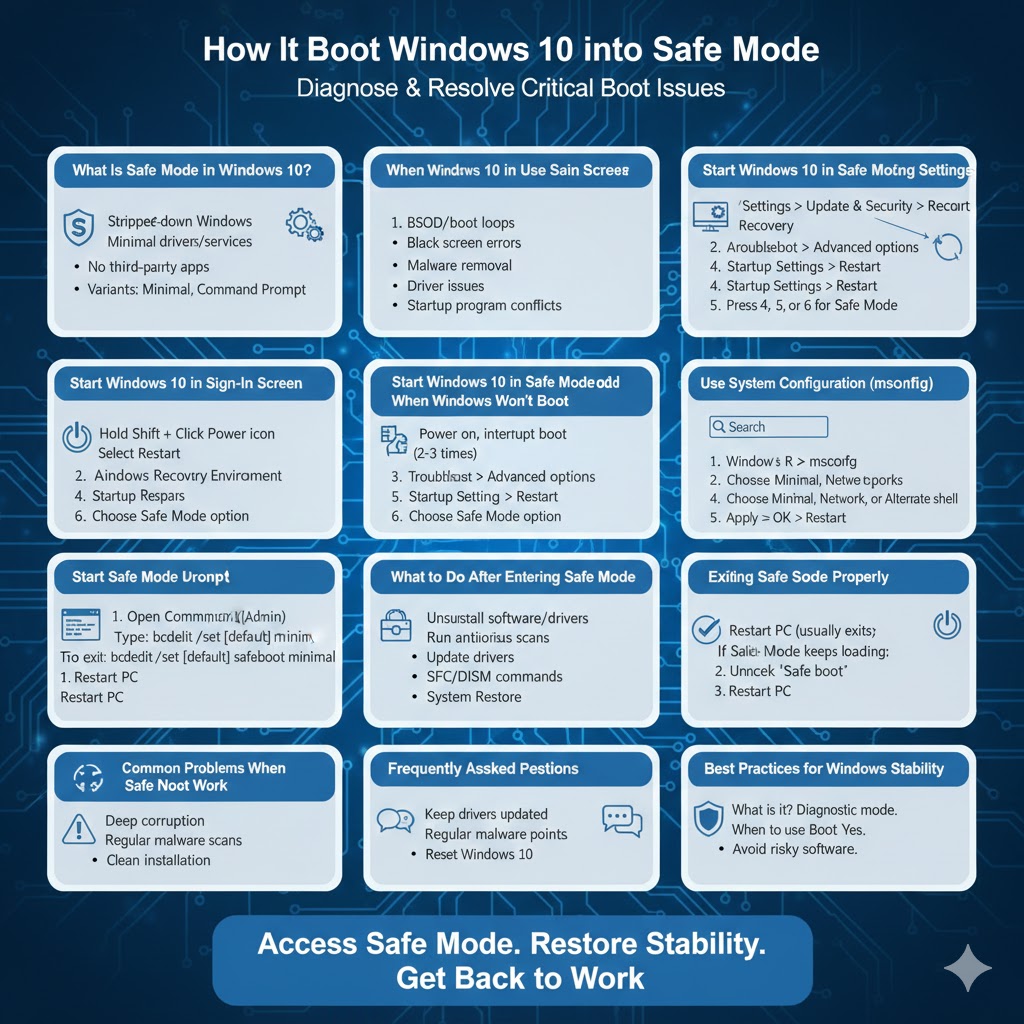
How to Boot Windows 10 into Safe Mode
Safe Mode is a special diagnostic mode in Windows 10 that starts the operating system with a minimal set of drivers, services, and startup programs. When Windows fails to boot normally, crashes frequently, or behaves unpredictably, Safe Mode is often the best place to begin troubleshooting.
Many common Windows problems—such as driver conflicts, startup errors, malware infections, or failed updates—can be isolated and fixed in Safe Mode. This guide explains what Safe Mode is, when you should use it, and all the reliable ways to start Windows 10 in Safe Mode, even if your system cannot boot normally.
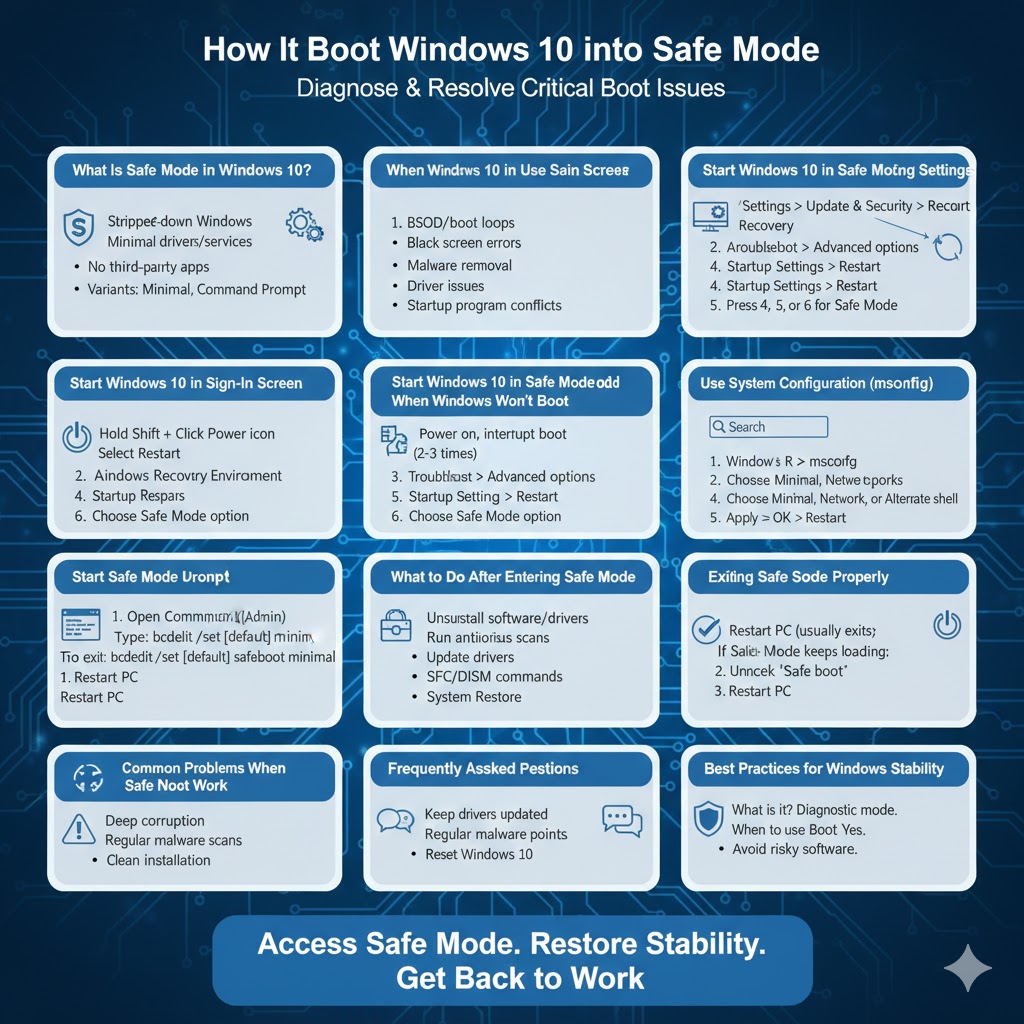
What Is Safe Mode in Windows 10?
Safe Mode is a stripped-down version of Windows that loads only essential system files and basic drivers. Third-party applications, advanced graphics drivers, and non-critical services are disabled. This allows you to identify whether a problem is caused by Windows itself or by installed software or drivers.
Windows 10 offers several Safe Mode variants:
- Safe Mode – Loads Windows with basic drivers only
- Safe Mode with Networking – Adds network drivers and internet access
- Safe Mode with Command Prompt – Opens Windows with a command-line interface instead of the desktop
Each mode serves a different troubleshooting purpose.
When Should You Use Safe Mode?
Safe Mode is especially useful in situations where Windows cannot start normally or becomes unstable shortly after startup.
Common scenarios include:
- Blue Screen of Death (BSOD) errors
- Windows stuck in a reboot loop
- Black screen after login
- Malware or virus infections
- Driver installation failures
- Programs crashing at startup
If the problem does not occur in Safe Mode, it usually indicates a driver, service, or application conflict.
Start Windows 10 in Safe Mode Using Settings
If Windows 10 is still able to boot normally, the easiest way to access Safe Mode is through the Settings app.
Steps to follow:
- Open Settings
- Go to Update & Security
- Select Recovery from the left panel
- Under Advanced startup, click Restart now
After your computer restarts:
- Select Troubleshoot
- Click Advanced options
- Choose Startup Settings
- Click Restart
- Press 4 to enable Safe Mode
- Press 5 to enable Safe Mode with Networking
- Press 6 to enable Safe Mode with Command Prompt
Windows will then start in the selected Safe Mode.
Start Windows 10 in Safe Mode from the Sign-In Screen
If you cannot access the desktop but can reach the sign-in screen, you can still enter Safe Mode.
Steps:
- On the sign-in screen, hold down the Shift key
- Click the Power icon
- Select Restart while holding Shift
Your system will restart into the Windows Recovery Environment.
From there:
- Choose Troubleshoot
- Select Advanced options
- Click Startup Settings
- Choose Restart
- Press 4, 5, or 6 to select a Safe Mode option
Start Windows 10 in Safe Mode When Windows Won’t Boot
If Windows fails to start entirely, you can still force access to recovery mode.
To do this:
- Turn on your PC and interrupt the boot process by holding the power button
- Repeat this process two or three times
Windows will automatically display Preparing Automatic Repair and load the recovery environment.
Once there:
- Select Advanced options
- Choose Troubleshoot
- Click Advanced options
- Select Startup Settings
- Click Restart
After restart, choose the desired Safe Mode option using the number keys.
Use System Configuration (msconfig)
Another way to access Safe Mode is through the System Configuration tool. This method is useful when Windows can still start normally.
Steps:
- Press Windows + R to open Run
- Type
msconfigand press Enter - Go to the Boot tab
- Check Safe boot
- Choose Minimal, Network, or Alternate shell
- Click Apply, then OK
- Restart your computer
Windows will start in Safe Mode automatically.
To exit Safe Mode later, open msconfig again and uncheck Safe boot.
Start Safe Mode Using Command Prompt
Advanced users can enable Safe Mode using Command Prompt.
To do this:
- Open Command Prompt as administrator
- Enter the following command:
bcdedit /set {default} safeboot minimal
Restart your computer, and Windows will boot into Safe Mode.
To return to normal mode, run:
bcdedit /deletevalue {default} safeboot
Then restart your system.
What to Do After Entering Safe Mode
Once you are in Safe Mode, you can begin troubleshooting.
Common tasks include:
- Uninstalling recently installed software or drivers
- Running antivirus or malware scans
- Updating or rolling back device drivers
- Running SFC and DISM commands
- Using System Restore
If the problem is resolved in Safe Mode, restart Windows normally to confirm the fix.
Exiting Safe Mode Properly
Most of the time, restarting your computer will exit Safe Mode automatically. However, if Safe Mode keeps loading, check msconfig to ensure Safe boot is disabled.
Restart once more after making changes.
Common Problems When Safe Mode Does Not Work
In rare cases, Safe Mode itself may fail to load. This usually indicates deeper system corruption or hardware issues.
Possible solutions include:
- Running Startup Repair
- Resetting Windows 10
- Performing a clean installation
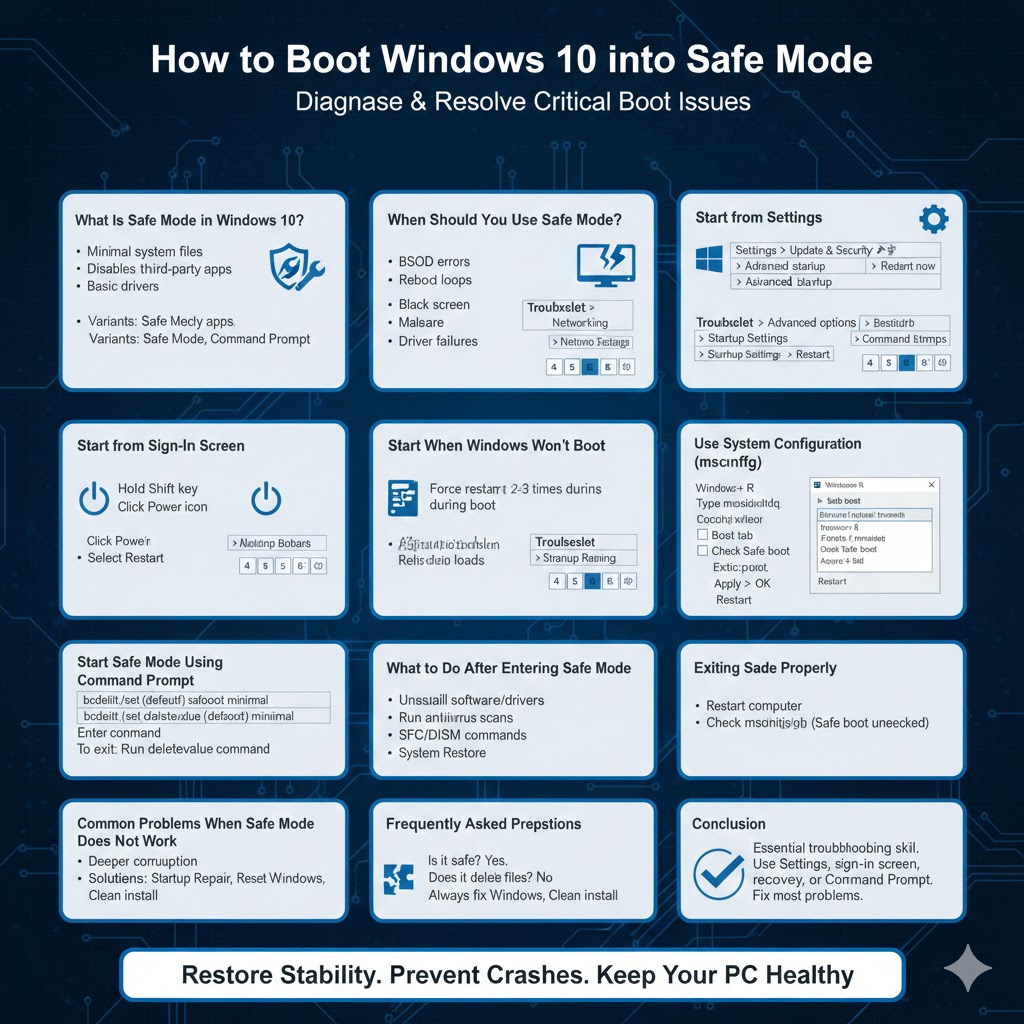
Conclusion
Knowing how to start Windows 10 in Safe Mode is an essential troubleshooting skill. Whether Windows is running normally, stuck at the sign-in screen, or completely unable to boot, Safe Mode provides a controlled environment to diagnose and fix problems.
By using the methods outlined in this guide—Settings, sign-in screen, recovery mode, msconfig, and Command Prompt—you can access Safe Mode in almost any situation and restore Windows 10 to stable working condition.