


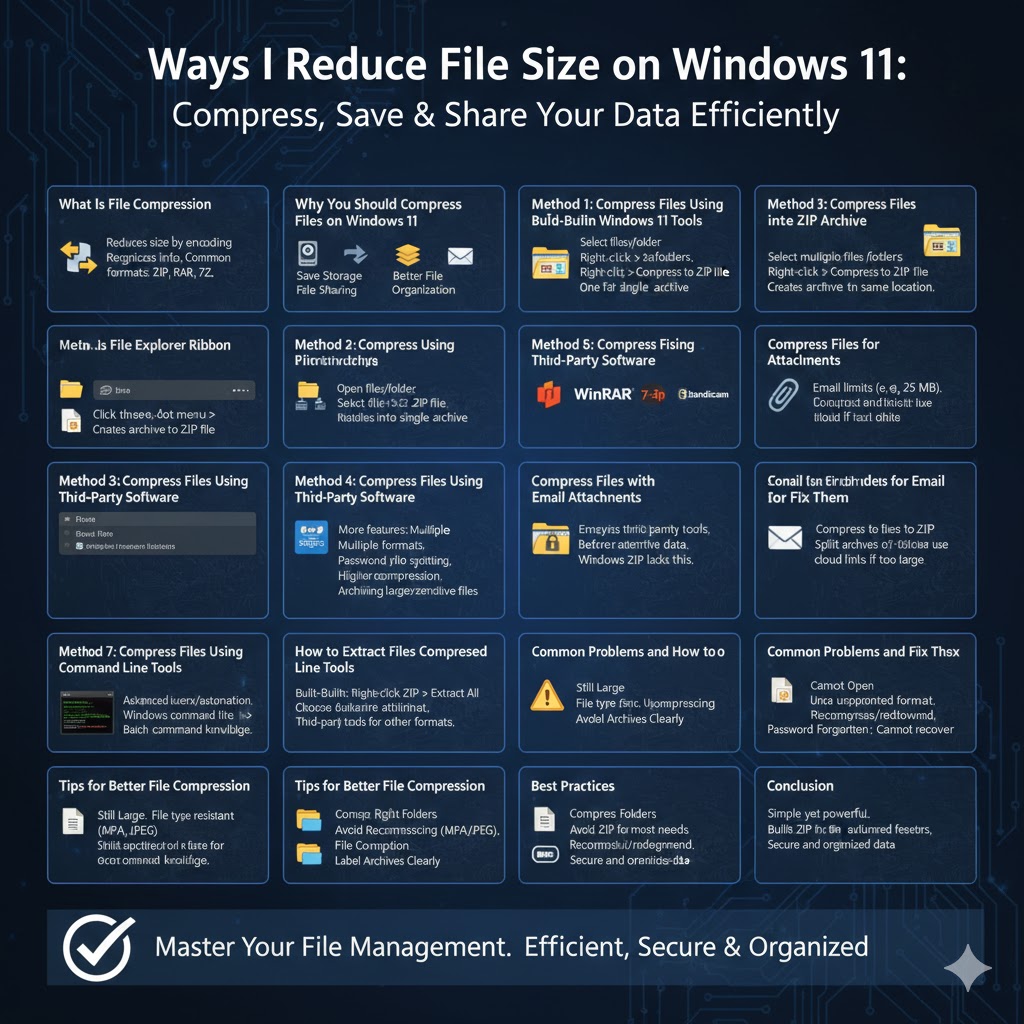
Ways to Reduce File Size on Windows 11
File compression is a practical and efficient way to reduce file size, save storage space, and make file sharing faster and easier. Whether you need to send large files via email, upload documents to cloud storage, or organize data on your computer, file compression is an essential skill for Windows 11 users.
Windows 11 includes built-in tools that allow you to compress files without installing additional software. At the same time, third-party applications offer advanced features such as higher compression ratios, password protection, and multiple archive formats. This guide explains all the reliable ways to compress files on Windows 11 and helps you choose the best method for your needs.
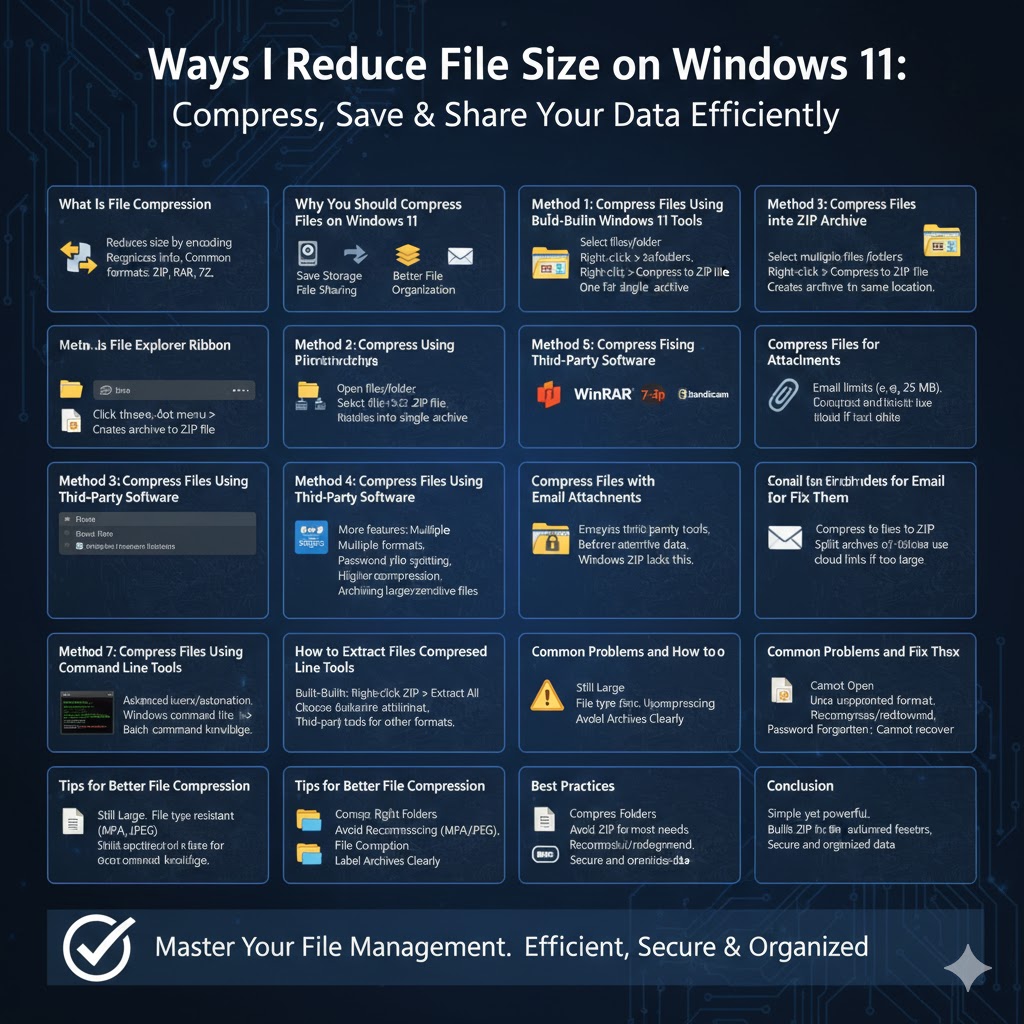
What Is File Compression
File compression is the process of reducing the size of one or more files by encoding data more efficiently.
How Compression Works
Compression removes redundant data or reorganizes information so it takes up less space. When compressed files are extracted, they return to their original form.
Common Compression Formats
Popular formats include ZIP, RAR, 7Z, and TAR. Windows 11 natively supports ZIP files, making them the most convenient option.
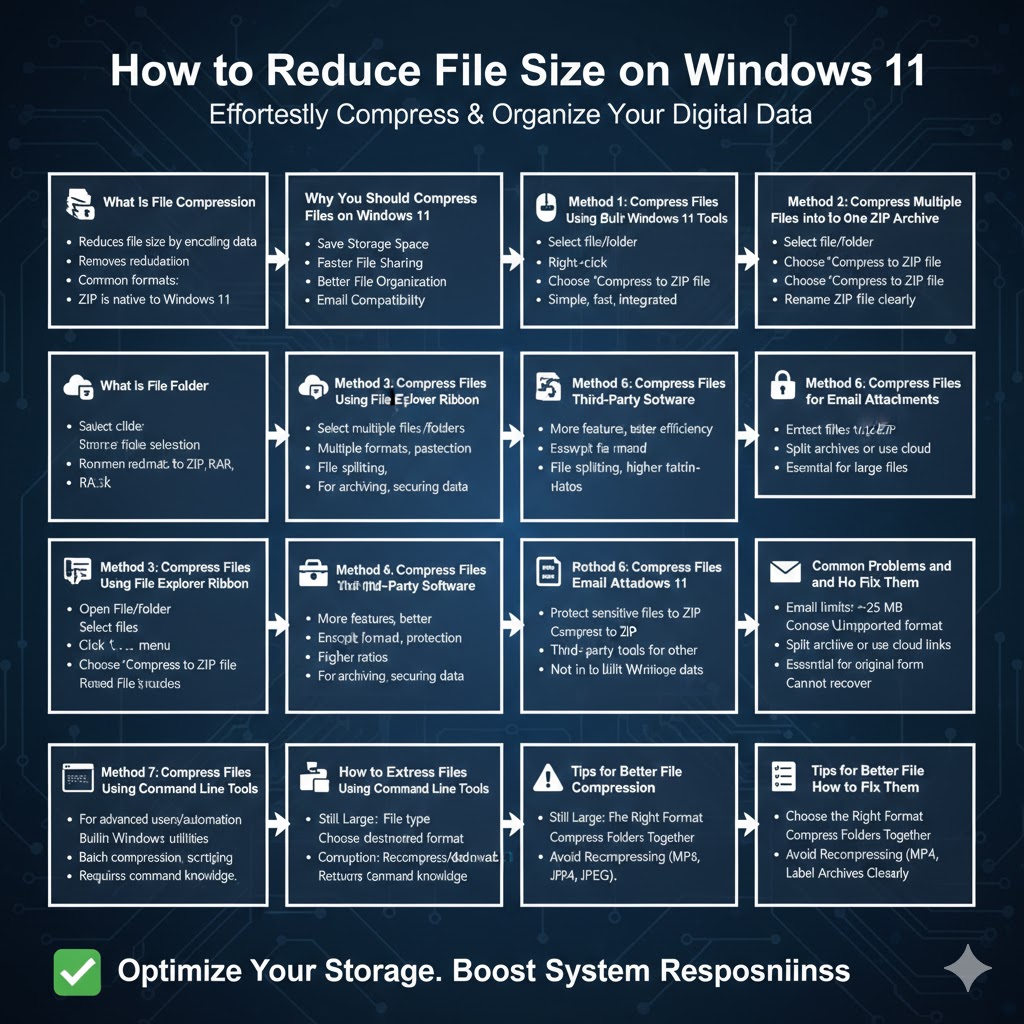
Why You Should Compress Files on Windows 11
Compressing files offers several practical benefits.
Save Storage Space
Compressed files take up less disk space, allowing you to store more data.
Faster File Sharing
Smaller files upload and download faster, especially over limited internet connections.
Better File Organization
Multiple files can be combined into a single compressed archive.
Email Compatibility
Many email services restrict attachment size, making compression essential.
Method 1: Compress Files Using Built-in Windows 11 Tools
Why Use Built-in Compression
Windows 11 includes native ZIP compression, which is simple and does not require extra software.
Steps to Compress Files
Select the file or folder you want to compress, right-click it, choose Compress to ZIP file, and Windows will create a ZIP archive in the same location.
Advantages
Fast, simple, and fully integrated into Windows 11.
Limitations
Only supports ZIP format and lacks advanced options like encryption.
Method 2: Compress Multiple Files into One ZIP Archive
When This Is Useful
This method is ideal for sending multiple files together.
Steps
Select multiple files or folders, right-click the selection, choose Compress to ZIP file, and Windows will combine them into a single archive.
Best Practices
Rename the ZIP file clearly to describe its contents.
Method 3: Compress Files Using File Explorer Ribbon
Alternative Method
You can also compress files using the File Explorer menu.
Steps
Open File Explorer, select your files, click the three-dot menu in the toolbar, and choose Compress to ZIP file.
Why Use This Method
It offers the same functionality with a different interface preference.
Method 4: Compress Files Using Third-Party Software
Why Use Third-Party Tools
Third-party compression tools provide more features and better compression efficiency.
Common Features
Support for multiple formats, password protection, file splitting, and higher compression ratios.
Popular Use Cases
Archiving large files, securing sensitive data, or compressing files for long-term storage.
Considerations
Some advanced features may require paid versions.
Method 5: Compress Files with Password Protection
Why Password Protection Matters
Sensitive files should be protected from unauthorized access.
How It Works
Third-party tools allow you to encrypt compressed files with a password.
Best Use Case
Sharing confidential documents or personal data.
Limitations
Built-in Windows compression does not support passwords.
Method 6: Compress Files for Email Attachments
Email Size Limits
Most email providers limit attachment size, often around 25 MB.
Steps
Compress files into a ZIP archive before attaching them to an email.
Alternative Options
If files are still too large, consider splitting archives or using cloud storage links.
Method 7: Compress Files Using Command Line Tools
Why Use Command Line
Advanced users may prefer automation and scripting.
How It Works
Windows includes command-line utilities that can compress files into ZIP archives.
Best Use Case
Batch compression and automated workflows.
Drawbacks
Not beginner-friendly and requires command knowledge.
How to Extract Compressed Files on Windows 11
Built-in Extraction
Right-click a ZIP file and choose Extract All, then follow the prompts.
Extract to a Specific Location
Choose a destination folder during extraction for better organization.
Third-Party Extraction
Third-party tools support additional archive formats beyond ZIP.
Common Problems and How to Fix Them
Compressed File Is Still Large
Compression effectiveness depends on file type. Videos and images may not compress significantly.
Cannot Open Compressed File
Ensure the format is supported or use third-party software.
File Corruption
Recompress the file or download it again if corruption occurs.
Password Forgotten
Encrypted archives cannot be recovered without the correct password.
Tips for Better File Compression
Choose the Right Format
ZIP is best for compatibility, while other formats may offer better compression.
Compress Folders Instead of Individual Files
This improves organization and convenience.
Avoid Recompressing Already Compressed Files
Formats like MP4 or JPEG are already compressed.
Label Archives Clearly
Use descriptive names for easier identification later.
When You Should Compress Files
File compression is ideal when sharing files online, archiving old documents, saving disk space, or organizing projects. It is less effective for files that are already compressed or frequently accessed.
Conclusion
Compressing files on Windows 11 is a simple yet powerful way to manage storage, improve file sharing, and keep your data organized. With built-in ZIP compression, most users can quickly compress files without installing additional software. For those who need advanced features like encryption or higher compression ratios, third-party tools offer flexible solutions.
By understanding the different compression methods and choosing the right approach for each situation, you can make file management on Windows 11 more efficient and secure. Whether you are compressing files for email, storage, or backup, mastering file compression is a valuable skill for any Windows user.