


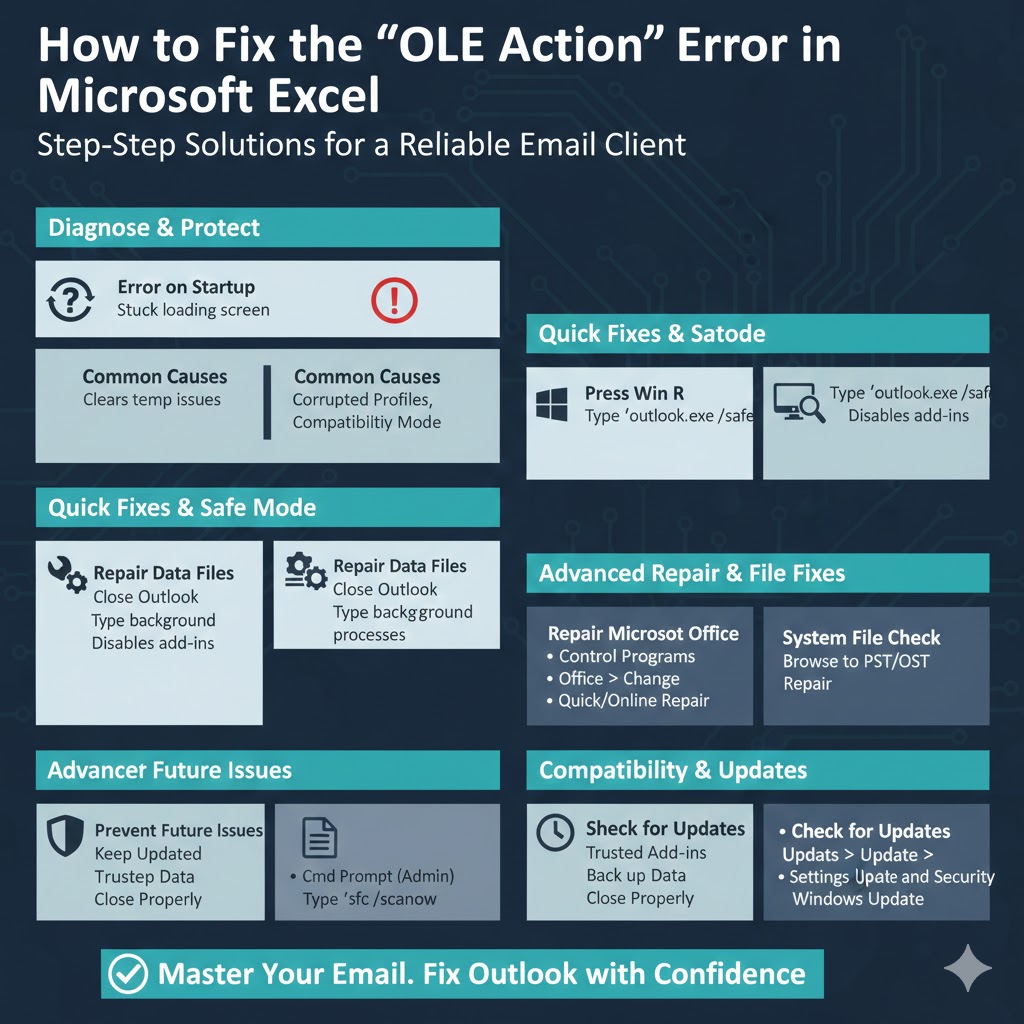
How to Fix the “OLE Action” Error in Microsoft Excel
Microsoft Excel is a powerful application that supports automation, data exchange, and integration with other programs through OLE (Object Linking and Embedding). While this functionality is useful, it can sometimes cause problems. One of the most common issues users encounter is the “OLE action” error, often displayed as:
-
“Microsoft Excel is waiting for another application to complete an OLE action.”
-
“An OLE action error has occurred.”
This error can interrupt your workflow, freeze Excel, or prevent tasks such as opening files, running macros, or interacting with embedded objects. In this comprehensive guide, you’ll learn what the OLE action error means, why it occurs, and how to fix it step by step.
What Is an OLE Action in Excel?
OLE (Object Linking and Embedding) is a Microsoft technology that allows one application to interact with another. In Excel, OLE is commonly used when:
-
Running VBA macros
-
Linking or embedding Word, PowerPoint, or PDF objects
-
Using Excel with third-party add-ins
-
Automating tasks with other Office applications
-
Interacting with external programs such as browsers or databases
When Excel waits for a response from another application and does not receive it in time, the OLE action error appears.
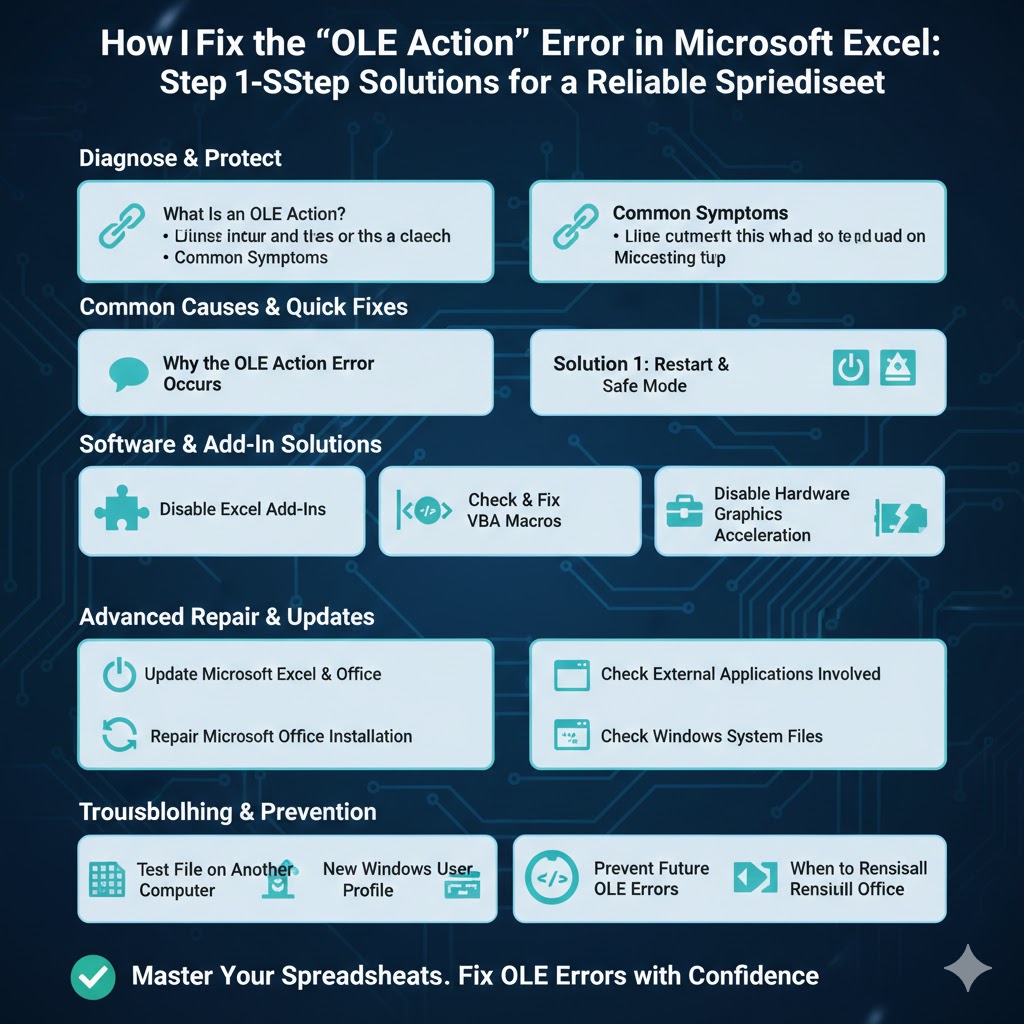
Common Symptoms of the OLE Action Excel Error
You may experience one or more of the following issues:
-
Excel freezes or becomes unresponsive
-
Error message appears when opening or saving files
-
VBA macros stop working
-
Embedded objects fail to load
-
Excel crashes after clicking a button or running a script
The error may occur occasionally or repeatedly, depending on the underlying cause.
Why the OLE Action Error Occurs in Excel
Understanding the cause helps you choose the right fix. Common reasons include:
-
Conflicts with Excel add-ins
-
Outdated or corrupted Office installation
-
Problems with VBA macros
-
External applications not responding
-
Excel waiting for browser or PDF software
-
Antivirus or security software interference
-
Corrupted Excel files
-
Windows system issues
In most cases, the error is software-related and fixable.
Solution 1: Restart Excel and Your Computer
Before applying advanced fixes, start with the simplest step.
Why This Works
Restarting:
-
Clears temporary memory
-
Ends stuck background processes
-
Resets OLE communication
Steps:
-
Close Excel completely
-
Restart your computer
-
Open Excel again and check if the error persists
This alone can resolve many temporary OLE issues.
Solution 2: Open Excel in Safe Mode
Safe Mode starts Excel without add-ins or custom settings, helping identify conflicts.
How to Open Excel in Safe Mode
-
Press Windows + R
-
Type
excel /safe -
Press Enter
If Excel works without errors in Safe Mode, an add-in is likely causing the problem.
Solution 3: Disable Excel Add-Ins
Add-ins are one of the most common causes of OLE action errors.
Steps to Disable Add-Ins
-
Open Excel
-
Go to File
-
Select Options
-
Click Add-ins
-
At the bottom, select COM Add-ins and click Go
-
Uncheck all add-ins
-
Restart Excel
If the error disappears, re-enable add-ins one by one to find the problematic one.
Solution 4: Check and Fix VBA Macros
If the error occurs when running macros, the VBA code may be causing Excel to wait for another application.
What to Look For
-
Macros that open other Office apps
-
Code that interacts with browsers
-
Missing error handling
-
Loops that never finish
Adding proper error handling and ensuring external applications respond correctly can prevent OLE issues.
Solution 5: Disable Hardware Graphics Acceleration
Graphics acceleration can sometimes interfere with Excel processes.
How to Disable It
-
Open Excel
-
Go to File > Options
-
Click Advanced
-
Scroll to the Display section
-
Check Disable hardware graphics acceleration
-
Click OK and restart Excel
This fix is especially effective on systems with older or unstable graphics drivers.
Solution 6: Update Microsoft Excel and Office
OLE-related bugs are often fixed in updates.
Update Office
-
Open Excel
-
Go to File > Account
-
Click Update Options
-
Select Update Now
Restart your computer after updating to ensure changes take effect.
Solution 7: Repair Microsoft Office Installation
Corrupted Office files can trigger repeated OLE errors.
How to Repair Office
-
Open Control Panel
-
Go to Programs and Features
-
Select Microsoft Office
-
Click Change
-
Choose Quick Repair
If the problem continues, repeat the steps and select Online Repair for a deeper fix.
Solution 8: Check External Applications Involved
Excel may be waiting for another program that is not responding.
Examples include:
-
Web browsers
-
PDF readers
-
Word or PowerPoint
-
Database tools
What to Do
-
Make sure related applications are updated
-
Close unused background apps
-
Restart the external program before using Excel
This reduces communication delays between applications.
Solution 9: Disable Antivirus Temporarily
Some antivirus software may block OLE communication.
Steps
-
Temporarily disable antivirus protection
-
Open Excel and repeat the action that caused the error
-
Re-enable antivirus afterward
If this resolves the issue, add Excel to the antivirus exclusion list.
Solution 10: Check Windows System Files
Corrupted system files can affect OLE functionality.
Run System File Checker
-
Open Command Prompt as administrator
-
Type:
sfc /scannow -
Press Enter
After the scan finishes, restart your computer.
Solution 11: Test the Excel File on Another Computer
If the error occurs with a specific file:
-
Open the file on another PC
-
Check if the error appears
If it works elsewhere, the issue is likely related to your system configuration. If it fails everywhere, the file may be corrupted.
Solution 12: Create a New Windows User Profile
A damaged user profile can cause persistent Excel errors.
Steps
-
Open Settings
-
Go to Accounts
-
Select Family & other users
-
Create a new local account
-
Log in with the new account
-
Test Excel again
If the error disappears, your original profile may be corrupted.
Preventing OLE Action Errors in the Future
To minimize the risk of this error recurring:
-
Keep Office and Windows updated
-
Avoid unnecessary add-ins
-
Write clean, efficient VBA code
-
Close unused applications
-
Use trusted third-party software
-
Restart your PC regularly
Good system maintenance greatly reduces OLE-related issues.
When Reinstalling Office Is Necessary
If none of the solutions work, reinstalling Microsoft Office may be the last option.
This should be considered only after:
-
Repair attempts fail
-
Errors persist across files
-
System checks show no issues
Reinstallation often resolves deep configuration problems.
Final Thoughts
The “OLE Action Excel” error can be frustrating, especially when it interrupts important tasks or automation. However, in most cases, the issue is caused by add-ins, outdated software, external application conflicts, or minor system problems.