


Windows 10 SysMain High Usage Problem: Causes and Solutions
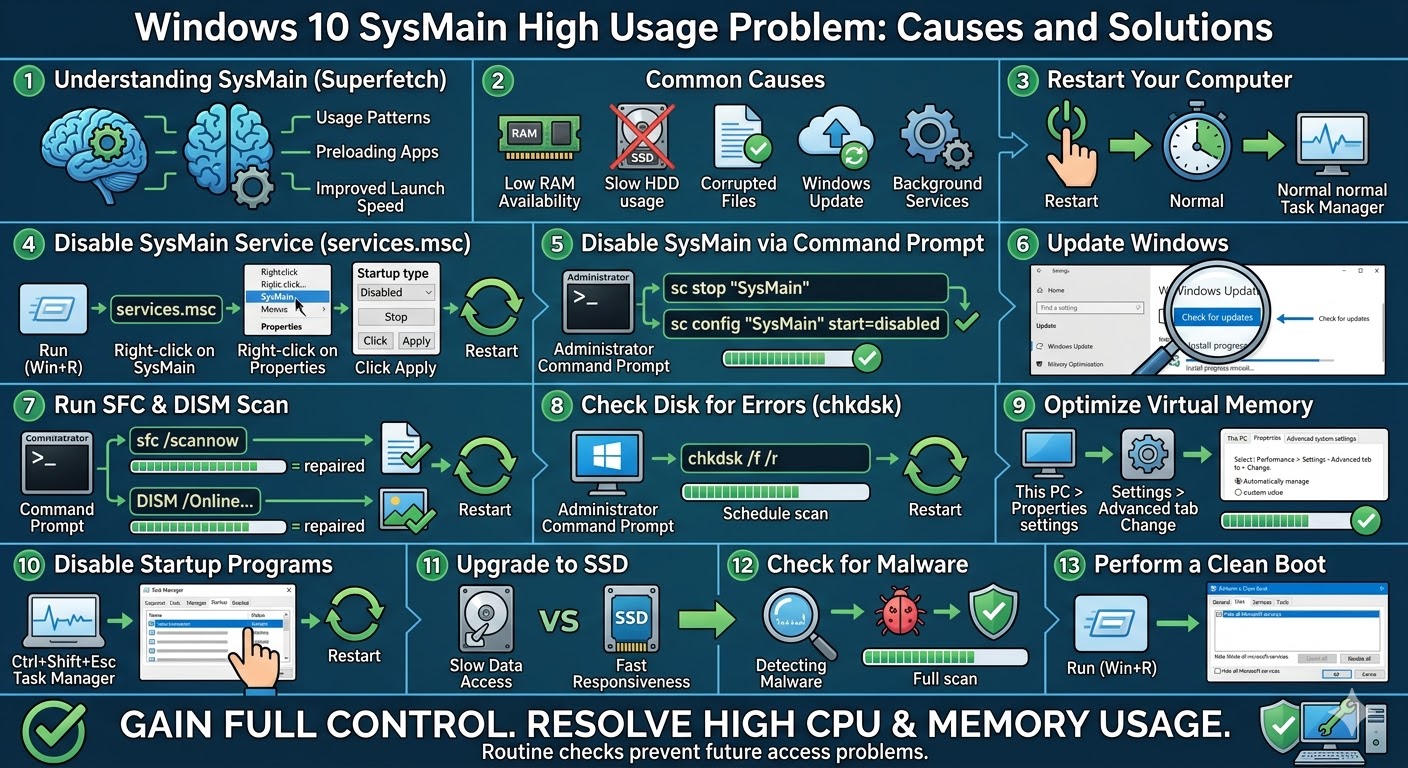
Many Windows 10 users encounter a performance issue where the SysMain service (formerly known as Superfetch) consumes a large amount of CPU and memory. This can lead to slow system performance, lag, longer boot times, and unresponsive applications.
While SysMain is designed to improve system performance by preloading frequently used apps into memory, it can sometimes have the opposite effect—especially on systems with limited RAM or slower storage drives.
If you are experiencing high CPU or memory usage caused by SysMain, this guide will help you understand the problem and provide effective solutions to fix it.
What Is SysMain (Superfetch)?
SysMain is a Windows service that analyzes your usage patterns and preloads commonly used applications into RAM. The goal is to reduce load times and improve system responsiveness.
Key functions of SysMain include:
- Predicting frequently used applications
- Preloading data into memory
- Improving application launch speed
Although beneficial in some cases, SysMain can consume excessive system resources, especially on older or low-end systems.
Why SysMain Causes High CPU and Memory Usage
There are several reasons why SysMain may use too many system resources.
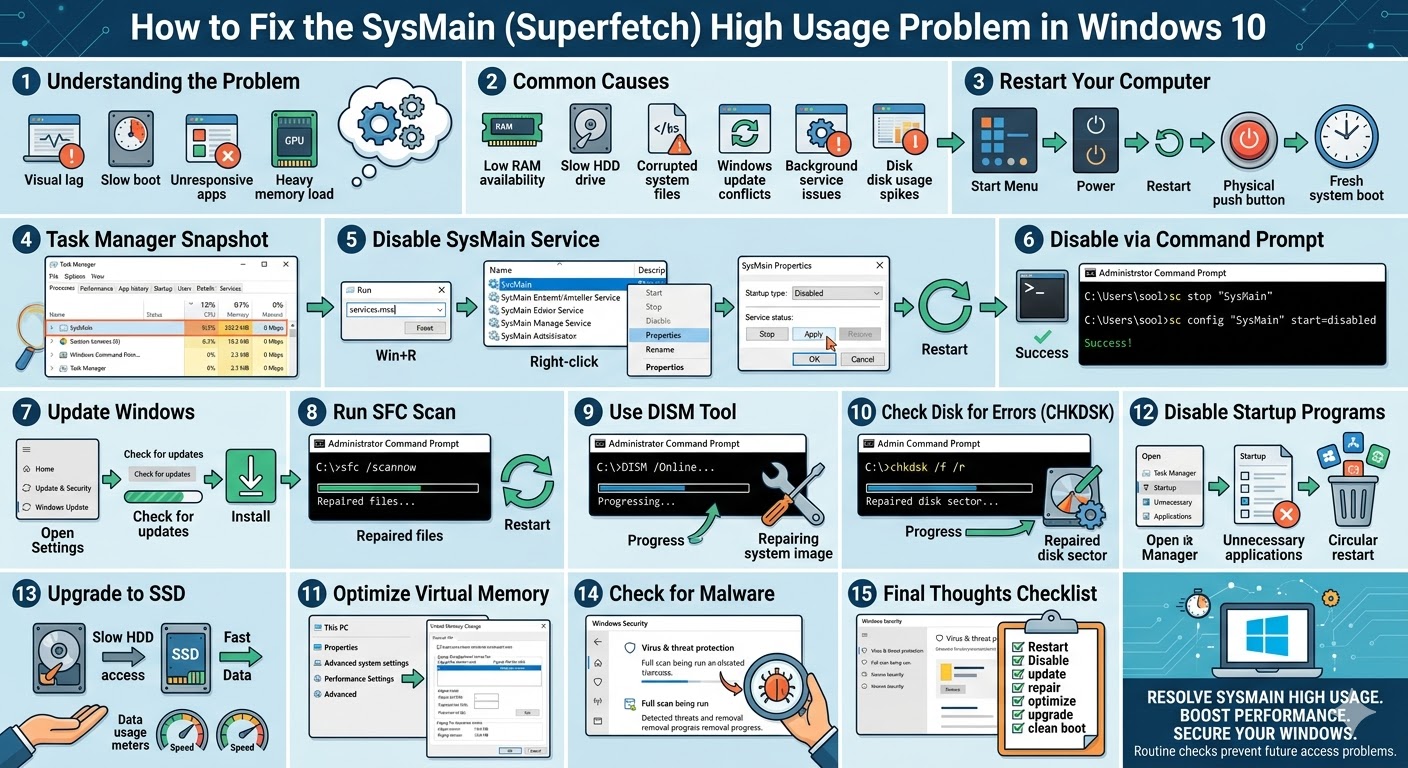
Common causes include:
- Low RAM availability
- Slow hard drives (HDD instead of SSD)
- Corrupted system files
- Windows update conflicts
- Background service issues
- Disk usage spikes
Understanding these causes helps in applying the right fix.
Restart Your Computer
Before applying advanced solutions, try restarting your computer. Temporary system glitches can cause abnormal resource usage.
To restart:
- Click the Start Menu.
- Select the Power icon.
- Click Restart.
After rebooting, check Task Manager to see if SysMain usage is back to normal.
Disable SysMain Service
If SysMain continues to consume excessive resources, disabling it can immediately resolve the issue.
To disable SysMain:
- Press Windows + R.
- Type services.msc and press Enter.
- Locate SysMain in the list.
- Right-click it and select Properties.
- Set Startup type to Disabled.
- Click Stop.
- Click Apply and OK.
Restart your computer after disabling the service.
Disable SysMain via Command Prompt
You can also disable SysMain using Command Prompt.
Steps:
- Open Command Prompt as administrator.
- Enter the following commands:
sc stop “SysMain”
sc config “SysMain” start=disabled
- Press Enter after each command.
This will stop and disable the service.
Update Windows
Outdated Windows versions may contain bugs that cause high CPU usage.
To update Windows:
- Press Windows + I.
- Go to Windows Update.
- Click Check for updates.
- Install available updates.
Restart your system after updating.
Run System File Checker (SFC)
Corrupted system files can cause abnormal behavior in services like SysMain.
To run SFC:
- Open Command Prompt as administrator.
- Enter:
sfc /scannow
- Press Enter.
Wait for the scan to complete and restart your computer.
Use the DISM Tool
If SFC does not resolve the issue, use DISM to repair the system image.
Steps:
- Open Command Prompt as administrator.
- Enter:
DISM /Online /Cleanup-Image /RestoreHealth
- Press Enter.
Restart your system after completion.
Check Disk for Errors
Disk issues can cause SysMain to behave abnormally.
To run CHKDSK:
- Open Command Prompt as administrator.
- Enter:
chkdsk /f /r
- Press Enter.
Restart your computer to complete the scan.
Optimize Virtual Memory
Adjusting virtual memory settings can reduce memory pressure and improve performance.
To optimize virtual memory:
- Right-click This PC and select Properties.
- Click Advanced system settings.
- Under Performance, click Settings.
- Go to the Advanced tab.
- Click Change under Virtual Memory.
- Select Automatically manage paging file size or set a custom value.
Click OK and restart your computer.
Disable Startup Programs
Too many startup programs can increase memory usage and make SysMain work harder.
To disable startup programs:
- Press Ctrl + Shift + Esc to open Task Manager.
- Go to the Startup tab.
- Disable unnecessary programs.
Restart your system afterward.
Upgrade to SSD
SysMain tends to cause more issues on systems with traditional hard drives (HDD). Upgrading to a Solid State Drive (SSD) can significantly improve performance and reduce high usage problems.
Benefits of SSD include:
- Faster data access
- Reduced disk usage
- Improved system responsiveness
This is one of the most effective long-term solutions.
Check for Malware
Malware can increase CPU and memory usage and interfere with system services.
To scan for malware:
- Open Windows Security.
- Go to Virus & threat protection.
- Run a Full scan.
Remove any detected threats.
Perform a Clean Boot
A clean boot can help identify if third-party services are causing high usage.
Steps:
- Press Windows + R.
- Type msconfig and press Enter.
- Go to the Services tab.
- Check Hide all Microsoft services.
- Click Disable all.
- Restart your computer.
If the issue is resolved, a background application may be the cause.
Final Thoughts
The SysMain high CPU and memory usage issue in Windows 10 can significantly affect system performance, especially on older hardware. While SysMain is designed to improve performance, it may consume excessive resources in certain situations.
Disabling the SysMain service is often the quickest fix, but other solutions such as updating Windows, repairing system files, and optimizing system settings can also help.
Related articles
How to Fix Wi-Fi Disconnecting Issues on Windows 10
How to Fix No Internet Connection in Windows 10
Fix Unexpected Restarts on Windows 10/11: Causes and Solutions