


Excel Data Source Reference Not Valid? Here’s How to Fix It
Microsoft Excel is a powerful tool for organizing and analyzing data, but users occasionally encounter errors that interrupt their workflow. One common issue is the “Data Source Reference Not Valid” error, which typically appears when creating PivotTables, charts, or using data connections.
This error can be confusing because it does not always clearly explain what went wrong. In most cases, it occurs due to invalid ranges, incorrect references, formatting issues, or problems with the source data.
The good news is that this issue is usually easy to fix once you understand the underlying cause. In this guide, you’ll learn why the Excel data source reference not valid error occurs and how to resolve it effectively.
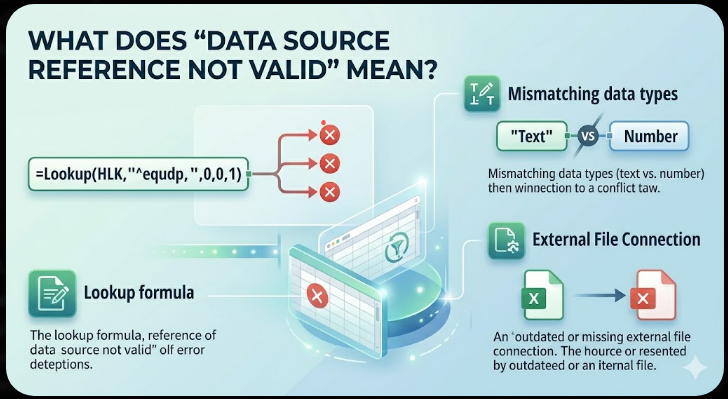
What Does “Data Source Reference Not Valid” Mean?
This error indicates that Excel cannot recognize or access the data range you are trying to use. It often occurs when:
- Creating a PivotTable
- Inserting a chart
- Referencing external data sources
- Using named ranges
If Excel cannot interpret the data source correctly, it will display this error.
Common Causes of the Error
Understanding the possible causes will help you troubleshoot faster.
Some common reasons include:
- Incorrect or empty data ranges
- Invalid named ranges
- File not saved before creating a PivotTable
- Special characters in file or sheet names
- Corrupted Excel workbook
- Hidden rows or columns
- External data source issues
Identifying the exact cause is key to fixing the problem.
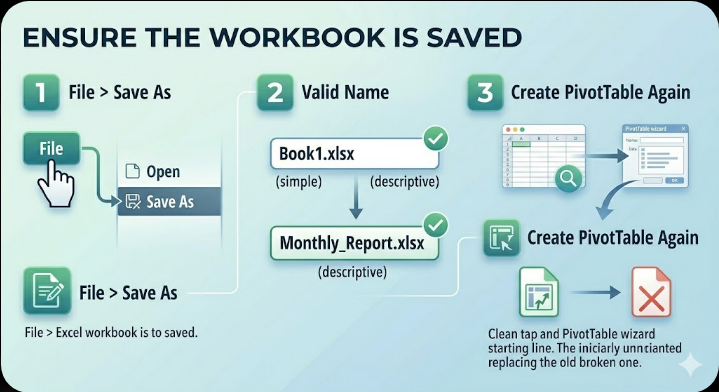
Ensure the Workbook Is Saved
One of the most overlooked causes is trying to create a PivotTable in an unsaved workbook.
To fix this:
- Click File > Save As.
- Save your workbook with a valid name.
- Try creating the PivotTable again.
Excel requires a saved file to properly reference data sources.
Check the Data Range
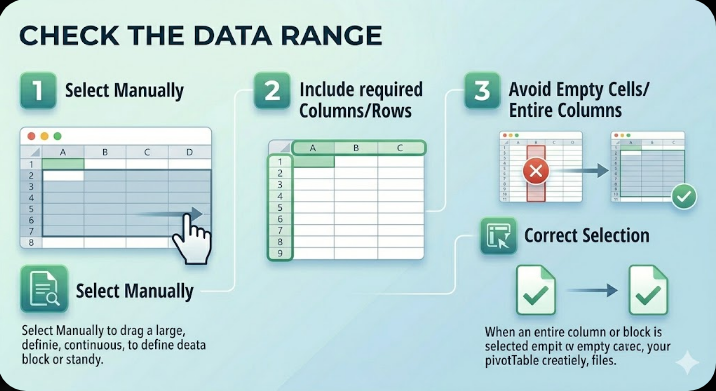
Invalid or incomplete ranges are a major cause of this error.
To verify:
- Select your data manually.
- Ensure all required columns and rows are included.
- Avoid selecting empty cells or entire columns unnecessarily.
Use a clear and continuous range for best results.
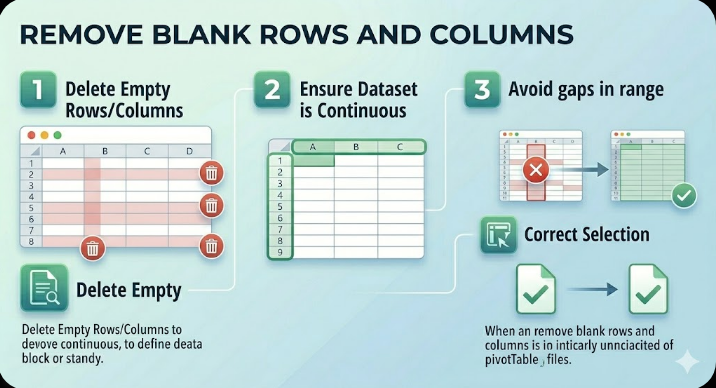
Remove Blank Rows and Columns
Blank rows or columns within your dataset can cause issues.
To fix:
- Delete empty rows and columns
- Ensure your dataset is continuous
- Avoid gaps in the data range
This helps Excel correctly interpret the data.
Convert Data to a Table
Using Excel Tables can prevent reference issues.
To convert your data:
- Select your dataset.
- Press Ctrl + T.
- Check My table has headers.
- Click OK.
Tables automatically adjust ranges and reduce errors.
Check Named Ranges
Invalid or broken named ranges can trigger this error.
To check:
- Go to Formulas > Name Manager.
- Review all named ranges.
- Delete or correct invalid entries.
Ensure each named range points to a valid data range.
Avoid Special Characters in File Names
Special characters in file names or sheet names can cause issues.
You should:
- Avoid characters like [ ] * ? / \
- Use simple names without symbols
- Rename the file if necessary
Then reopen the file and try again.
Verify Sheet Names
Sometimes the issue is related to sheet references.
To fix:
- Ensure the sheet name exists
- Avoid spaces or unusual characters
- Update references if the sheet was renamed
Correct sheet references are essential.
Check External Data Connections
If your data comes from an external source, the connection may be broken.
To fix:
- Go to Data > Queries & Connections.
- Check connection status.
- Refresh or update the data source.
Ensure the external file or database is accessible.
Use Proper Chart or PivotTable Setup
Incorrect setup during creation can trigger the error.
When creating a PivotTable:
- Select your data range first.
- Go to Insert > PivotTable.
- Confirm the correct range is selected.
Avoid manually typing ranges unless necessary.
Repair the Excel File
If the workbook is corrupted, repairing it may help.
To repair:
- Open Excel.
- Go to File > Open.
- Select the file.
- Click the dropdown next to Open.
- Choose Open and Repair.
Follow the prompts to repair the file.
Update Microsoft Excel
Outdated Excel versions can cause compatibility issues.
To update:
- Open Excel.
- Go to File > Account.
- Click Update Options > Update Now.
Restart Excel after updating.
Disable Add-ins
Add-ins can interfere with data processing.
To disable:
- Go to File > Options > Add-ins.
- Select COM Add-ins and click Go.
- Uncheck all add-ins.
- Restart Excel.
Re-enable them one at a time if needed.
Create a New Workbook
Sometimes the issue is specific to the current file.
To test:
- Copy your data into a new workbook
- Try creating a PivotTable or chart again
If it works, the original file may be corrupted.
Run System File Checker
Corrupted system files can affect Excel functionality.
To run SFC:
- Open Command Prompt as administrator.
- Enter:
sfc /scannow
- Press Enter.
Restart your system afterward.
Use DISM Tool
If SFC does not resolve the issue:
- Open Command Prompt as administrator.
- Enter:
DISM /Online /Cleanup-Image /RestoreHealth
- Press Enter.
Restart your computer after completion.
Final Thoughts
The “Excel Data Source Reference Not Valid” error can be frustrating, especially when working with PivotTables or charts. However, it is usually caused by simple issues such as invalid ranges, unsaved files, or incorrect references.
Ensuring your data is clean, properly formatted, and correctly referenced is the most effective way to prevent this error. Converting data into tables and checking named ranges can also help avoid future problems.
Related articles
How to Fix Wi-Fi Disconnecting Issues on Windows 10