


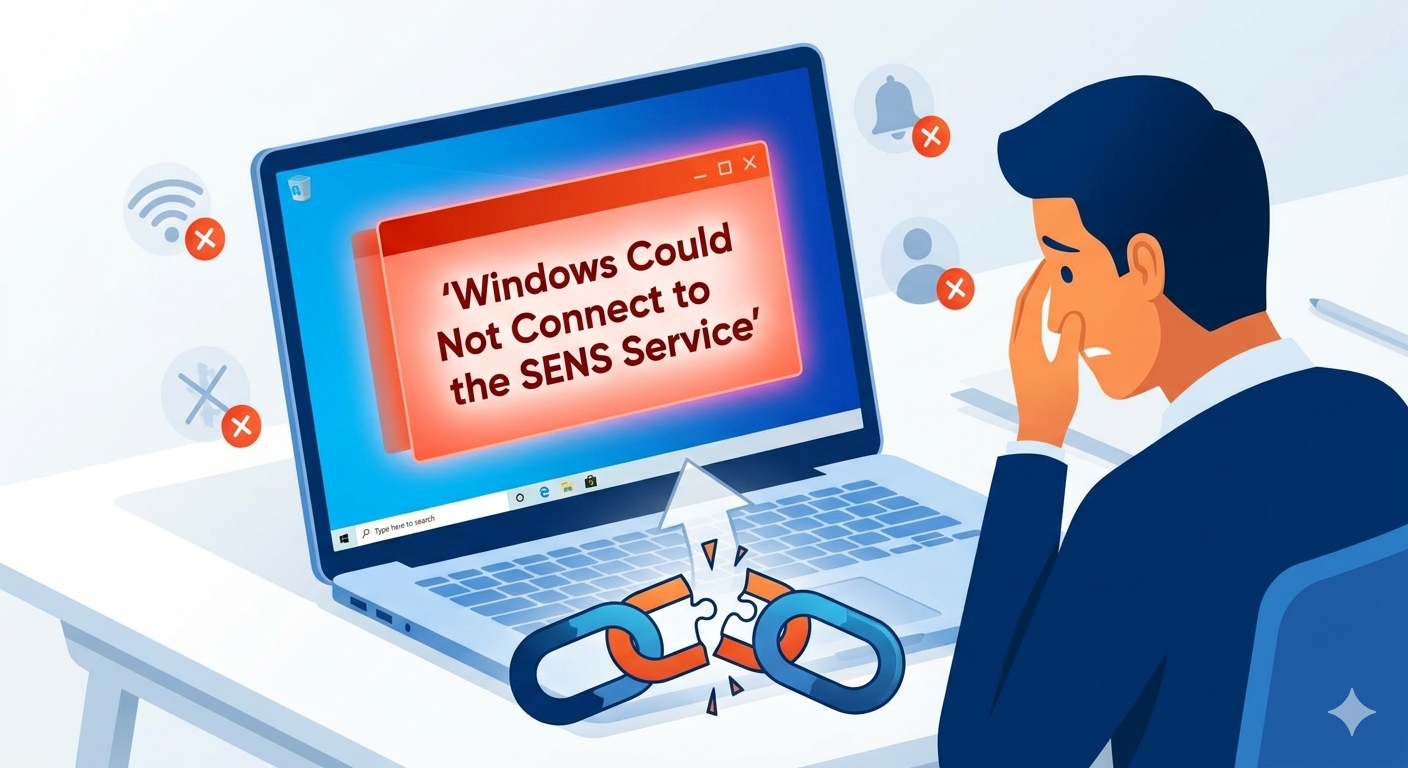
How to Fix the “Windows Could Not Connect to the System Event Notification Service” Issue
The error message “Windows could not connect to the System Event Notification Service” is a common issue that can appear when you start your computer or log into your account. This problem can prevent certain system functions from working properly and may limit your ability to use standard user accounts.
If you’re encountering this error on Windows 10 or Windows 11, don’t worry. While it may seem serious, it’s usually caused by service misconfigurations, system file corruption, or startup issues—and it can be fixed with the right steps.
In this guide, you’ll learn what this error means, why it occurs, and how to resolve it effectively.
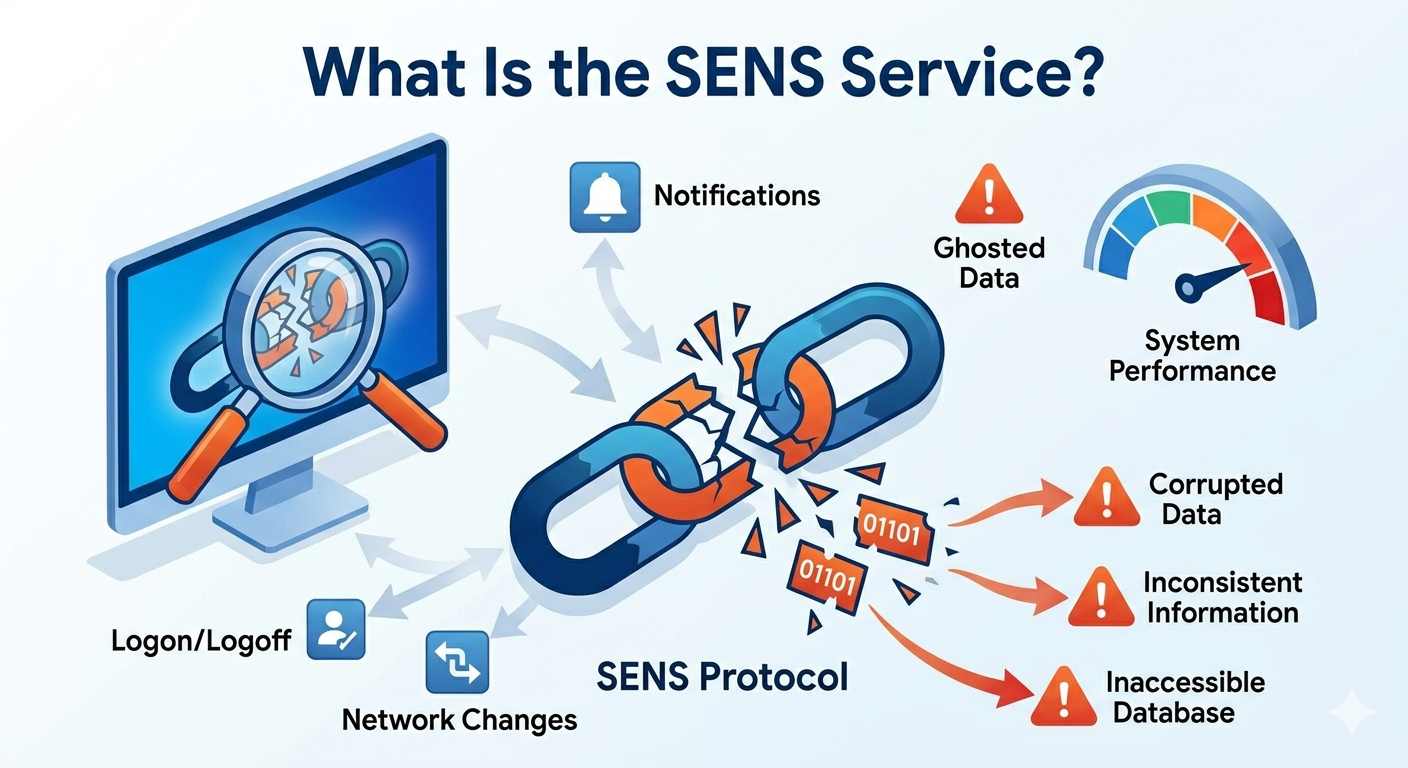
What Is the System Event Notification Service (SENS)?
The System Event Notification Service (SENS) is a Windows component that tracks system events such as network changes, logon/logoff activities, and power status updates. It notifies other services and applications when these events occur.
When Windows fails to connect to SENS, it can result in:
- Limited functionality for standard user accounts
- Problems with network connectivity
- Issues with system notifications
- Slower system performance
This service is essential for smooth communication between system components.
What Causes This Error?
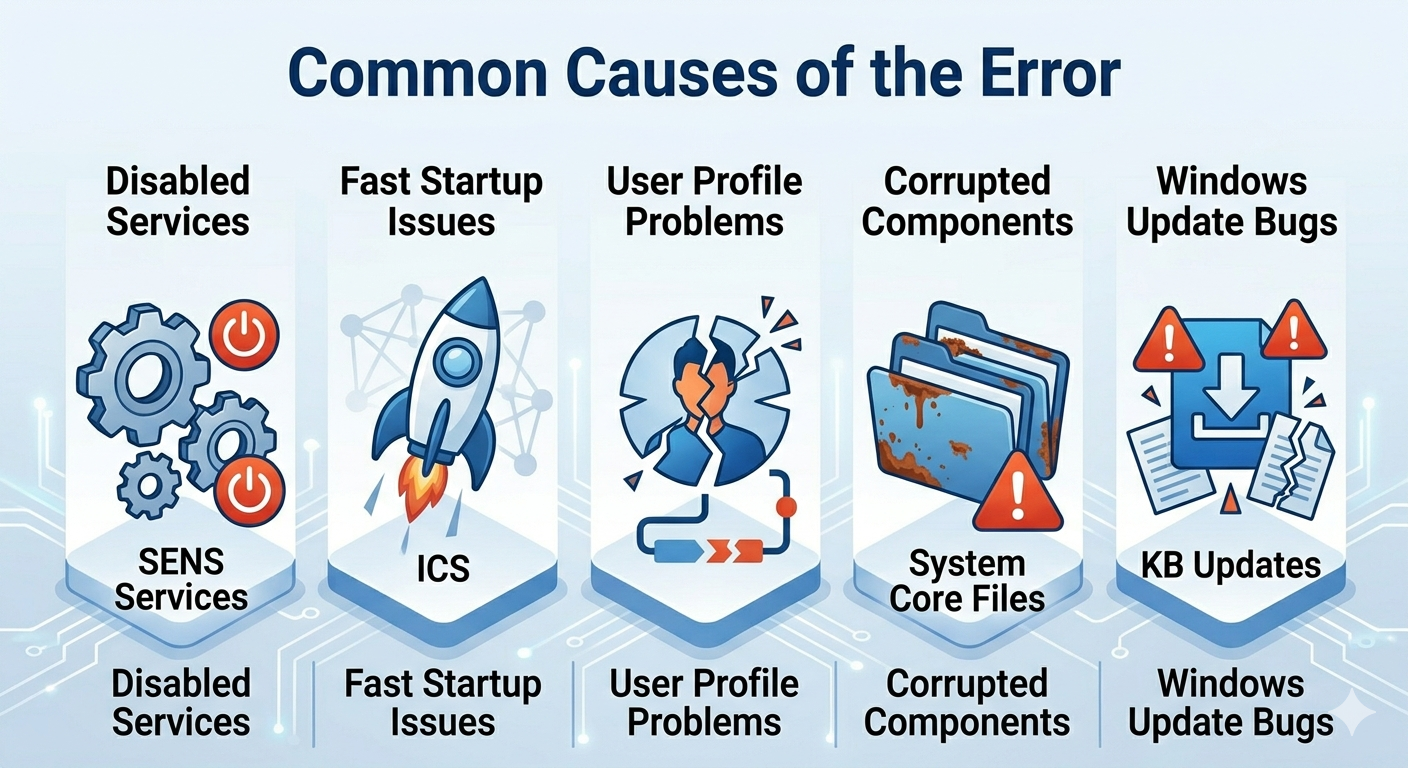
There are several common reasons why Windows cannot connect to the System Event Notification Service.
Disabled or Stopped Services
If SENS or related services are disabled or not running, the system cannot establish a connection.
Corrupted System Files
Damaged or missing system files can prevent services from functioning properly.
Fast Startup Issues
The Fast Startup feature can sometimes cause improper initialization of system services.
User Profile Problems
Corrupted user profiles may prevent proper service communication.
Windows Update Glitches
Incomplete or problematic updates can lead to service-related errors.
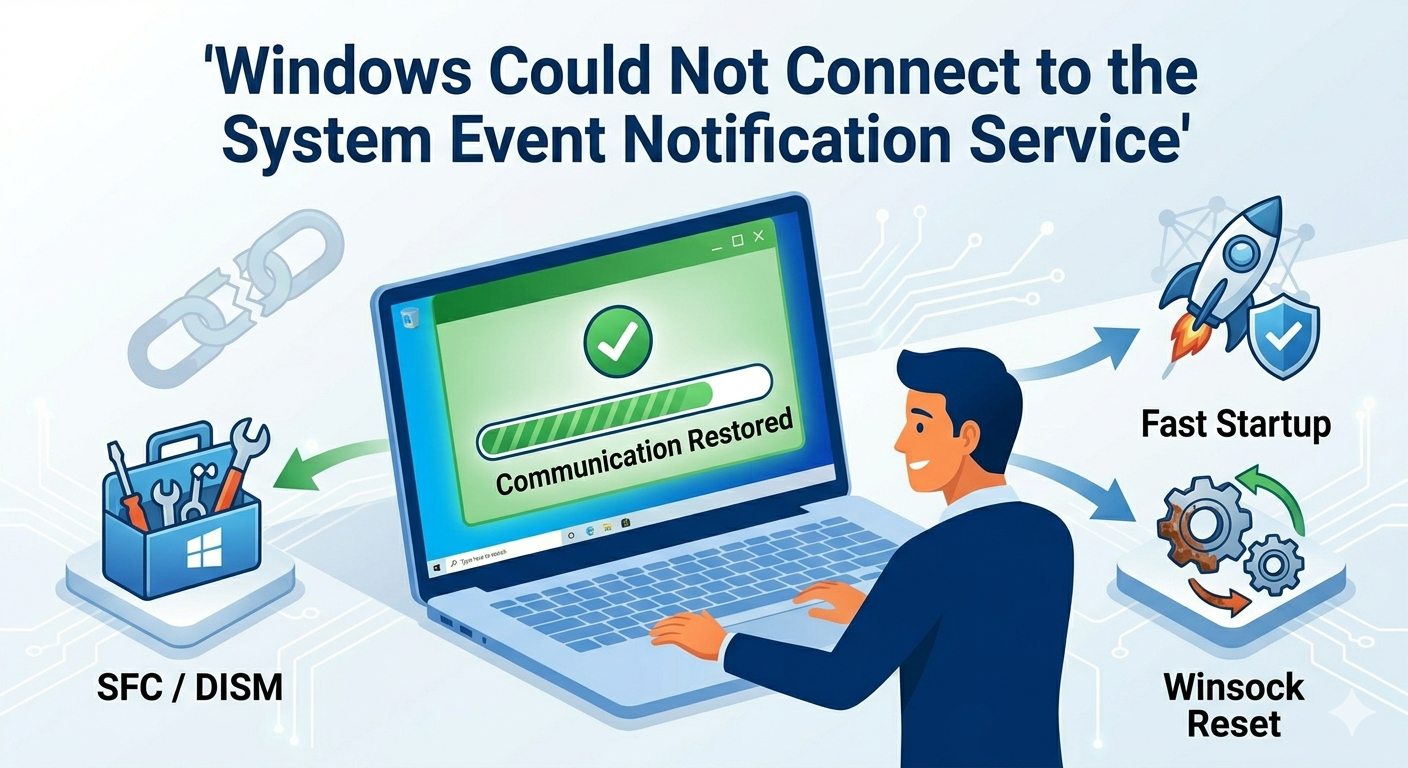
How to Fix “Windows Could Not Connect to the System Event Notification Service”
Below are the most effective methods to resolve this issue.
Restart Your Computer
Start with the simplest solution.
Why It Works
A restart can reset services and fix temporary glitches.
Steps
- Save your work
- Restart your computer
- Check if the error persists
If the issue continues, try the next method.
Check and Restart Required Services
Ensure that SENS and related services are running.
Steps
- Press
Windows + R, type services.msc, and press Enter - Locate the following services:
- System Event Notification Service
- Windows Event Log
- Remote Procedure Call (RPC)
- For each service:
- Right-click and select Properties
- Set Startup type to Automatic
- Click Start if the service is stopped
Apply changes and restart your PC.
Disable Fast Startup
Fast Startup can sometimes interfere with service initialization.
Steps
- Open Control Panel
- Go to Power Options
- Click Choose what the power buttons do
- Click Change settings that are currently unavailable
- Uncheck Turn on fast startup
- Click Save changes
Restart your computer.
Run System File Checker (SFC)
SFC can repair corrupted system files.
Steps
- Open Command Prompt as administrator
-
Run:
sfc /scannow - Wait for the scan to complete
Restart your system afterward.
Use DISM Tool
If SFC doesn’t resolve the issue, use DISM.
Steps
- Open Command Prompt as administrator
-
Run:
DISM /Online /Cleanup-Image /RestoreHealth - Wait for the process to finish
Restart your computer.
Reset Winsock and Network Settings
Network issues can affect service communication.
Steps
- Open Command Prompt as administrator
-
Run the following commands:
netsh winsock reset
netsh int ip reset - Restart your computer
This will reset network configurations.
Perform a Clean Boot
A clean boot helps identify software conflicts.
Steps
- Press
Windows + R, type msconfig, and press Enter - Go to the Services tab
- Check Hide all Microsoft services
- Click Disable all
- Disable startup programs in Task Manager
- Restart your PC
If the error disappears, a third-party application may be the cause.
Check User Account
If the problem affects only one account, the profile may be corrupted.
Steps to Create a New Account
- Open Settings
- Go to Accounts → Family & other users
- Click Add someone else to this PC
- Follow the setup instructions
Log in to the new account and check if the issue is resolved.
Update Windows
Keeping your system updated can fix bugs and compatibility issues.
Steps
- Open Settings
- Go to Windows Update
- Click Check for updates
- Install any available updates
Restart your system.
Check Event Viewer for Errors
Event Viewer can provide more details about the issue.
Steps
- Press
Windows + R, type eventvwr, and press Enter - Navigate to Windows Logs → System
- Look for errors related to SENS
This can help identify the root cause.
Perform System Restore
If the issue started recently, restoring your system can help.
Steps
- Search for System Restore
- Select a restore point before the error occurred
- Follow the instructions
This can undo problematic changes.
When to Consider Advanced Solutions
If none of the above methods work, you may need to:
- Reset Windows while keeping your files
- Reinstall Windows as a last resort
These options should only be used if the issue is severe.
Tips to Prevent This Error in the Future
To avoid encountering this problem again:
- Keep Windows updated
- Avoid disabling essential services
- Regularly scan for system errors
- Use reliable antivirus software
- Shut down your PC properly
Maintaining system health can prevent service-related issues.
Final Thoughts
The “Windows could not connect to the System Event Notification Service” error can be frustrating, especially when it affects system functionality and user access. However, it is usually caused by manageable issues such as disabled services, corrupted files, or startup conflicts.
By following the solutions in this guide—checking services, disabling Fast Startup, repairing system files, and resetting network settings—you can resolve the issue and restore normal operation.
Related articles
How to Fix Wi-Fi Disconnecting Issues on Windows 10
Fix Outlook Password Prompt Issue in Office 365
“You Need Permission to Perform This Action” on Windows 10? Here’s the Fix