


Fixing the “Low Memory” Problem on Your Windows 10 PC
Seeing the message “Your computer is low on memory” in Windows 10 can be frustrating and disruptive, especially when you are working, gaming, or running several applications. This warning typically appears when your system is running out of RAM (Random Access Memory) or virtual memory, causing programs to slow down, crash, or become unresponsive.
In this guide, you’ll learn what causes this error, how to fix it, and how to prevent it from appearing again.
What Causes the “Low on Memory” Warning?
Before applying solutions, it helps to understand the common causes behind this issue:
-
Too many programs or browser tabs running at the same time
-
Programs that consume excessive RAM
-
Memory leaks caused by faulty apps
-
Malware or unwanted background processes
-
Incorrect virtual memory settings
-
Low physical RAM
-
System file corruption
-
Outdated drivers
Once you identify the probable cause, you can apply the right fix from the steps below.
Restart Your Computer to Clear Temporary Memory Usage
The simplest fix is often the most effective. Restarting your computer clears active processes and frees up RAM.
Steps to try:
-
Close all unnecessary applications.
-
Click Start → Power → Restart.
-
After rebooting, check whether the warning reappears.
If the message disappears after a restart, the issue was likely caused by a temporary memory spike.
Close Unnecessary Programs and Browser Tabs
High memory usage usually comes from having too many apps or tabs open.
To reduce memory load:
-
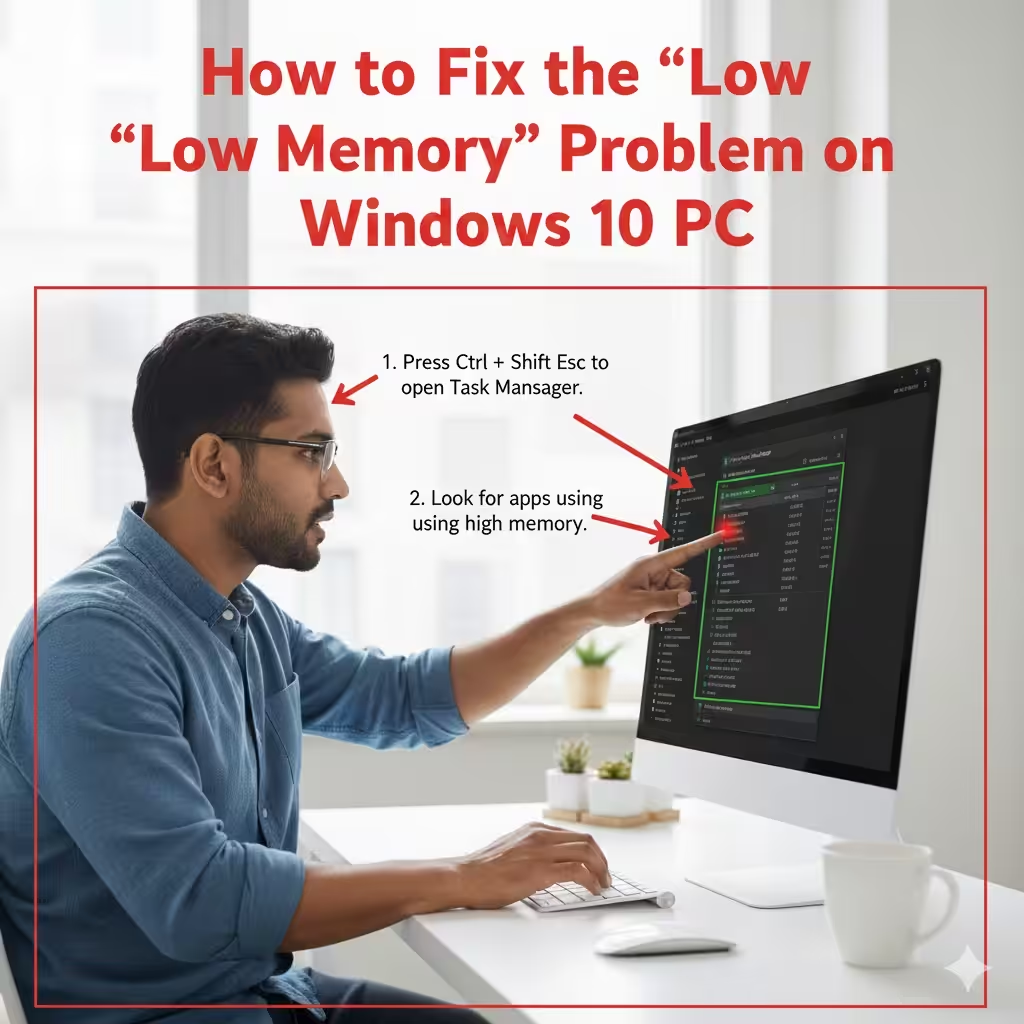
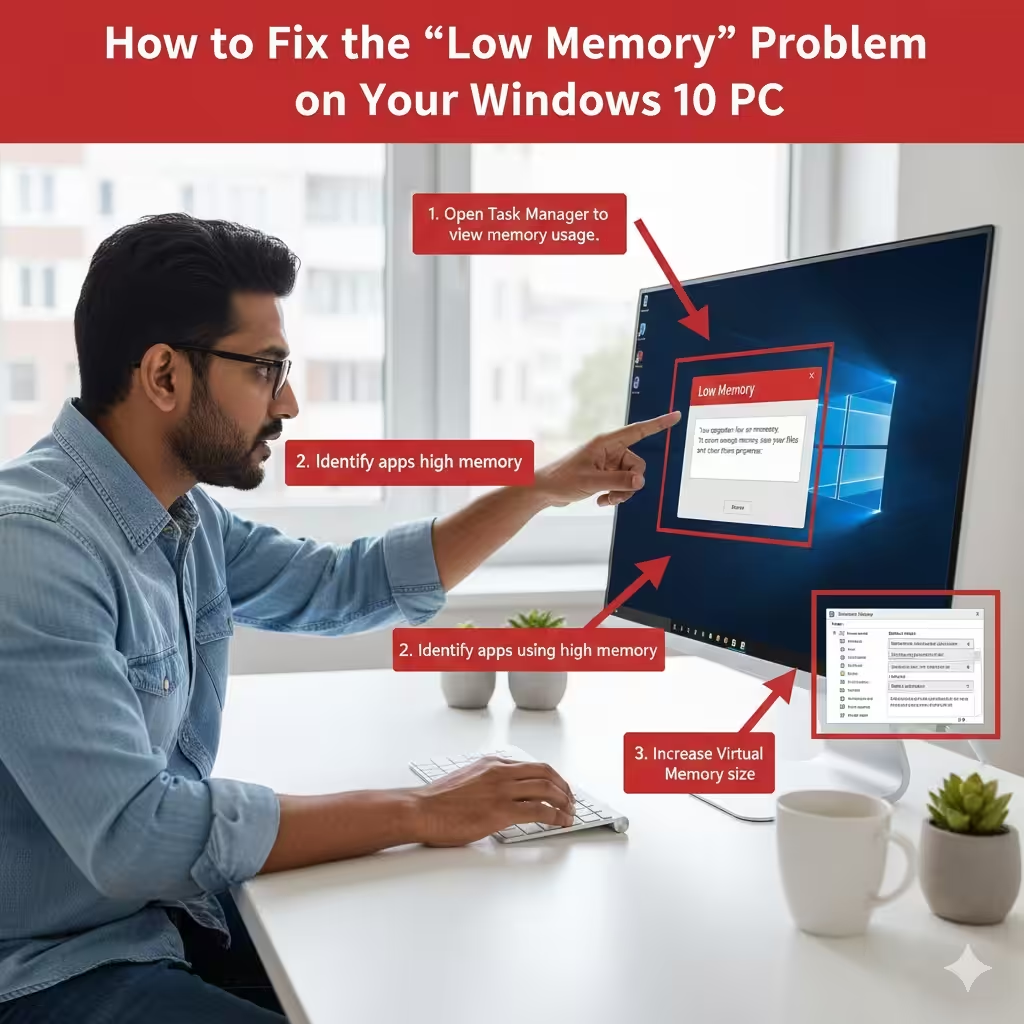
Press Ctrl + Shift + Esc to open Task Manager.
-
Go to the Processes tab.
-
Look for apps using high memory.
-
Right-click and select End Task if they are not needed.
Browsers like Google Chrome and Microsoft Edge can consume large amounts of RAM when many tabs, extensions, or videos are running.
Increase Your Virtual Memory (Paging File)
Virtual memory (also called the paging file) allows Windows to use part of your hard drive as additional RAM. If it’s too small or misconfigured, you may see low-memory warnings.
How to increase virtual memory:
-
Right-click This PC and choose Properties.
-
Click Advanced system settings.
-
Under the Advanced tab, click Settings in the Performance section.
-
Go to the Advanced tab again.
-
Click Change under Virtual Memory.
-
Uncheck Automatically manage paging file size.
-
Select your system drive (usually C:).
-
Choose Custom size and enter:
-
Initial size: 1.5 × your RAM
-
Maximum size: 3 × your RAM
-
-
Click Set, then OK.
-
Restart your PC.
This often resolves memory warnings, especially on PCs with 4–8 GB of RAM.
Check for Memory-Leaking Applications
Some programs use RAM incorrectly and fail to release it when no longer needed. Over time, they cause memory leaks.
How to identify memory leaks:
-
Open Task Manager → Processes.
-
Sort by Memory.
-
Look for apps using excessive RAM after being idle for a long time.
-
End or uninstall the problematic app.
Common culprits include poorly optimized games, older software, or faulty drivers.
Scan Your PC for Malware
Certain malware can consume system resources aggressively, leading to memory warnings.
Run a full scan:
-
Open Windows Security.
-
Go to Virus & threat protection.
-
Choose Scan options.
-
Select Full scan and click Scan now.
If malware is found, Windows will automatically remove or quarantine the threats.
Disable Startup Programs That Use Memory
Many applications run automatically when Windows starts. Reducing startup programs frees memory and improves performance.
To disable startup items:
-
Press Ctrl + Shift + Esc to open Task Manager.
-
Go to the Startup tab.
-
Right-click unnecessary programs and choose Disable.
Avoid disabling essential apps like security software.
Update Windows and Drivers
Outdated drivers or system bugs may cause memory problems, especially with graphics or system processes.
Update Windows:
-
Go to Settings → Update & Security.
-
Click Check for updates.
Update drivers:
-
Open Device Manager.
-
Update your graphics, network, and chipset drivers.
-
Restart after updating.
Driver updates often improve memory management and stability.
Adjust Visual Effects for Better Performance
Windows visual effects look good but consume RAM. Adjusting performance settings can reduce memory usage.
Change performance settings:
-
Right-click This PC → Properties.
-
Select Advanced system settings.
-
Under Performance, click Settings.
-
Select Adjust for best performance.
-
Click Apply.
You can also manually enable specific effects if you want to maintain appearance.
Increase Your Physical RAM
If you continually experience memory issues, your PC might not have enough RAM for modern applications.
Signs you need more RAM:
-
Frequent low-memory warnings
-
Slow performance when multi-tasking
-
Browsers freezing with multiple tabs
Upgrading from 4GB to 8GB or 16GB dramatically improves Windows performance.
Check for Corrupted System Files
System file corruption can lead to memory-related problems.
Run System File Checker:
Open Command Prompt (Admin) and enter:
Windows will detect and repair corrupted system files.
Run DISM if needed:
Restart after the process completes.
Use Storage Sense or Disk Cleanup
Low disk space on the system drive can also trigger memory warnings, especially related to virtual memory.
Use Disk Cleanup:
-
Search Disk Cleanup.
-
Select drive C:.
-
Check temporary files, thumbnails, and caches.
-
Click OK to clean.
Enable Storage Sense:
-
Go to Settings → System → Storage.
-
Turn on Storage Sense.
This keeps your system optimized and reduces memory pressure.
Repair or Reinstall Problematic Applications
If the warning appears only when using a specific program:
-
Reinstall the application
-
Update it to the latest version
-
Check system requirements
Apps like video editors, virtual machines, and large games use heavy memory and may require configuration changes.
Reset Virtual Memory Settings (If Misconfigured)
If you recently changed virtual memory settings incorrectly, you can reset them.
Reset steps:
-
Go to Virtual Memory settings again.
-
Check Automatically manage paging file size for all drives.
-
Click OK.
-
Restart your computer.
Windows will manage the paging file automatically.
Conclusion
The “Your computer is low on memory” warning in Windows 10 is common, but with the right steps, it’s easy to fix. Whether the issue stems from too many apps, misconfigured virtual memory, malware, or hardware limitations, the solutions above will help you resolve the problem and improve performance.
By managing your startup programs, increasing virtual memory, updating Windows, or upgrading your RAM, you can keep your system running smoothly without interruptions. If the warning persists after trying all methods, consider checking your hardware or performing a clean installation of Windows.