


Steps to Undo or Edit a Sent Email in Outlook
Have you ever sent an email and immediately wished you could take it back? Maybe you noticed a typo, sent it to the wrong person, or forgot to include an important attachment. Fortunately, if you’re using Microsoft Outlook, there are built-in tools that can help you recall or replace a sent email—as long as certain conditions are met.
In this guide, we’ll explain how to retract or replace an email in Outlook, what the limitations are, and what alternative solutions you can use if recall doesn’t work.

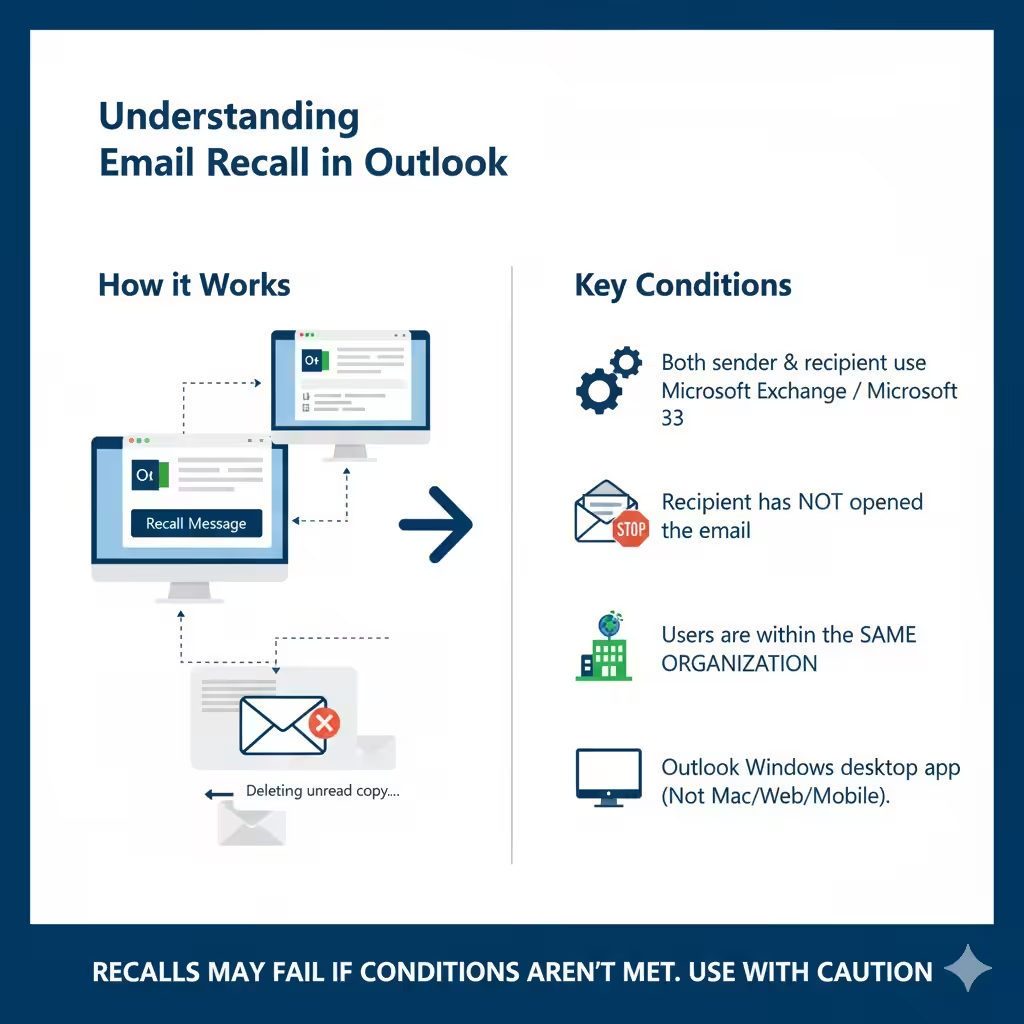
Understanding Email Recall in Outlook
Email recall is a feature in Microsoft Outlook that allows you to retrieve or replace an email message you’ve sent to someone within the same organization, provided both parties use Microsoft Exchange or Microsoft 365 accounts.
When you use the recall feature, Outlook attempts to:
-
Delete the unread copy of your sent email from the recipient’s inbox.
-
Optionally, replace it with a new corrected message.
However, the recall feature only works under specific conditions, which we’ll detail below.

When You Can Retract or Replace a Sent Email
To successfully recall or replace a sent email in Outlook, the following conditions must be met:
-
Both sender and recipient use Microsoft Exchange or Microsoft 365.
The recall feature won’t work if the email was sent to Gmail, Yahoo, or any other external email service. -
The recipient has not yet opened the email.
If the message has already been read, the recall will fail. -
Both users must be within the same organization or company.
Recall typically only works for internal communications, not for messages sent outside the organization. -
Outlook must be running on a Windows desktop version.
The recall feature is not available on Outlook for Mac, the web version (Outlook.com), or mobile apps.
Now, let’s walk through the steps to retract or replace an email in Outlook.
How to Recall or Replace a Sent Email in Microsoft Outlook
Step 1: Open Outlook and Go to Sent Items
-
Open Microsoft Outlook on your Windows PC.
-
In the Navigation Pane, select the Sent Items folder.
-
Double-click the message you want to recall. The message must open in a new window (not in the reading pane).
Step 2: Access the Recall Feature
-
Click the Message tab in the top ribbon.
-
In the Move group, select Actions, then choose Recall This Message.
A dialog box will appear with two options:
-
Delete unread copies of this message
-
Delete unread copies and replace with a new message
Step 3: Choose the Desired Recall Option
-
If you only want to delete the original message, select Delete unread copies of this message.
-
If you want to replace the message with a corrected one, choose Delete unread copies and replace with a new message.
Step 4: (Optional) Send a Replacement Message
If you’re replacing the message, Outlook will open a new window with the contents of the original email. You can edit the subject, message body, or add attachments as needed. Once you’re done, click Send to issue the replacement email.
Step 5: Check Recall Status
Outlook allows you to receive a notification when the recall succeeds or fails. If you want to know the result, make sure to check the box labeled Tell me if recall succeeds or fails for each recipient before clicking OK.
You’ll receive an automatic notification once Outlook processes the recall.
Understanding Recall Results
After attempting a recall, Outlook will send you a message indicating whether it succeeded or failed. Here’s what can happen:
-
Success: The recipient hasn’t opened the email, and Outlook successfully deleted or replaced it.
-
Failure: The recipient already opened the message, or it was sent outside your organization.
-
Partial success: If the email was sent to multiple recipients, some may have had it deleted while others did not.
It’s worth noting that even if recall fails, you can still follow up with a corrected message and a short apology or clarification.
Alternative Options if Email Recall Doesn’t Work
Unfortunately, email recall is not foolproof. In many real-world cases, the feature fails because of technical or situational limitations. Here are some alternative strategies you can use instead.
1. Send a Follow-Up Email
If the recall doesn’t succeed, the best approach is to send a new email acknowledging the mistake. Be polite and concise. For example:
“Apologies for the confusion in my previous message. Please disregard that version and refer to this updated email instead.”
This approach helps maintain professionalism and clears up any misunderstandings.
2. Use the “Undo Send” Feature (Outlook Web or Gmail)
If you’re using Outlook on the web or Gmail, you can enable an Undo Send feature that gives you a few seconds to cancel an email right after you send it.
For Outlook Web:
-
Go to Settings → View all Outlook settings.
-
Select Mail → Compose and reply.
-
Under Undo send, move the slider to choose the cancellation period (up to 10 seconds).
-
Click Save.
For Gmail:
-
Click the gear icon → See all settings.
-
Under General, find Undo Send and select a time window (5–30 seconds).
-
Click Save Changes.
When you send an email, you’ll briefly see an Undo button at the bottom of the screen. Clicking it stops the email from being sent.
3. Delay or Schedule Email Delivery
To prevent mistakes in the future, consider setting up a delay rule in Outlook that holds your outgoing messages for a short time before sending.
How to Delay Delivery in Outlook:
-
Click File → Manage Rules & Alerts.
-
Choose New Rule → Apply rule on messages I send.
-
Select Next, then check defer delivery by a number of minutes.
-
Set the delay duration (e.g., 2–5 minutes) and click Finish.
This way, you’ll have a brief window to cancel or edit an email before it’s actually sent.
4. Use Drafts for Important Emails
When writing important or sensitive messages, save them as drafts first. Review them carefully after a short break before hitting send. A second look can often catch errors or missing details.
Common Reasons Email Recall Fails
Even though recalling an email sounds simple, there are several reasons it might not work:
-
The recipient has already opened the message.
-
The message was moved from the Inbox to another folder by a rule.
-
The email was sent to multiple recipients or external addresses.
-
The recipient is using a mobile device or web mail client.
-
The organization’s mail server does not support recall requests.
If any of these conditions apply, Outlook cannot retract the message.
Tips to Avoid Email Mistakes
-
Double-check recipients before sending.
-
Use spell check and proofread your message.
-
Attach files before writing the message body to avoid forgetting.
-
Set a short delivery delay for all outgoing emails.
-
Keep professional tone even if you make a mistake — a quick correction is better than panic.
Conclusion
Recalling or replacing a sent email in Outlook can be a lifesaver — but it’s only effective under specific conditions. It works best when both sender and recipient use Microsoft Exchange or Microsoft 365 within the same organization and the recipient hasn’t opened the email yet.
If recall isn’t possible, you can still manage the situation professionally by sending a corrected message, enabling the Undo Send feature, or setting up delayed delivery.