


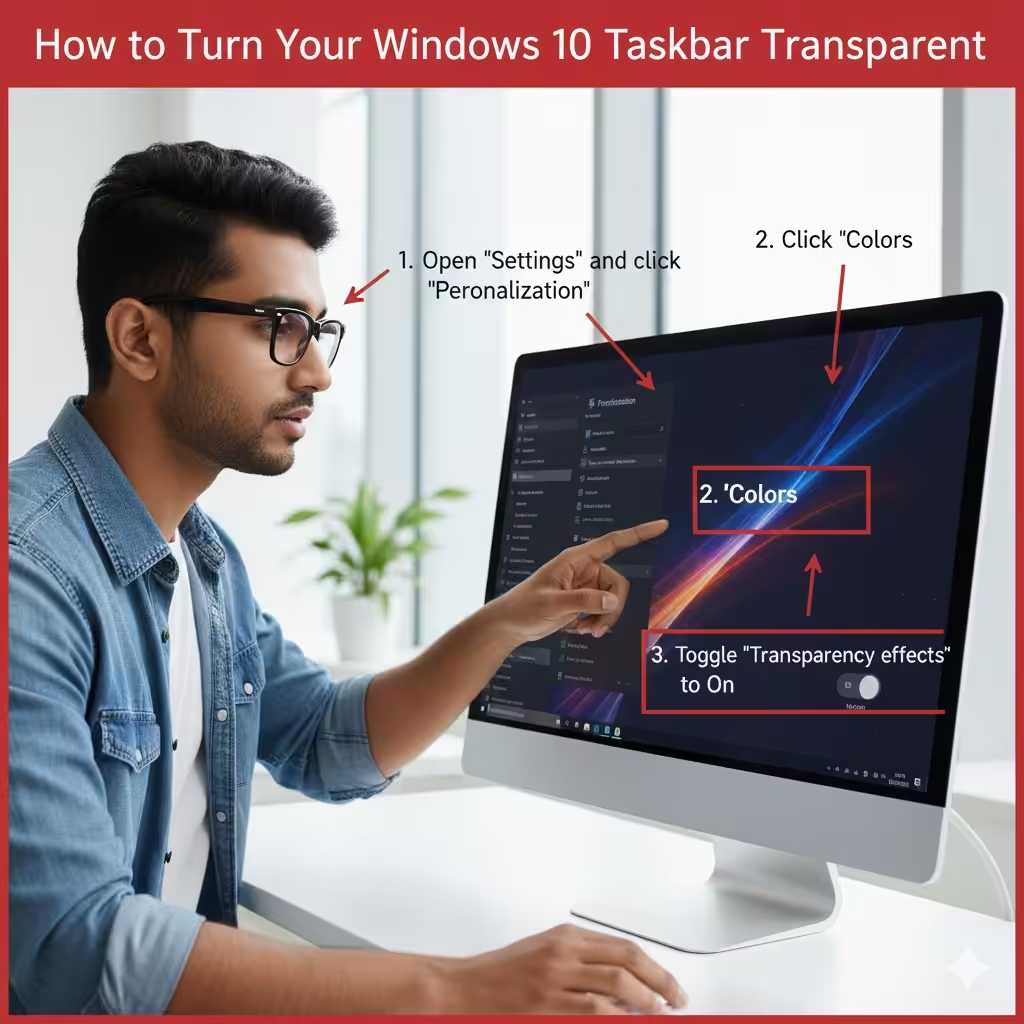
How to Turn Your Windows 10 Taskbar Transparent
A transparent taskbar adds a clean, modern look to your Windows 10 desktop. Whether you like a subtle frosted-glass aesthetic or want full transparency for a minimalist setup, Windows 10 offers several ways to adjust the taskbar’s appearance. You can make it slightly transparent using built-in settings, or achieve full, “glass-like” transparency using the Registry, third-party tools, and personalization options.
This detailed guide walks you through every method to make your Windows 10 taskbar transparent, from basic settings to advanced customization.
Enable Transparency Using Windows 10 Settings
Windows 10 includes built-in transparency effects that apply to the Start Menu, taskbar, and action center. This method is quick and works without any additional tools.
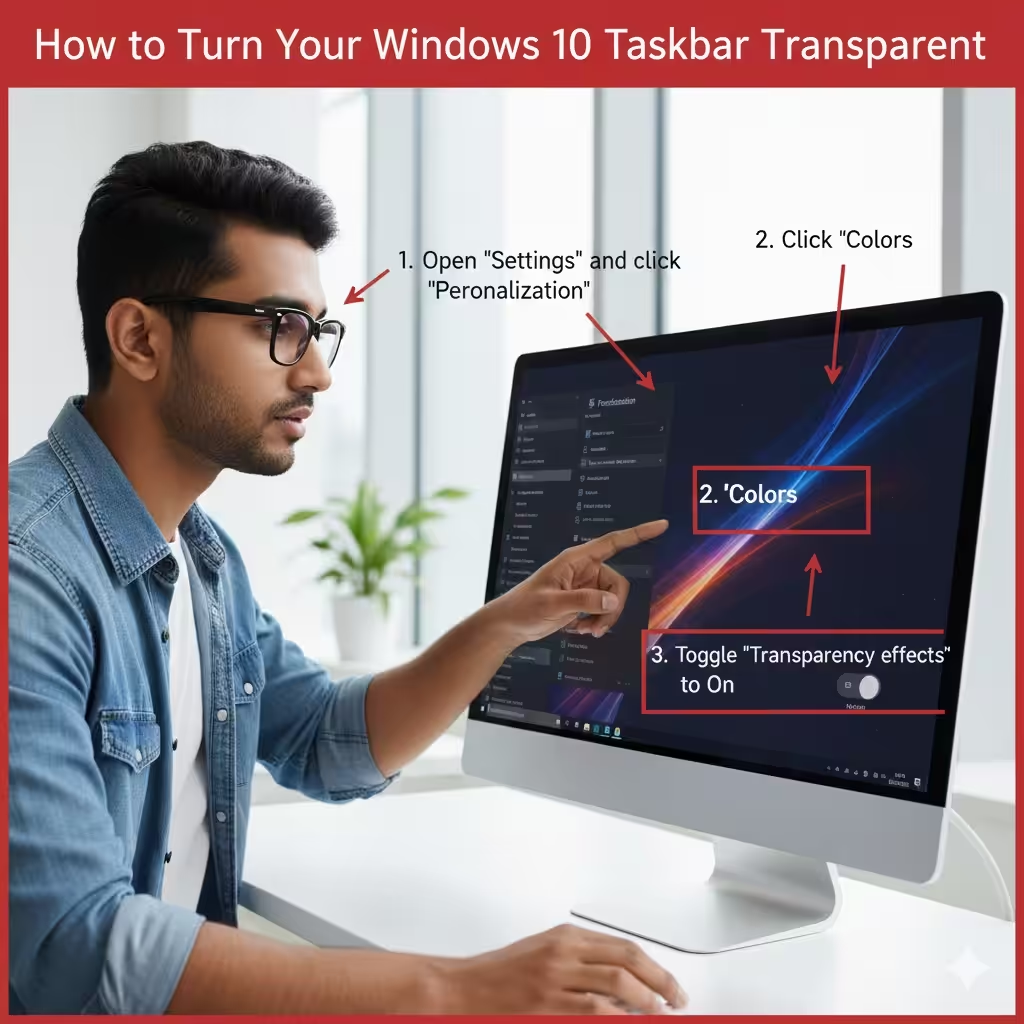
Steps to Enable Transparency in Settings
-
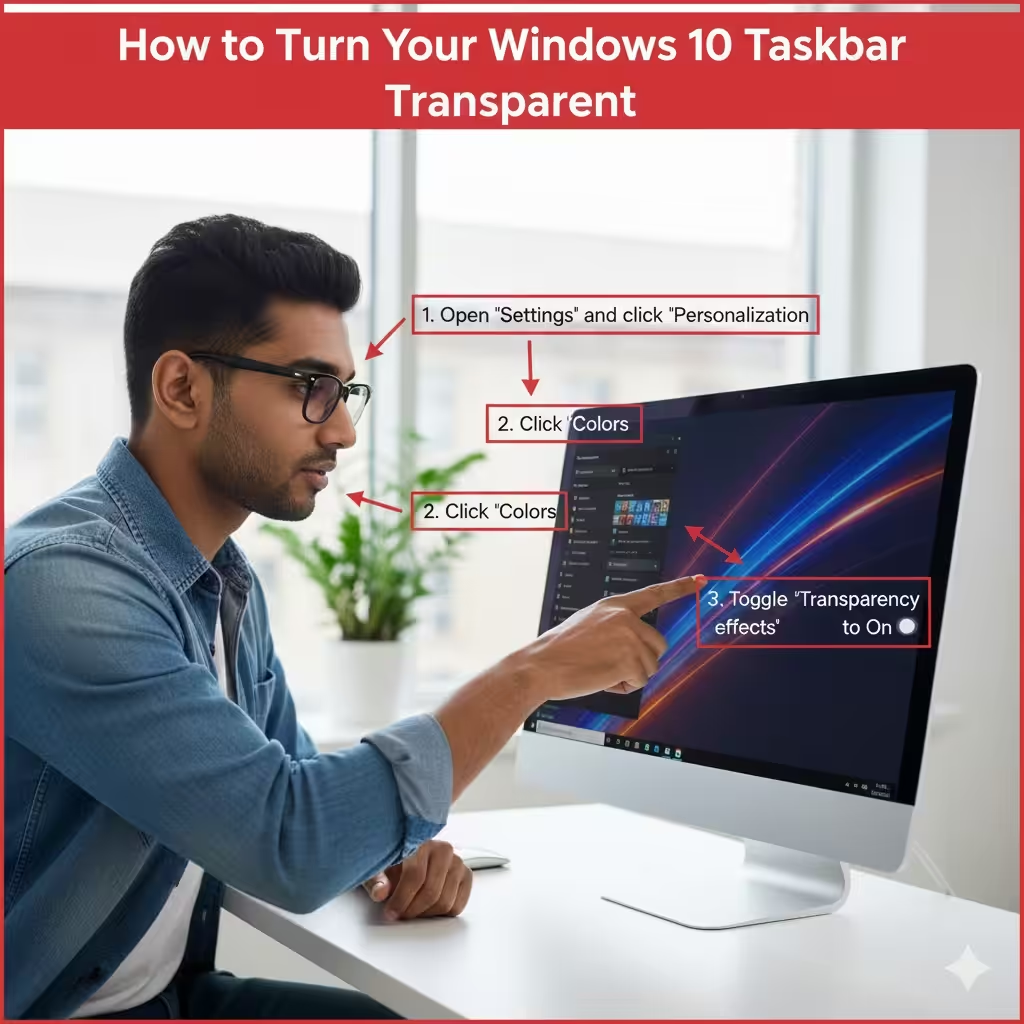
Press Win + I to open Settings.
-
Select Personalization.
-
Choose Colors from the left menu.
-
Scroll down to the section More options.
-
Toggle Transparency effects to On.
You will instantly see the taskbar become slightly transparent with a soft blur effect.
Limitations of Built-In Transparency
-
Transparency is mild, not fully see-through
-
Windows 10 does not allow adjusting transparency levels directly
-
Effects may look different depending on theme and wallpaper
For users who want a fully transparent or glass-like taskbar, try the following advanced methods.
Use the Registry Editor for Higher Transparency
If you want increased transparency beyond the default settings, modifying the Windows Registry can help. This method allows you to apply a stronger transparency effect.
Important Warning Before You Begin
Editing the Registry incorrectly can cause system problems. Before proceeding:
-
Create a System Restore Point
-
Only modify the keys described below
How to Enable Enhanced Transparency via Registry
-
Press Win + R, type regedit, and press Enter.
-
Navigate to:
-
Right-click on the right panel and choose New → DWORD (32-bit) Value.
-
Name the new entry:
-
Double-click it and set Value data to 1.
-
Close the Registry Editor.
-
Restart your PC, or restart Windows Explorer.
What This Does
This tweak increases the transparency of the taskbar, though it still won’t make it fully invisible. It simply enhances the default effect.
Use Third-Party Tools for Full Transparency
To achieve true transparency—where the taskbar becomes completely see-through—third-party software is the most effective choice. These tools offer advanced customization that Windows doesn’t include by default.
Recommended Tool: TranslucentTB
TranslucentTB is a free, lightweight tool available on the Microsoft Store that gives you full control over your taskbar’s transparency.
How to Use TranslucentTB
-
Open the Microsoft Store.
-
Search for TranslucentTB and install it.
-
Run the application.
-
Right-click its icon in the system tray.
-
Choose from options like:
-
Normal
-
Clear (fully transparent)
-
Acrylic (blurred transparency)
-
Blur
-
Opaque
-
Why Use TranslucentTB?
-
Offers true full transparency
-
Lightweight and non-intrusive
-
Allows different effects depending on window state
-
Customizable color and opacity
Alternative Tool: TaskbarX
TaskbarX is another popular customization tool that allows full transparency and even animated taskbar icons.
Features of TaskbarX
-
Full transparency
-
Acrylic and blur effects
-
Centering of taskbar icons (Windows 10 style similar to Windows 11)
-
Animation effects
TaskbarX requires a bit more setup compared to TranslucentTB but offers deeper customization.
Use High-Contrast Mode to Force a Transparent Taskbar
Although not ideal for general use, Windows High-Contrast mode can create a unique transparent effect depending on your theme.
Steps to Enable High-Contrast Mode
-
Open Settings.
-
Select Ease of Access.
-
Choose High contrast.
-
Toggle Turn on high contrast to On.
-
Choose a theme and apply changes.
Drawbacks
-
Changes the entire system appearance
-
Not suitable for most users
-
Limited customization
This method is more of a workaround rather than a recommended solution.
Use Windows PowerShell to Restart Explorer After Changes
Whenever you modify transparency settings, you may need to refresh Windows Explorer for the changes to apply.
How to Restart Explorer with PowerShell
-
Press Win + X, choose Windows PowerShell (Admin).
-
Run the command:
-
Taskbar and desktop will reload automatically.
Restarting Explorer is useful after Registry or customization tool changes.
Customize Taskbar Transparency Using Themes and Accent Colors
Windows 10 allows you to adjust accent colors, which indirectly affect how transparency appears.
Steps to Adjust Accent Colors
-
Go to Settings → Personalization → Colors.
-
Choose an accent color or enable Automatically pick an accent color from my background.
-
Under Show accent color on the following surfaces, check:
-
Start, taskbar, and action center
-
Why This Helps
Transparent effects may look more noticeable depending on:
-
The wallpaper brightness
-
Accent color selection
-
Theme (light or dark mode)
For best results, use a colorful or high-contrast wallpaper.
Troubleshooting Transparency Issues
If transparency effects are not showing, try the following solutions.
1. Check If Transparency Is Enabled
Go to Settings → Personalization → Colors, ensure Transparency effects is ON.
2. Restart Windows Explorer
Use Task Manager:
-
Press Ctrl + Shift + Esc.
-
Find Windows Explorer.
-
Right-click and choose Restart.
3. Update Your Graphics Drivers
Transparency relies on GPU rendering. Update drivers through:
-
Device Manager
-
NVIDIA, AMD, or Intel update tools
4. Disable Battery Saver Mode
Battery saver may turn off transparency to conserve power.
5. Check Performance Options
-
Press Win + R, type sysdm.cpl, press Enter.
-
Go to Advanced → Performance Settings.
-
Ensure Animate controls and elements inside windows is enabled.
Which Method Should You Use?
| Method | Transparency Level | Difficulty | Best For |
|---|---|---|---|
| Windows Settings | Low | Easy | Basic users |
| Registry Editor | Medium | Medium | Slightly enhanced transparency |
| TranslucentTB | High | Easy | Best overall option |
| TaskbarX | High | Medium | Users wanting full customization |
| High-Contrast Mode | Medium | Easy | Special accessibility needs |
Final Thoughts
Making your taskbar transparent in Windows 10 is an excellent way to personalize your desktop and create a sleek, modern interface. Whether you prefer a simple transparency effect through built-in settings or full transparency using tools like TranslucentTB or TaskbarX, there’s a method suitable for your needs.