


Brightness Not Working on Windows 10? Try These Fixes
Brightness control is an essential feature on any Windows 10 device, especially laptops and tablets. It allows you to adjust screen visibility for comfort, reduce eye strain, and save battery life. However, many users run into a frustrating issue where they can’t adjust brightness at all, or the brightness slider simply doesn’t work.
If you’re dealing with this problem, you’re not alone. The issue is usually caused by driver problems, system glitches, or incorrect settings. The good news is that it’s often easy to fix.
In this guide, you’ll learn why brightness control stops working and how to fix it step by step.
Common Signs of Brightness Control Issues
Before troubleshooting, it’s helpful to understand how the issue appears. You may notice:
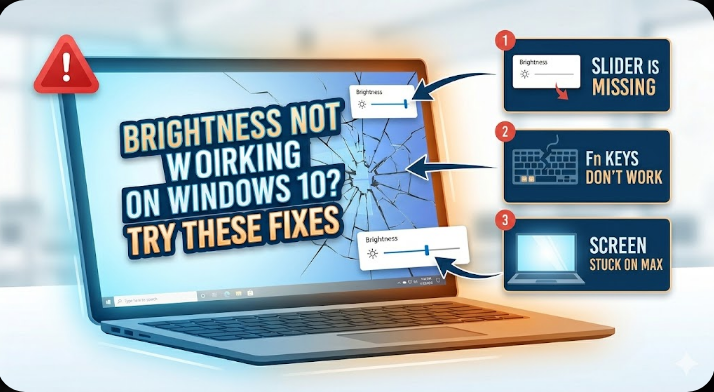
- The brightness slider is missing
- Brightness doesn’t change when adjusted
- Function keys (Fn keys) don’t work
- Screen is stuck at maximum or minimum brightness
- Brightness resets after restart
These symptoms can point to display driver issues or system configuration problems.
Why You Can’t Adjust Brightness on Windows 10
There are several reasons why brightness control may stop working.
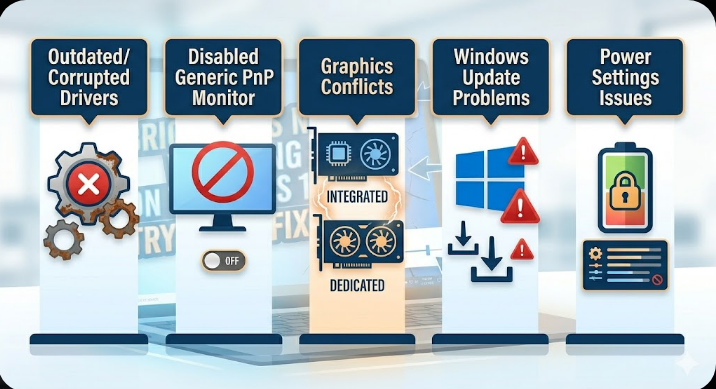
Outdated or Corrupted Display Drivers
Display drivers control how your system communicates with your screen. If they are outdated or damaged, brightness control may fail.
Disabled Generic PnP Monitor
Windows uses the Generic PnP Monitor driver to manage display settings. If it’s disabled, brightness options may disappear.
Graphics Driver Conflicts
Conflicts between integrated and dedicated graphics drivers can cause issues.
Windows Update Problems
Some updates may break brightness functionality or reset display settings.
Power Settings Issues
Incorrect power plans can affect brightness behavior.
How to Fix Brightness Not Working on Windows 10
Below are the most effective solutions to restore brightness control.
Restart Your Computer
This may sound simple, but it can fix temporary glitches.
What to Do
- Save your work
- Restart your PC
- Try adjusting brightness again
If the issue persists, continue with the next methods.
Use Keyboard Shortcuts
Some laptops use function keys to control brightness.
What to Check
- Press keys like Fn + F5/F6 or similar
- Look for brightness icons on your keyboard
If nothing happens, the issue may be driver-related.
Enable Generic PnP Monitor
If the monitor driver is disabled, brightness control won’t work.
Steps
- Right-click the Start button
- Select Device Manager
- Expand Monitors
- Right-click Generic PnP Monitor
- Select Enable device
Restart your computer afterward.
Update Display Drivers
Updating drivers is one of the most effective fixes.
Steps
- Open Device Manager
- Expand Display adapters
- Right-click your graphics card
- Select Update driver
- Choose Search automatically for drivers
Restart your PC after updating.
Reinstall Display Drivers
If updating doesn’t work, reinstall the driver.
Steps
- Open Device Manager
- Right-click your display adapter
- Select Uninstall device
- Restart your computer
Windows will reinstall the driver automatically.
Install Drivers from Manufacturer Website
Sometimes Windows installs generic drivers that lack full functionality.
What to Do
- Visit your laptop or GPU manufacturer’s website (Intel, NVIDIA, AMD)
- Download the latest drivers
- Install them manually
This often restores brightness controls.
Update Windows
System updates can fix bugs affecting brightness.
Steps
- Open Settings
- Go to Update & Security
- Click Windows Update
- Select Check for updates
Install updates and restart your system.
Adjust Power Settings
Power plans can affect display brightness.
Steps
- Open Control Panel
- Go to Power Options
- Click Change plan settings
- Adjust brightness settings
Make sure brightness is not locked by power settings.
Enable Adaptive Brightness
Adaptive brightness adjusts the screen automatically.
Steps
- Open Control Panel
- Go to Power Options
- Click Change advanced power settings
- Expand Display
- Enable Adaptive brightness
Apply changes and test your screen.
Check Graphics Settings
Some graphics control panels override Windows settings.
What to Do
- Open Intel Graphics Command Center or NVIDIA Control Panel
- Check display settings
- Reset to default if needed
Run Hardware Troubleshooter
Windows can detect hardware-related issues.
Steps
- Open Settings
- Go to Update & Security → Troubleshoot
- Run Hardware and Devices troubleshooter
Follow the instructions provided.
Check BIOS Settings
In rare cases, BIOS settings may affect brightness.
Steps
- Restart your computer
- Enter BIOS (usually F2, Del, or Esc)
- Look for display or graphics settings
- Ensure everything is enabled
Save and exit BIOS.
Perform a System Restore
If the issue started recently, restoring your system can help.
Steps
- Search for System Restore
- Choose a restore point before the issue began
- Follow the instructions
This can undo problematic changes.
When to Consider Hardware Issues
If none of the fixes work, the problem might be hardware-related.
Possible Causes
- Faulty display panel
- Loose internal connections
- Damaged backlight
In this case, consider contacting a technician or manufacturer.
Tips to Prevent Brightness Issues
To avoid this problem in the future:
- Keep drivers updated
- Install Windows updates regularly
- Avoid using unofficial drivers
- Restart your system occasionally
- Maintain proper system health
These habits help keep your display functioning correctly.
Final Thoughts
Not being able to adjust brightness on Windows 10 can be frustrating, especially when it affects your comfort and productivity. Fortunately, the issue is usually caused by driver problems, settings misconfigurations, or minor system glitches.
By following the solutions in this guide—such as updating drivers, enabling the Generic PnP Monitor, and adjusting power settings—you can quickly restore brightness control. Start with simple fixes and move to advanced solutions if needed.
Related articles
Fixing the “Kernel Security Check Failure” Error on Windows 10