


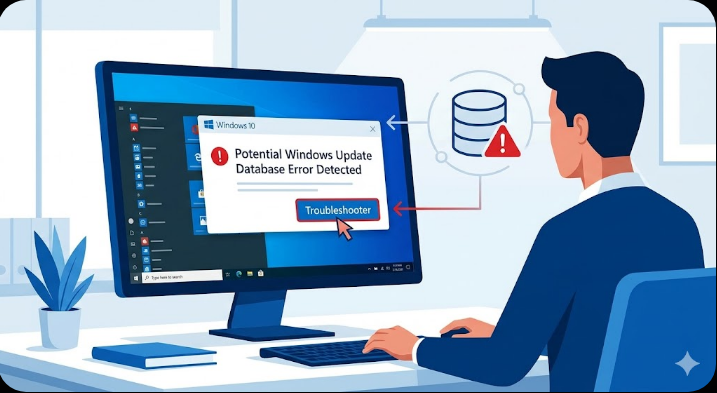
How to Fix a Potential Windows Update Database Error
Windows Update plays a critical role in keeping your system secure, stable, and up to date. However, users sometimes encounter errors that prevent updates from installing properly. One of the more confusing issues is the message: “Potential Windows Update Database Error Detected.”
This error usually appears when running the Windows Update Troubleshooter and indicates that something is wrong with the update database or related system components. While it may sound serious, the problem is often fixable with the right steps.
In this guide, you’ll learn what this error means, why it occurs, and how to fix it effectively on Windows 10 and Windows 11.
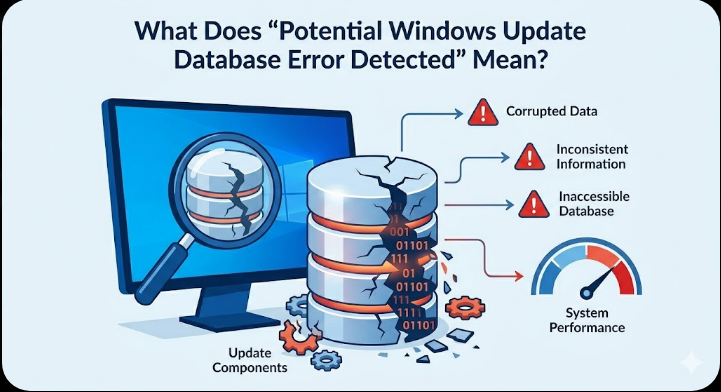
What Does “Potential Windows Update Database Error Detected” Mean?
This error message suggests that the Windows Update database—where update information is stored—may be corrupted, inconsistent, or inaccessible. The database helps Windows track installed updates, pending updates, and system components required for updates.
When this database becomes damaged, Windows may:
- Fail to download or install updates
- Get stuck during updates
- Display error messages repeatedly
- Experience performance or stability issues
Fixing the issue typically involves resetting update components or repairing system files.
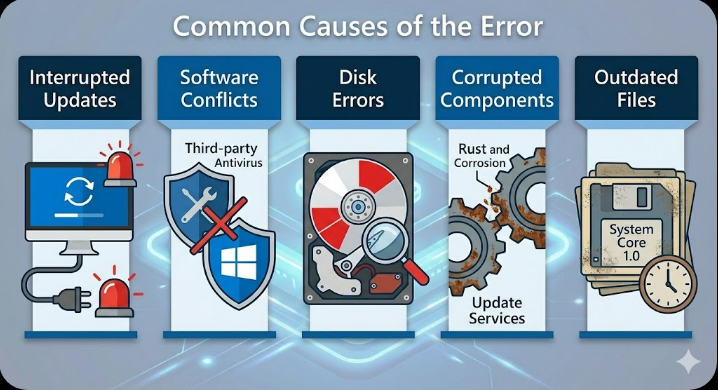
Common Causes of the Error
Understanding the root causes can help you choose the right solution.
Corrupted Windows Update Components
Over time, update files and services may become corrupted, leading to database errors.
Interrupted Updates
If an update process is interrupted due to power loss, system crash, or forced shutdown, it can damage the update database.
Software Conflicts
Third-party antivirus or system optimization tools may interfere with Windows Update.
Disk Errors or File System Issues
Problems with your hard drive can prevent Windows from accessing update files correctly.
Outdated System Files
Missing or outdated system components may cause compatibility issues during updates.
How to Fix Potential Windows Update Database Error
Below are several proven methods to resolve this issue.
Run Windows Update Troubleshooter Again
Sometimes, simply rerunning the troubleshooter can resolve temporary glitches.
Steps
- Open Settings
- Go to Update & Security → Troubleshoot
- Click Additional troubleshooters
- Select Windows Update and click Run the troubleshooter
Follow the instructions and restart your computer.
Restart Windows Update Services
Restarting update services can clear minor errors.
Steps
- Press
Windows + R, type services.msc, and press Enter - Locate the following services:
- Windows Update
- Background Intelligent Transfer Service (BITS)
- Cryptographic Services
- Right-click each one and select Restart
After restarting, try updating again.
Reset Windows Update Components
This is one of the most effective solutions.
Steps to Reset Components
- Open Command Prompt as administrator
-
Stop update services:
net stop wuauserv
net stop bits
net stop cryptsvc -
Rename update folders:
ren C:\Windows\SoftwareDistribution SoftwareDistribution.old
ren C:\Windows\System32\catroot2 catroot2.old -
Restart services:
net start wuauserv
net start bits
net start cryptsvc
Restart your computer and check for updates again.
Run System File Checker (SFC)
SFC scans and repairs corrupted system files.
Steps
- Open Command Prompt as administrator
-
Run:
sfc /scannow - Wait for the scan to complete
Restart your system after the scan.
Use DISM Tool to Repair Windows Image
DISM helps fix deeper system issues.
Steps
- Open Command Prompt as administrator
-
Run:
DISM /Online /Cleanup-Image /RestoreHealth - Wait for the process to finish
Restart your computer once done.
Check Disk for Errors
Disk problems can affect the update database.
Steps to Run CHKDSK
- Open Command Prompt as administrator
-
Enter:
chkdsk C: /f /r - Press Enter and confirm the scan
- Restart your PC
The system will scan and fix disk errors.
Temporarily Disable Antivirus Software
Some antivirus programs may block update processes.
What to Do
- Disable your antivirus temporarily
- Run Windows Update
- Re-enable antivirus after completion
Make sure to only disable trusted security software briefly.
Free Up Disk Space
Insufficient storage can cause update failures.
Steps
- Delete temporary files
- Empty Recycle Bin
- Use Disk Cleanup
- Remove unused applications
Ensure you have enough space for updates to install.
Perform a Clean Boot
A clean boot helps identify software conflicts.
Steps
- Press
Windows + R, type msconfig, and press Enter - Go to the Services tab
- Check Hide all Microsoft services
- Click Disable all
- Go to the Startup tab and open Task Manager
- Disable all startup items
- Restart your computer
Try updating again in this minimal environment.
Manually Install Windows Updates
If automatic updates fail, you can install updates manually.
Steps
- Visit the Microsoft Update Catalog
- Search for the update code (e.g., KB number)
- Download the appropriate version
- Install it manually
This bypasses the update system and may resolve the issue.
When to Use Advanced Solutions
If the error persists, consider more advanced options:
- Perform a System Restore
- Reset Windows while keeping your files
- Reinstall Windows as a last resort
These methods can fix deeper system corruption.
Tips to Prevent Windows Update Errors
To avoid similar issues in the future, follow these best practices:
- Keep your system regularly updated
- Avoid interrupting updates
- Maintain sufficient disk space
- Use reliable antivirus software
- Regularly scan for disk errors
Preventive maintenance helps ensure smooth updates.
Final Thoughts
The “Potential Windows Update Database Error Detected” message may seem alarming, but it is usually fixable with the right troubleshooting steps. In most cases, resetting update components, repairing system files, or restarting services will resolve the issue.
Start with basic fixes like running the troubleshooter and restarting services, then move on to advanced solutions like SFC, DISM, and manual updates if needed. With patience and the right approach, you can restore your Windows Update functionality and keep your system running smoothly.
Related articles
How to Fix Wi-Fi Disconnecting Issues on Windows 10