


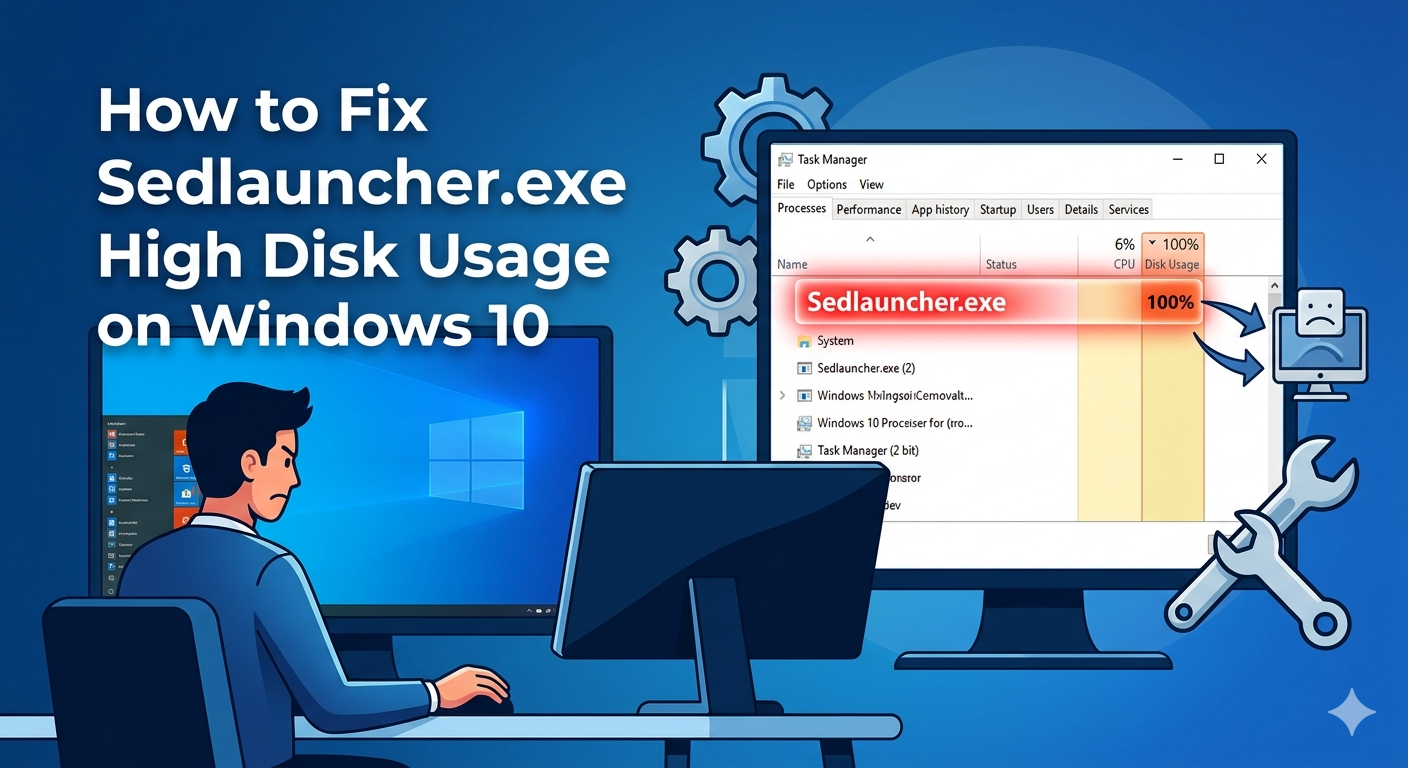
How to Fix Sedlauncher.exe High Disk Usage on Windows 10
If your Windows 10 computer suddenly becomes slow and unresponsive, high disk usage could be the cause. One process that often raises concern is Sedlauncher.exe. Many users notice it consuming a large percentage of disk resources, leading to lag, delayed responses, and overall poor performance.
If you’re wondering what Sedlauncher.exe is and how to fix its high disk usage, this guide will walk you through everything you need to know in a clear and practical way.
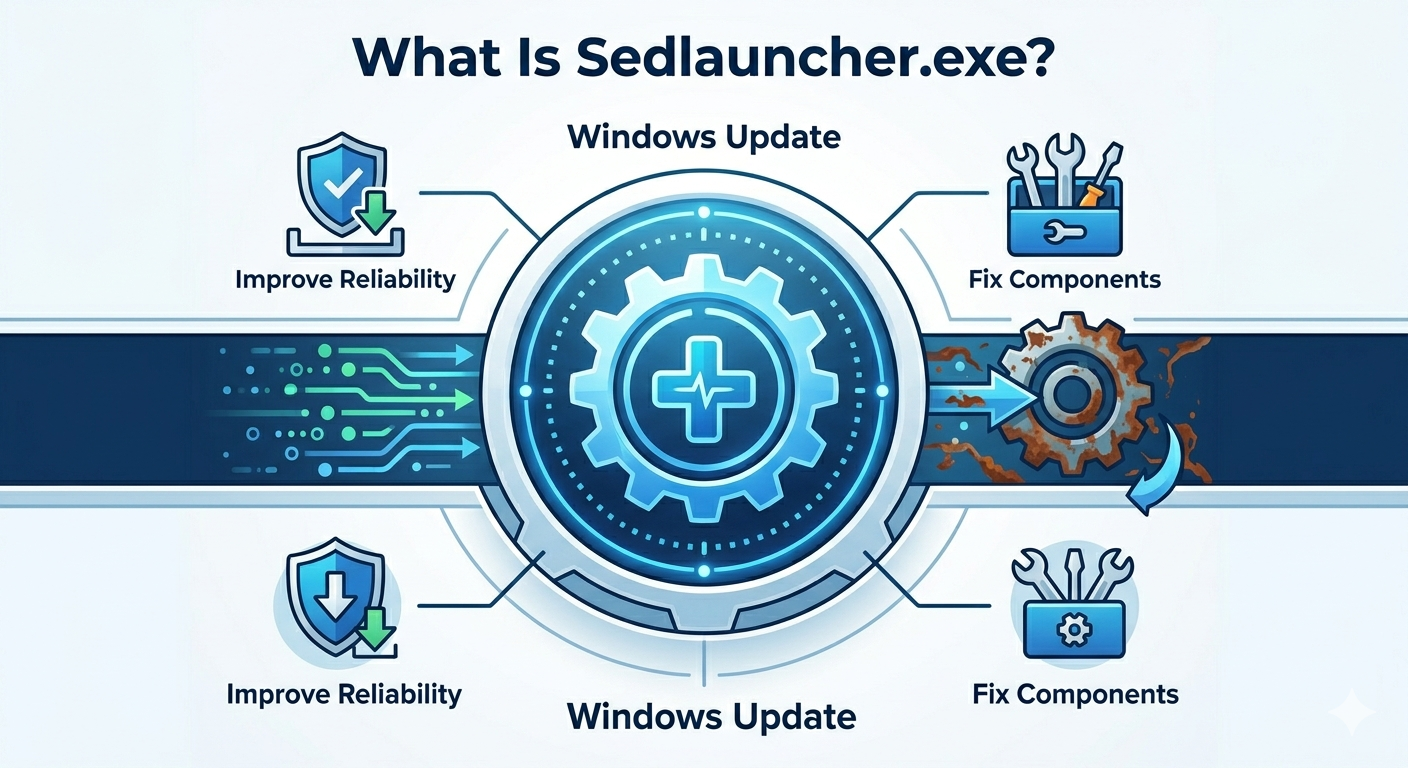
What Is Sedlauncher.exe?
Sedlauncher.exe is a legitimate Windows process associated with the Windows Update service, specifically the Windows Remediation Service. Its main purpose is to improve the reliability of Windows Update by fixing issues that might prevent updates from installing properly.
This process usually runs in the background after a Windows update and helps:
- Repair corrupted update components
- Ensure updates install successfully
- Optimize system performance for future updates
While it’s safe and important, Sedlauncher.exe can sometimes use excessive disk resources.
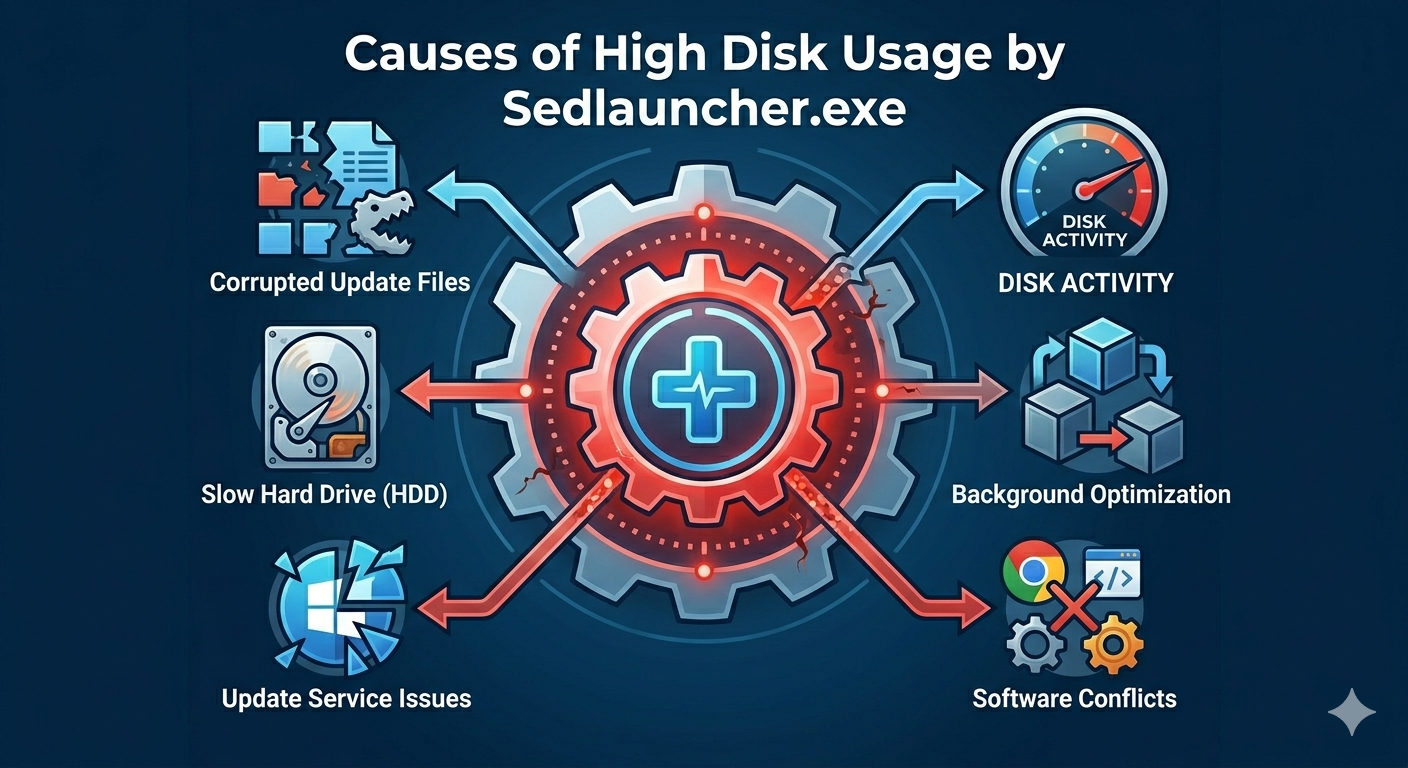
Why Does Sedlauncher.exe Cause High Disk Usage?
High disk usage by Sedlauncher.exe is typically temporary, but it can become problematic in some cases.
Background Update Optimization
After updates, Windows may run optimization tasks that require heavy disk activity.
Corrupted Update Files
If update files are damaged, Sedlauncher.exe may repeatedly try to fix them, causing high usage.
Slow Hard Drive (HDD)
Systems using traditional hard drives are more likely to experience noticeable slowdowns.
Windows Update Issues
Problems with Windows Update services can cause the process to behave abnormally.
Software Conflicts
Third-party programs may interfere with update-related processes.
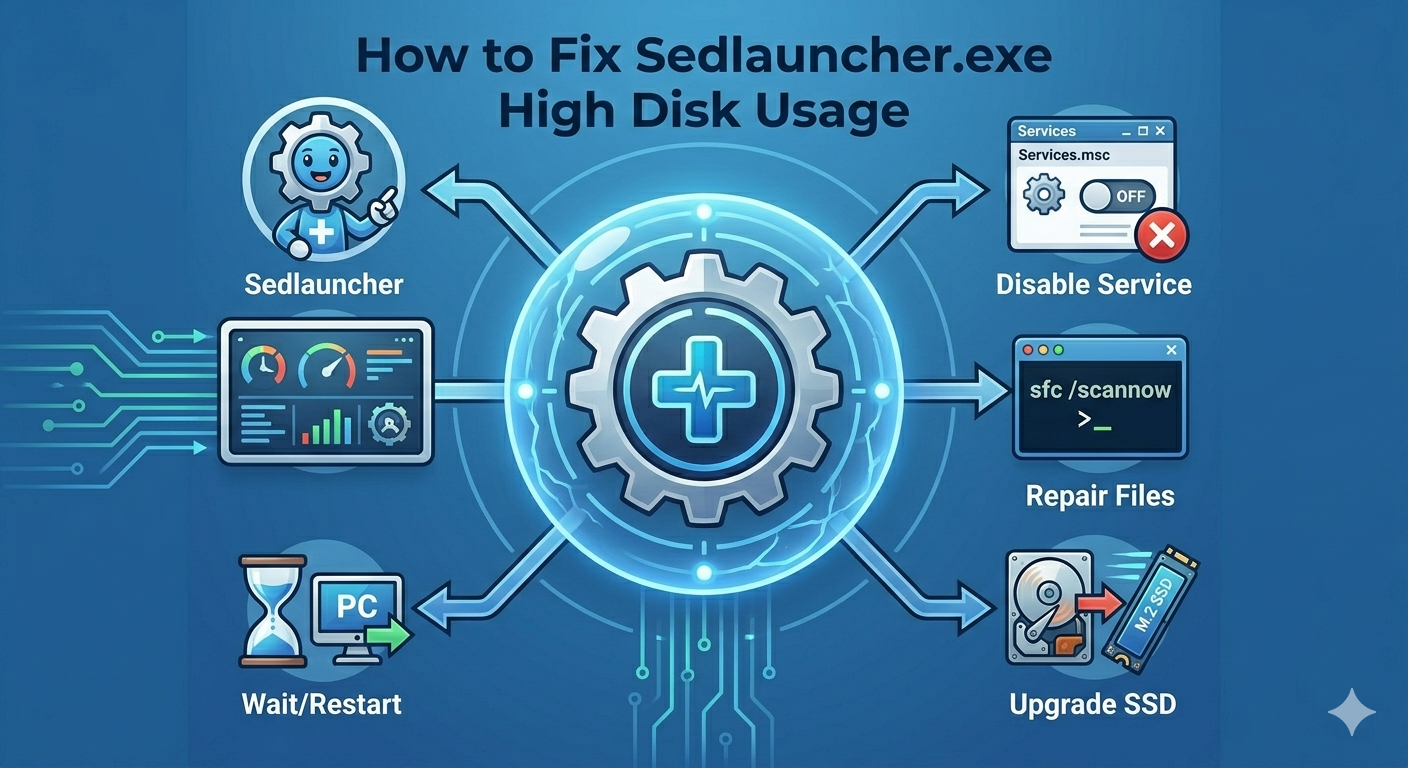
How to Fix Sedlauncher.exe High Disk Usage
Below are several effective methods to reduce or stop Sedlauncher.exe from consuming too much disk.
Wait for the Process to Finish
Before applying fixes, give the process some time.
Why This Matters
Sedlauncher.exe often runs temporarily after updates. In many cases, disk usage returns to normal after the process completes.
What to Do
- Open Task Manager
- Monitor disk usage
- Wait 10–30 minutes
If usage remains high, proceed with the solutions below.
Restart Your Computer
A simple restart can clear temporary glitches.
Steps
- Save your work
- Restart your PC
- Check disk usage again
This can stop stuck processes and refresh system services.
Disable Windows Remediation Service
If Sedlauncher.exe continues to cause problems, you can disable the service.
Steps
- Press
Windows + R, type services.msc, and press Enter - Find Windows Remediation Service
- Right-click and select Properties
- Set Startup type to Disabled
- Click Stop, then Apply and OK
Disabling this service may prevent future automatic fixes for updates.
End the Sedlauncher.exe Process
You can manually stop the process if needed.
Steps
- Open Task Manager
- Find Sedlauncher.exe
- Right-click and select End Task
Note that the process may restart automatically later.
Run Windows Update Troubleshooter
Fixing update-related issues can resolve the root cause.
Steps
- Open Settings
- Go to Update & Security → Troubleshoot
- Click Additional troubleshooters
- Select Windows Update and run it
Follow the on-screen instructions.
Reset Windows Update Components
Resetting update components can fix persistent issues.
Steps
- Open Command Prompt as administrator
-
Stop services:
net stop wuauserv
net stop bits
net stop cryptsvc -
Rename folders:
ren C:\Windows\SoftwareDistribution SoftwareDistribution.old
ren C:\Windows\System32\catroot2 catroot2.old -
Restart services:
net start wuauserv
net start bits
net start cryptsvc
Restart your computer afterward.
Run System File Checker (SFC)
Corrupted system files can cause abnormal behavior.
Steps
- Open Command Prompt as administrator
-
Run:
sfc /scannow - Wait for the scan to complete
Restart your system.
Use DISM Tool
DISM can repair deeper system issues.
Steps
- Open Command Prompt as administrator
-
Run:
DISM /Online /Cleanup-Image /RestoreHealth - Wait for the process to finish
Restart your PC.
Check Disk for Errors
Disk issues can worsen high usage problems.
Steps
- Open Command Prompt as administrator
-
Enter:
chkdsk C: /f /r - Restart your computer
Allow the scan to complete.
Upgrade to SSD (Optional but Effective)
If you’re using a traditional HDD, high disk usage will feel more severe.
Why Upgrade Helps
- Faster read/write speeds
- Better system responsiveness
- Reduced impact from background processes
This is a long-term solution rather than a quick fix.
Disable Windows Update Delivery Optimization
Delivery Optimization can also contribute to disk usage.
Steps
- Open Settings
- Go to Update & Security
- Click Delivery Optimization
- Turn off Allow downloads from other PCs
This can reduce background activity.
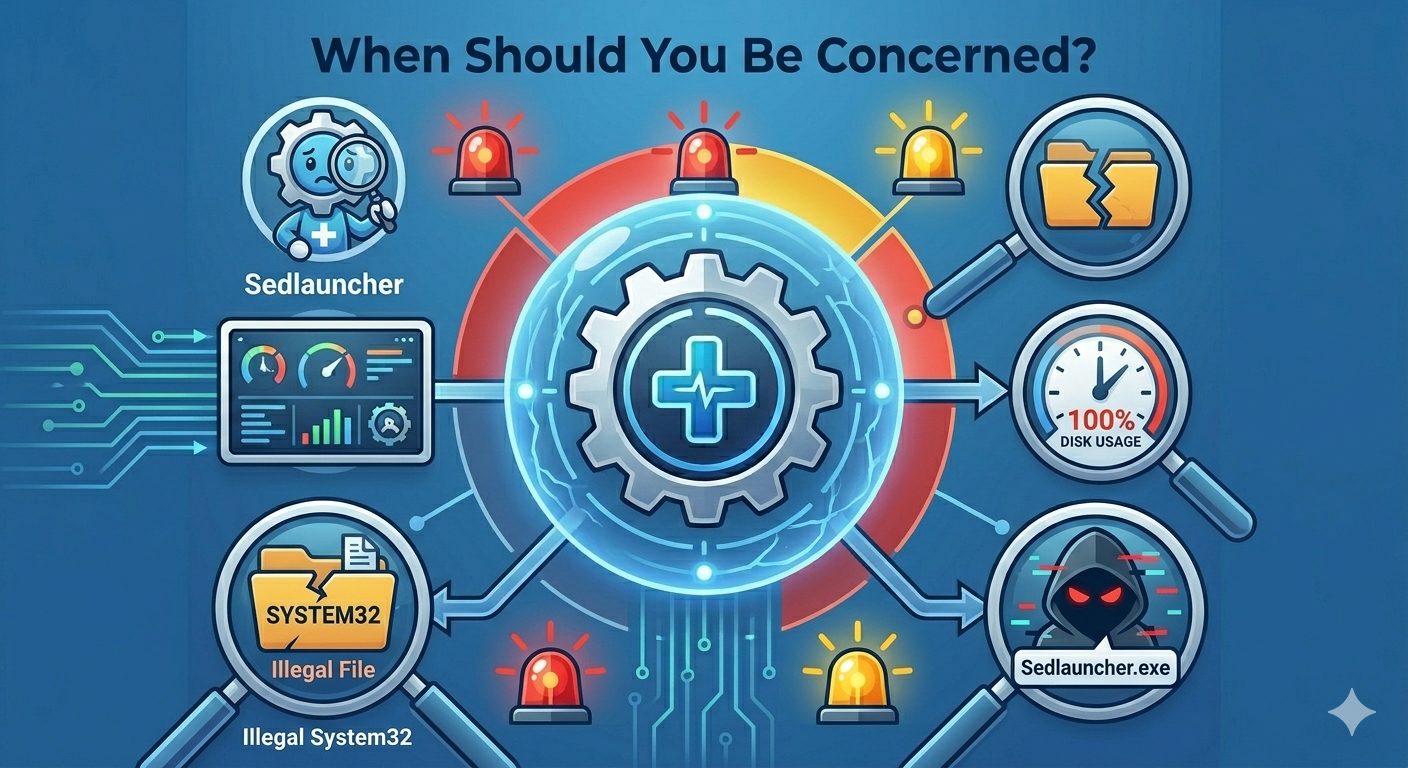
When Should You Be Concerned?
Sedlauncher.exe is generally safe, but you should investigate further if:
- Disk usage stays at 100% for long periods
- Your system becomes unusable
- The file location is suspicious (not in System32)
In rare cases, malware may disguise itself using similar names.
Tips to Prevent High Disk Usage Issues
To avoid similar problems in the future:
- Keep Windows updated
- Regularly scan for system errors
- Maintain sufficient disk space
- Use reliable antivirus software
- Avoid interrupting updates
These habits help keep your system stable and efficient.
Final Thoughts
Sedlauncher.exe is a legitimate Windows process designed to improve update reliability, but it can sometimes cause high disk usage and slow down your system. Fortunately, the issue is usually temporary or easily fixable.
Start by waiting or restarting your PC, then move on to disabling the service, resetting update components, or repairing system files if needed. With the methods outlined above, you can quickly regain control of your system’s performance.
Related articles
Fixing the “Kernel Security Check Failure” Error on Windows 10
Fix Outlook Password Prompt Issue in Office 365
Microsoft Office 2011 for Mac: End of Mainstream Support Explained