


Fix Two-Finger Scrolling Issues in Windows 10 Easily
The two-finger scroll feature is one of the most convenient touchpad gestures on laptops. It allows users to scroll through web pages, documents, and applications smoothly without using a mouse or scroll bar. However, many Windows 10 users encounter a frustrating issue where the two-finger scroll suddenly stops working.
If you’re facing this problem, you’re not alone. The good news is that it’s usually caused by simple settings or driver issues and can be fixed بسهولة with the right steps. In this guide, you’ll learn why two-finger scrolling stops working and how to fix it effectively.
Common Signs of the Problem
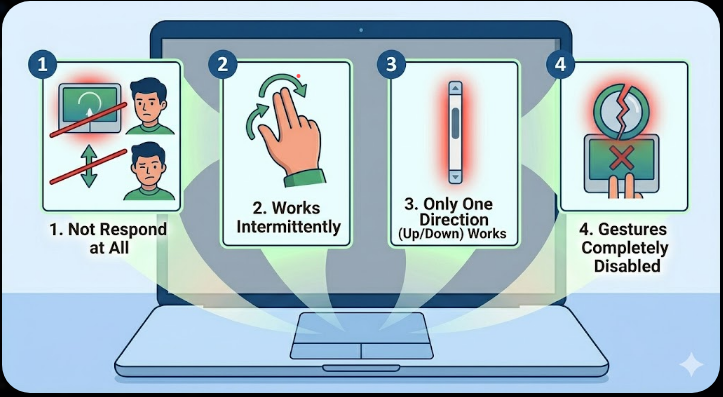
Before jumping into solutions, it’s important to recognize how the issue appears. The problem may present itself in several ways:
- Two-finger scrolling does not respond at all
- Scrolling works intermittently
- Only one direction (up or down) works
- Touchpad gestures are completely disabled
- Scrolling works in some apps but not others
These symptoms help identify whether the issue is related to settings, drivers, or hardware.
Why Two-Finger Scroll Stops Working
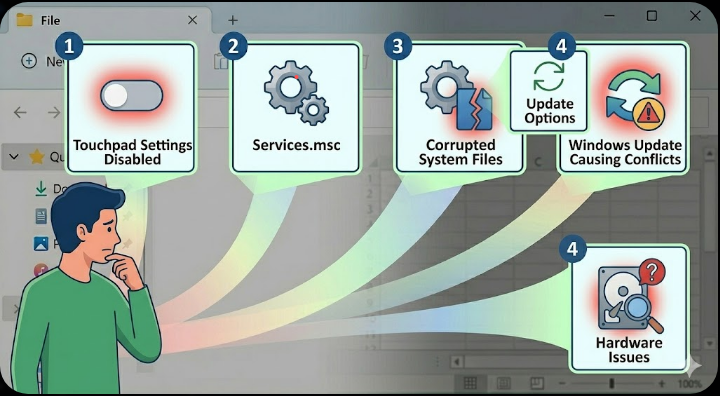
There are several reasons why this feature may stop functioning on Windows 10.
Touchpad Settings Disabled
The most common cause is that the two-finger scroll option has been turned off in system settings.
Outdated or Corrupted Drivers
Touchpad drivers control gesture functionality. If they are outdated or corrupted, features like scrolling may stop working.
Windows Updates Causing Conflicts
Sometimes, a Windows update may reset settings or install incompatible drivers.
Third-Party Software Interference
Certain applications or utilities can interfere with touchpad behavior.
Hardware Issues
In rare cases, the touchpad itself may be faulty or damaged.
How to Fix Two Finger Scroll Not Working on Windows 10
Below are the most effective methods to restore two-finger scrolling.
Enable Two-Finger Scroll in Settings
The first step is to check whether the feature is enabled.
Steps to Enable Scrolling
- Open Settings
- Go to Devices → Touchpad
- Scroll down to the Scroll and zoom section
- Make sure Drag two fingers to scroll is turned on
Test your touchpad after enabling the option.
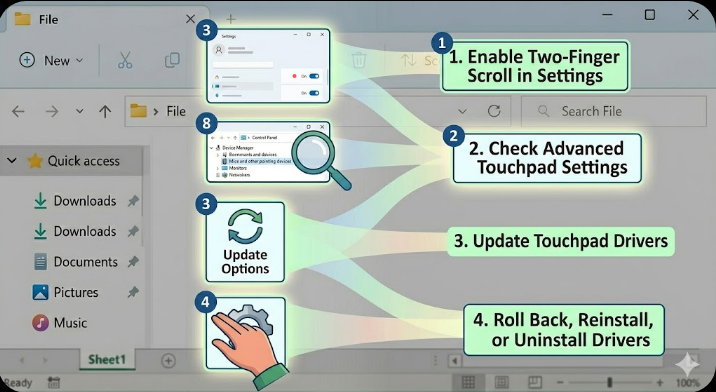
Check Advanced Touchpad Settings
Some laptops use manufacturer-specific drivers like Synaptics or ELAN.
Steps to Access Advanced Settings
- Open Control Panel
- Go to Mouse
- Navigate to the Touchpad or Device Settings tab
- Click Settings
- Find Two-Finger Scrolling and enable it
Apply the changes and restart your computer if needed.
Update Touchpad Drivers
Updating drivers can fix compatibility issues.
Steps to Update Drivers
- Right-click the Start button
- Select Device Manager
- Expand Mice and other pointing devices
- Right-click your touchpad device
- Click Update driver
- Choose Search automatically for drivers
Restart your PC after the update.
Reinstall Touchpad Drivers
If updating doesn’t work, reinstalling may help.
Steps to Reinstall Drivers
- Open Device Manager
- Right-click your touchpad device
- Select Uninstall device
- Restart your computer
Windows will automatically reinstall the driver.
Roll Back Driver Updates
If the issue started after a recent update, rolling back the driver can fix it.
Steps to Roll Back Driver
- Open Device Manager
- Right-click the touchpad device
- Select Properties
- Go to the Driver tab
- Click Roll Back Driver
Restart your computer and test again.
Enable Touchpad via Function Keys
Some laptops allow you to enable or disable the touchpad using keyboard shortcuts.
What to Check
- Look for keys like Fn + F5, Fn + F7, or similar
- Check for a touchpad icon on function keys
Make sure the touchpad is enabled.
Check Windows Updates
Installing the latest updates can fix bugs affecting touchpad functionality.
Steps to Update Windows
- Open Settings
- Go to Update & Security
- Click Windows Update
- Select Check for updates
Install updates and restart your system.
Run Hardware Troubleshooter
Windows provides built-in troubleshooters that can detect hardware issues.
Steps to Run Troubleshooter
- Open Settings
- Go to Update & Security → Troubleshoot
- Click Additional troubleshooters
- Select Hardware and Devices
- Run the troubleshooter
Follow the instructions provided.
Disable Conflicting Software
Some third-party applications can interfere with touchpad gestures.
What to Do
- Uninstall recently installed software
- Perform a clean boot
- Disable unnecessary startup programs
Check if scrolling works after disabling these programs.
Check BIOS Settings
In rare cases, touchpad settings in BIOS may affect functionality.
Steps
- Restart your computer
- Enter BIOS/UEFI settings (usually by pressing F2, Del, or Esc)
- Look for touchpad settings
- Ensure the touchpad is enabled
Save changes and exit.
Test for Hardware Issues
If none of the solutions work, the problem might be hardware-related.
How to Check
- Try using an external mouse
- Test the touchpad in BIOS or another operating system
- Contact your device manufacturer
Hardware issues may require repair or replacement.
Tips to Prevent Touchpad Issues
To avoid similar problems in the future, consider these tips:
- Keep your drivers updated
- Avoid installing untrusted software
- Regularly clean your touchpad
- Keep your system updated
- Use official drivers from the manufacturer
These practices help maintain smooth touchpad performance.
Final Thoughts
Two-finger scroll not working on Windows 10 can be annoying, but it’s usually easy to fix. In most cases, the issue is caused by disabled settings, outdated drivers, or minor software conflicts.
By following the steps in this guide—from enabling touchpad settings to updating drivers and checking hardware—you can quickly restore scrolling functionality. Start with the simplest solutions and move to more advanced fixes if necessary.
Related articles
Fixing the “Kernel Security Check Failure” Error on Windows 10
How to Fix Wi-Fi Disconnecting Issues on Windows 10
Missing Switch User Option in Windows 10 – Solutions to Fix It