


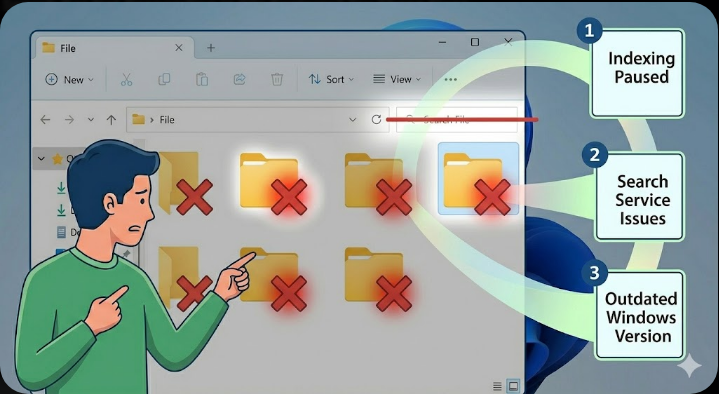
Search Bar Not Responding in File Explorer? Try These Fixes
The search bar in File Explorer is a powerful feature that helps you quickly locate files, folders, and documents on your Windows computer. When it stops working, it can slow down your productivity and make file management frustrating. Many users experience issues where the search bar becomes unresponsive, fails to return results, or simply doesn’t function as expected.
If your File Explorer search bar isn’t working, don’t worry. This guide will explain the common causes and provide step-by-step solutions to fix the issue in Windows 10 and Windows 11.
Common Signs of Search Bar Issues
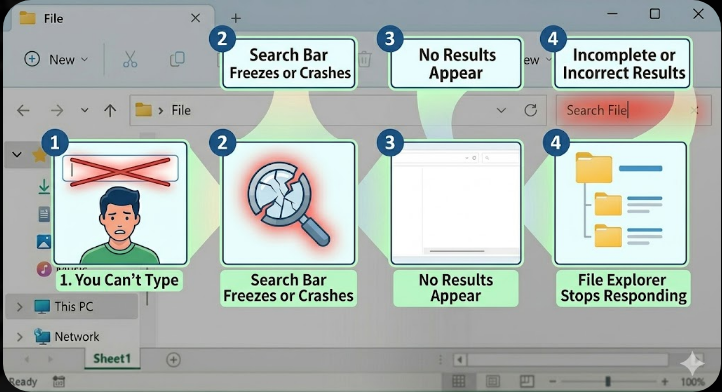
Before fixing the problem, it’s useful to identify how the issue appears. The search bar problem can show up in several ways:
- You can’t type in the search box
- The search bar freezes or crashes
- No results appear after searching
- Search results are incomplete or incorrect
- File Explorer stops responding during a search
These symptoms often point to indexing issues, system glitches, or software conflicts.
Why the File Explorer Search Bar Stops Working
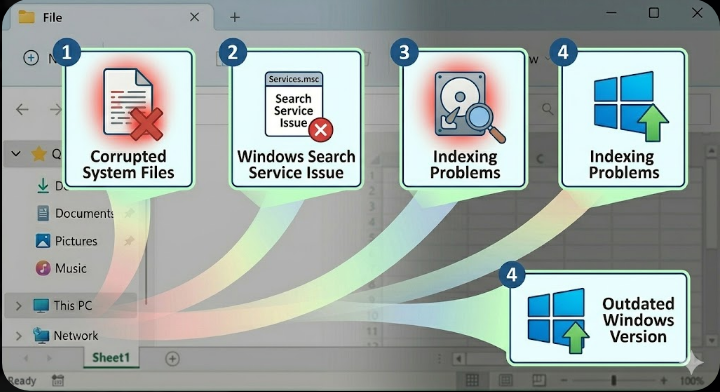
There are several reasons why the search bar may stop functioning properly.
Indexing Problems
Windows uses an indexing system to speed up searches. If the index becomes corrupted or outdated, search results may not appear.
Windows Search Service Issues
The Windows Search service runs in the background and powers the search function. If it stops working, the search bar may fail completely.
Corrupted System Files
Damaged system files can interfere with File Explorer and its features.
Outdated Windows Version
Bugs in older versions of Windows can affect search functionality.
Software Conflicts
Third-party applications or background services may interfere with File Explorer.
How to Fix File Explorer Search Bar Not Working
Below are several methods you can try to restore the search function.
Restart File Explorer
Sometimes the issue is just a temporary glitch.
Steps to Restart File Explorer
- Press Ctrl + Shift + Esc to open Task Manager
- Find Windows Explorer in the list
- Right-click it and select Restart
This refreshes the interface and often fixes minor issues.
Restart Windows Search Service
If the search service is not running properly, restarting it can help.
Steps to Restart the Service
- Press
Windows + R, type services.msc, and press Enter - Scroll down to Windows Search
- Right-click and select Restart
After restarting, test the search bar again.
Rebuild the Search Index
Rebuilding the index can fix corrupted search data.
Steps to Rebuild Index
- Open Control Panel
- Go to Indexing Options
- Click Advanced
- Under the Troubleshooting section, click Rebuild
This process may take some time depending on the number of files.
Run the Search and Indexing Troubleshooter
Windows includes a built-in tool to detect and fix search-related issues.
Steps to Run the Troubleshooter
- Open Settings
- Go to System → Troubleshoot
- Click Other troubleshooters
- Find Search and Indexing and click Run
Follow the on-screen instructions to complete the process.
Check Windows Updates
Updating Windows can resolve bugs affecting File Explorer.
Steps to Update Windows
- Open Settings
- Go to Windows Update
- Click Check for updates
- Install any available updates
Restart your computer after updating.
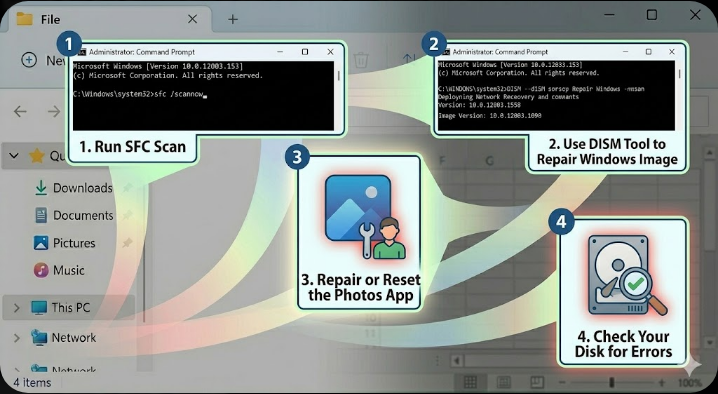
Run System File Checker (SFC)
Corrupted system files can break search functionality.
Steps to Run SFC
- Open Command Prompt as administrator
-
Enter the command:
sfc /scannow - Press Enter and wait for the scan to finish
Restart your PC once the scan completes.
Use DISM Tool for Deeper Repair
If SFC doesn’t fix the issue, use DISM.
Steps to Run DISM
- Open Command Prompt as administrator
-
Run the following commands:
DISM /Online /Cleanup-Image /RestoreHealth - Wait for the process to finish
Restart your computer afterward.
Reset Windows Search
Resetting Windows Search can restore default settings.
Steps to Reset Search
- Open Windows PowerShell as administrator
- Run the appropriate reset command (depending on your system)
- Restart your computer
This helps resolve deeper configuration issues.
Check Folder Search Settings
Sometimes the issue is related to search configuration.
Steps to Adjust Settings
- Open File Explorer
- Click the three-dot menu and select Options
- Go to the Search tab
- Ensure options like Always search file names and contents are enabled
Apply changes and test again.
Disable Third-Party Extensions
Some third-party apps can interfere with File Explorer.
What to Do
- Disable recently installed programs
- Perform a clean boot
- Check if the issue disappears
If the search bar works after disabling a program, that app may be the cause.
Create a New User Profile
User profile corruption can also affect search functionality.
Steps to Create a New Account
- Open Settings
- Go to Accounts → Other users
- Click Add account
- Follow the instructions
Log in to the new account and test the search bar.
When the Problem Persists
If none of the above methods work, consider more advanced options:
- Perform a System Restore
- Reset Windows while keeping your files
- Reinstall Windows بالكامل if necessary
These steps should only be used as a last resort.
Tips to Prevent Search Issues in the Future
To avoid similar problems later, follow these best practices:
- Keep Windows updated regularly
- Avoid installing untrusted software
- Maintain sufficient disk space
- Periodically rebuild the search index
- Use reliable antivirus protection
These habits can help keep your system running smoothly.
Final Thoughts
A non-working search bar in File Explorer can be a major inconvenience, but it’s usually fixable with the right approach. Whether the issue is caused by indexing problems, system file corruption, or service errors, the solutions in this guide cover the most effective fixes.
Start with simple steps like restarting File Explorer or the search service, then move on to advanced tools like SFC, DISM, and indexing rebuild if needed. With a bit of troubleshooting, you can restore full search functionality and get back to managing your files efficiently.
Related articles
Fixing the “Kernel Security Check Failure” Error on Windows 10