


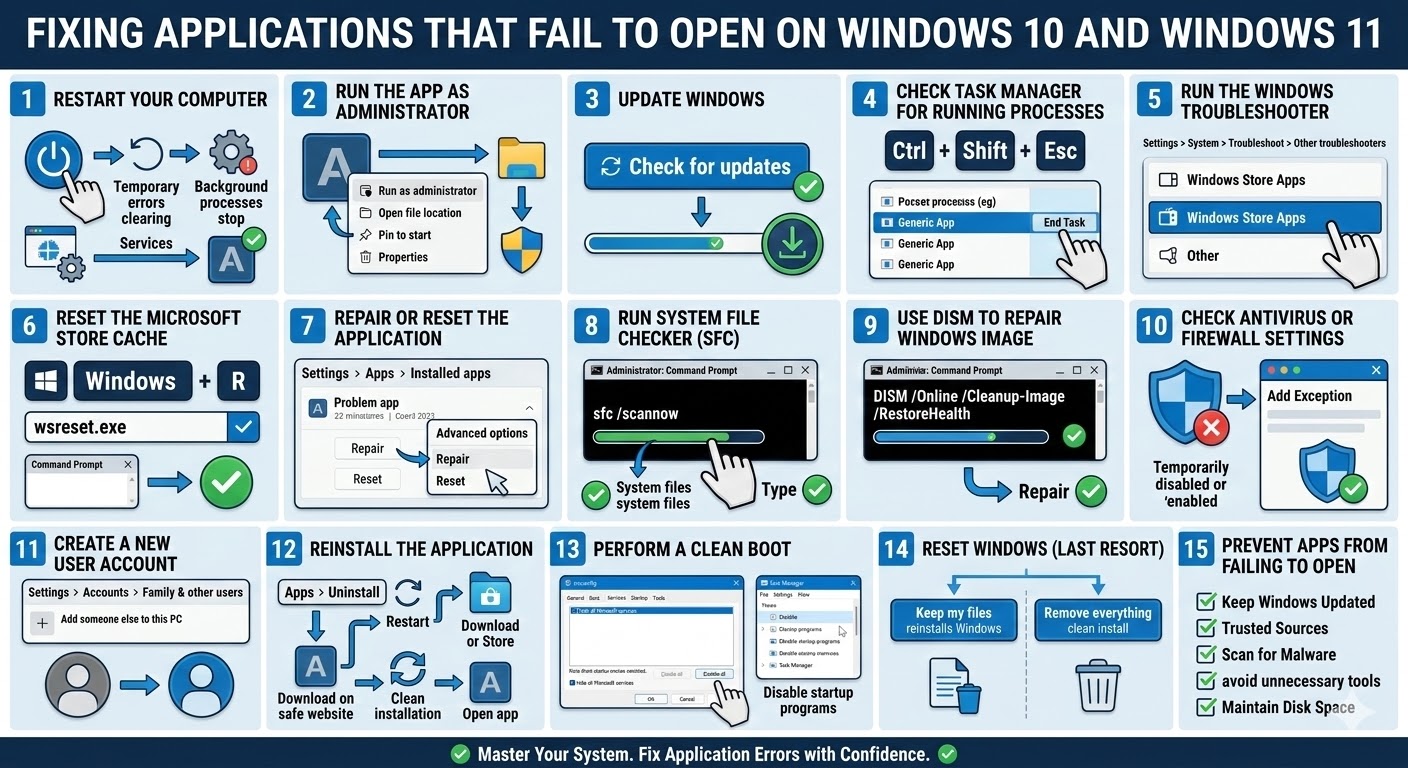
Fixing Applications That Fail to Open on Windows 10 and Windows 11
It can be frustrating when applications refuse to open on your Windows computer. Whether it’s a built-in program like Microsoft Edge or a third-party application, the issue can disrupt productivity and make your system feel unreliable. Many Windows 10 and Windows 11 users encounter situations where they click an app icon, but nothing happens, or the program opens briefly and then closes.
Fortunately, this problem is usually caused by software conflicts, corrupted system files, outdated drivers, or misconfigured settings. In most cases, you can fix the issue without reinstalling Windows.
This guide explains the common reasons apps fail to open and provides effective solutions to restore normal functionality on Windows 10 and Windows 11.
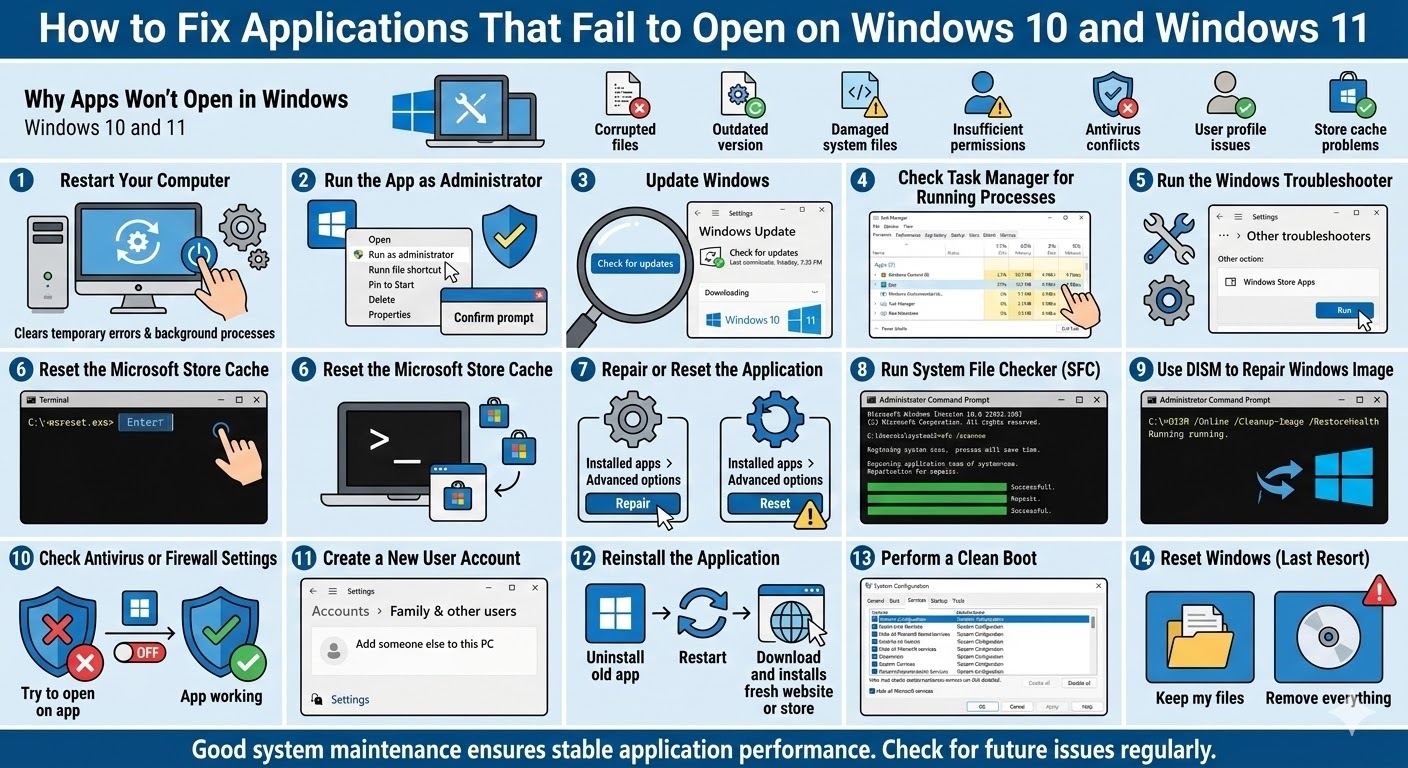
Why Apps Won’t Open in Windows
When applications fail to launch, the problem may originate from several system components. Understanding the possible causes can help identify the correct solution.
Common reasons include:
-
Corrupted application files
-
Outdated Windows version
-
Damaged system files
-
Insufficient permissions
-
Conflicts with antivirus software
-
Corrupted user profile
-
Problems with Windows Store cache
-
Background processes blocking the app
These issues can affect both desktop applications and Microsoft Store apps.
Restart Your Computer
Before trying advanced troubleshooting steps, restart your computer.
Restarting the system can:
-
Clear temporary system errors
-
Stop background processes causing conflicts
-
Reset system services
After restarting, try opening the application again.
Run the App as Administrator
Some applications require elevated permissions to run properly.
How to Run an App as Administrator
-
Right-click the application icon
-
Select Run as administrator
-
Confirm the prompt if it appears
If the app opens successfully, permission restrictions were likely the cause.
Update Windows
Outdated system files can prevent applications from launching correctly.
Check for Windows Updates
-
Open Settings
-
Go to Update & Security (Windows 10) or Windows Update (Windows 11)
-
Click Check for updates
-
Install any available updates
Restart your computer after installing updates.
Check Task Manager for Running Processes
Sometimes an application may already be running in the background without showing a window.
Steps
-
Press Ctrl + Shift + Esc to open Task Manager
-
Look for the application under Processes
-
Select it and click End Task
-
Try launching the app again
This can resolve issues caused by frozen background processes.
Run the Windows Troubleshooter
Windows includes troubleshooting tools that can detect and fix application issues.
Run the Troubleshooter
-
Open Settings
-
Go to System
-
Select Troubleshoot
-
Click Other troubleshooters
-
Run the Windows Store Apps troubleshooter (for Microsoft Store apps)
Follow the instructions provided by the tool.
Reset the Microsoft Store Cache
If Microsoft Store apps fail to open, the store cache may be corrupted.
Reset the Cache
-
Press Windows + R
-
Type:
-
Press Enter
A command window will open briefly, and the Microsoft Store cache will be cleared.
Repair or Reset the Application
Windows allows you to repair or reset problematic apps.
Repair an App
-
Open Settings
-
Go to Apps
-
Select Installed apps or Apps & features
-
Choose the problematic app
-
Click Advanced options
-
Select Repair
If repairing does not work, try Reset, which reinstalls the application settings.
Run System File Checker (SFC)
Corrupted system files can prevent programs from running.
Run the SFC Scan
-
Open Command Prompt as Administrator
-
Type the following command:
-
Press Enter
The scan may take several minutes. If corrupted files are detected, Windows will repair them automatically.
Use DISM to Repair Windows Image
If the SFC scan cannot fix the issue, you can repair the Windows system image using DISM.
Run DISM Command
After the process completes, restart your computer and test the application again.
Check Antivirus or Firewall Settings
Sometimes antivirus software blocks applications from launching.
To check this:
-
Temporarily disable your antivirus
-
Attempt to open the application
-
Re-enable antivirus protection afterward
If the app works after disabling antivirus, add it to the antivirus exception list.
Create a New User Account
A corrupted user profile can prevent apps from opening.
Create a New Account
-
Open Settings
-
Go to Accounts
-
Select Family & other users
-
Click Add someone else to this PC
-
Follow the setup instructions
Log into the new account and check if the applications work correctly.
Reinstall the Application
If a specific program refuses to open, reinstalling it may solve the problem.
Steps
-
Open Settings
-
Go to Apps
-
Select the problematic app
-
Click Uninstall
-
Restart your computer
-
Download and reinstall the latest version
This ensures you are using a clean installation.
Perform a Clean Boot
Background applications can interfere with programs launching.
Perform a Clean Boot
-
Press Windows + R
-
Type msconfig
-
Go to the Services tab
-
Check Hide all Microsoft services
-
Click Disable all
-
Restart your computer
If the apps work in clean boot mode, re-enable services gradually to find the conflict.
Reset Windows (Last Resort)
If no applications open at all and none of the previous solutions work, resetting Windows may be necessary.
Reset Options
-
Keep my files – Reinstalls Windows without deleting personal data
-
Remove everything – Performs a full clean installation
Resetting Windows restores system components and eliminates deeper software corruption.
Prevent Apps From Failing to Open
To minimize application problems in the future:
-
Keep Windows updated
-
Install applications from trusted sources
-
Regularly scan for malware
-
Avoid installing unnecessary system optimization tools
-
Maintain sufficient disk space
Good system maintenance helps ensure stable application performance.
Final Thoughts
When apps aren’t opening in Windows 10 or Windows 11, the issue is usually related to corrupted files, outdated system components, or software conflicts. While it can be frustrating, most cases can be resolved with basic troubleshooting methods.
Related articles
Fixing the “Kernel Security Check Failure” Error on Windows 10