


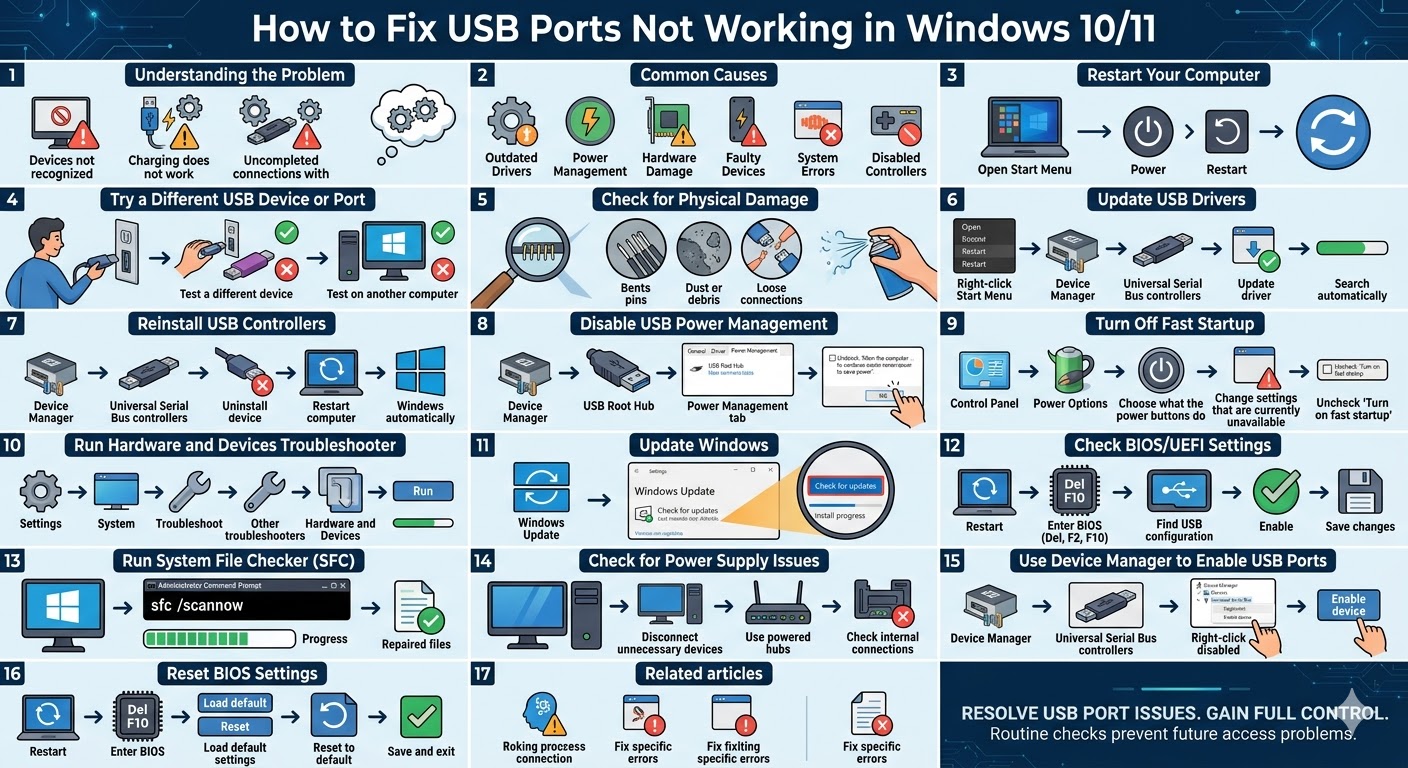
Fix USB Ports Not Responding in Windows 10/11
USB ports are essential for connecting external devices such as keyboards, mice, flash drives, printers, and smartphones to your computer. When USB ports stop working in Windows 10 or Windows 11, it can be extremely inconvenient and disrupt your daily tasks.
You may notice that plugged-in devices are not recognized, charging does not work, or nothing happens at all when you connect a USB device. This issue can be caused by hardware problems, outdated drivers, power settings, or system errors.
Fortunately, most USB-related problems can be resolved with a few simple troubleshooting steps. In this guide, you will learn how to fix USB ports not working in Windows 10/11 effectively.
Common Causes of USB Ports Not Working
Before applying fixes, it is helpful to understand what might be causing the issue.
Some common reasons include:
-
Outdated or corrupted USB drivers
-
Power management settings disabling USB ports
-
Hardware damage or loose connections
-
Faulty USB devices
-
Windows system errors
-
Disabled USB controllers
Identifying the cause will help you choose the right solution.
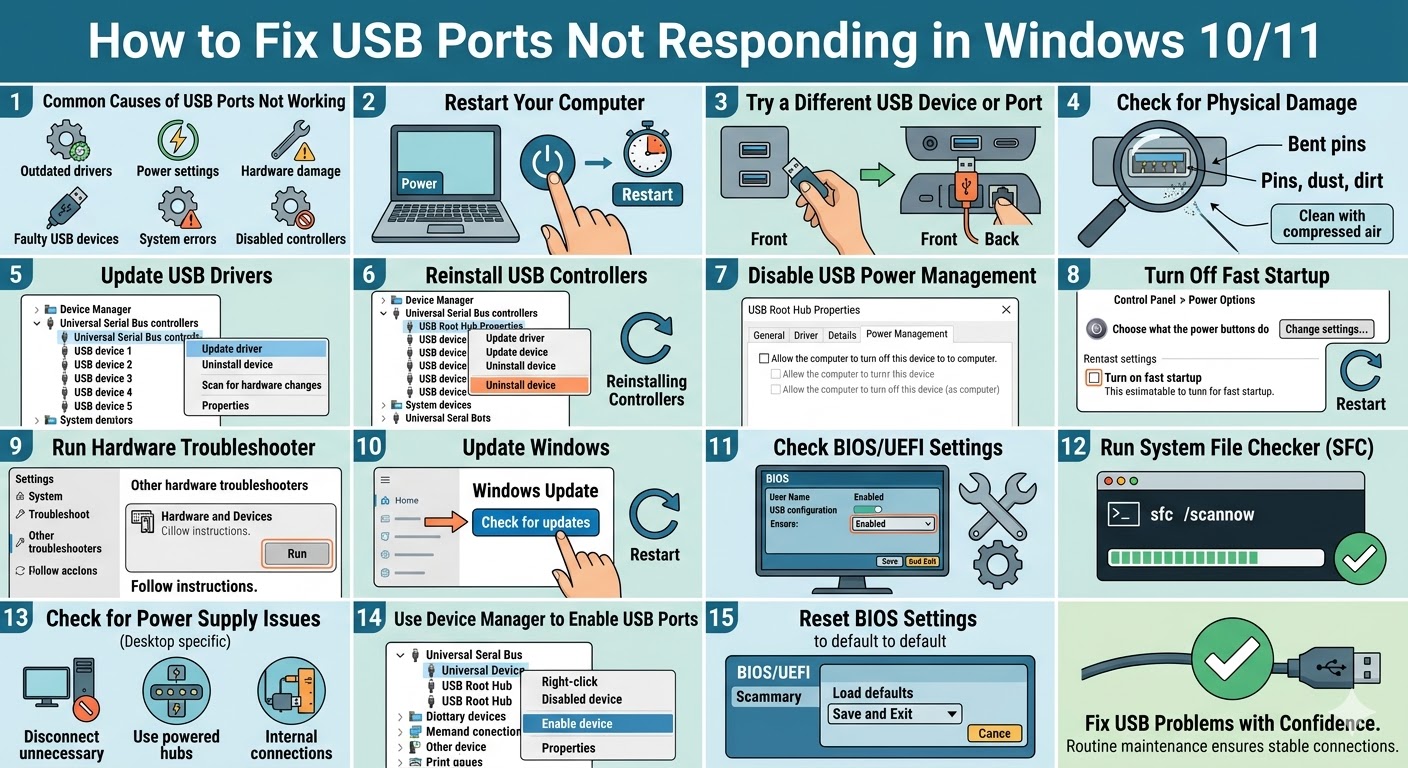
Restart Your Computer
Sometimes USB ports stop working due to temporary system glitches. Restarting your computer can reset hardware connections and reload drivers.
To restart your system:
-
Click the Start Menu.
-
Select the Power icon.
-
Click Restart.
After rebooting, reconnect your USB device and check if it works.
Try a Different USB Device or Port
Before assuming the issue is with your computer, test the USB device itself.
You can:
-
Plug the device into another USB port
-
Try a different USB device on the same port
-
Test the device on another computer
If the device works elsewhere, the issue may be with your USB port or system configuration.
Check for Physical Damage
Inspect your USB ports for physical damage or debris.
Look for:
-
Bent or broken pins
-
Dust or dirt inside the port
-
Loose connections
If necessary, gently clean the port using compressed air. Avoid inserting sharp objects that may damage the port.
Update USB Drivers
Outdated or corrupted drivers are one of the most common causes of USB problems.
To update USB drivers:
-
Right-click the Start Menu.
-
Select Device Manager.
-
Expand Universal Serial Bus controllers.
-
Right-click each USB device.
-
Select Update driver.
-
Choose Search automatically for drivers.
After updating drivers, restart your computer.
Reinstall USB Controllers
If updating drivers does not work, reinstalling USB controllers can help.
Follow these steps:
-
Open Device Manager.
-
Expand Universal Serial Bus controllers.
-
Right-click each device and select Uninstall device.
-
Restart your computer.
Windows will automatically reinstall the USB controllers after reboot.
Disable USB Power Management
Windows may turn off USB ports to save power, which can cause devices to stop working.
To disable this feature:
-
Open Device Manager.
-
Expand Universal Serial Bus controllers.
-
Double-click USB Root Hub.
-
Go to the Power Management tab.
-
Uncheck Allow the computer to turn off this device to save power.
-
Click OK.
Repeat this for all USB Root Hub entries.
Turn Off Fast Startup
Fast Startup can sometimes interfere with hardware initialization, including USB ports.
To disable Fast Startup:
-
Open Control Panel.
-
Click Power Options.
-
Select Choose what the power buttons do.
-
Click Change settings that are currently unavailable.
-
Uncheck Turn on fast startup.
-
Click Save changes.
Restart your computer afterward.
Run Hardware and Devices Troubleshooter
Windows includes built-in troubleshooters that can detect and fix hardware issues.
To run the troubleshooter:
-
Open Settings.
-
Go to System > Troubleshoot.
-
Click Other troubleshooters.
-
Run the Hardware and Devices troubleshooter if available.
Follow the on-screen instructions to complete the process.
Update Windows
Outdated system files can cause USB ports to malfunction.
To update Windows:
-
Press Windows + I.
-
Open Windows Update.
-
Click Check for updates.
-
Install available updates.
Restart your computer after updating.
Check BIOS/UEFI Settings
In some cases, USB ports may be disabled in the BIOS or UEFI settings.
To check this:
-
Restart your computer.
-
Enter BIOS/UEFI (usually by pressing Delete, F2, or F10).
-
Look for USB configuration settings.
-
Ensure USB ports are enabled.
Save changes and exit BIOS.
Run System File Checker
Corrupted system files may affect USB functionality.
To run SFC:
-
Open Command Prompt as administrator.
-
Enter:
sfc /scannow
-
Press Enter.
Wait for the scan to complete and restart your computer.
Check for Power Supply Issues
If you are using a desktop computer, insufficient power supply may cause USB ports to stop working.
Try:
-
Disconnecting unnecessary devices
-
Using powered USB hubs
-
Checking internal power connections
Ensuring stable power can improve USB performance.
Use Device Manager to Enable USB Ports
Sometimes USB ports may be disabled accidentally.
To enable them:
-
Open Device Manager.
-
Expand Universal Serial Bus controllers.
-
Right-click any disabled device.
-
Select Enable device.
Reset BIOS Settings
If USB ports still do not work, resetting BIOS to default settings may help.
Steps:
-
Enter BIOS/UEFI.
-
Select Load default settings or Reset to default.
-
Save and exit.
This can restore proper hardware configuration.
Final Thoughts
When USB ports are not working in Windows 10 or Windows 11, the issue can be caused by driver problems, power settings, hardware faults, or system errors. While the problem may seem serious, most cases can be resolved with simple troubleshooting steps.
Updating or reinstalling USB drivers, disabling power-saving features, checking BIOS settings, and running system repair tools are among the most effective solutions.
Related articles
How to Fix Wi-Fi Disconnecting Issues on Windows 10