


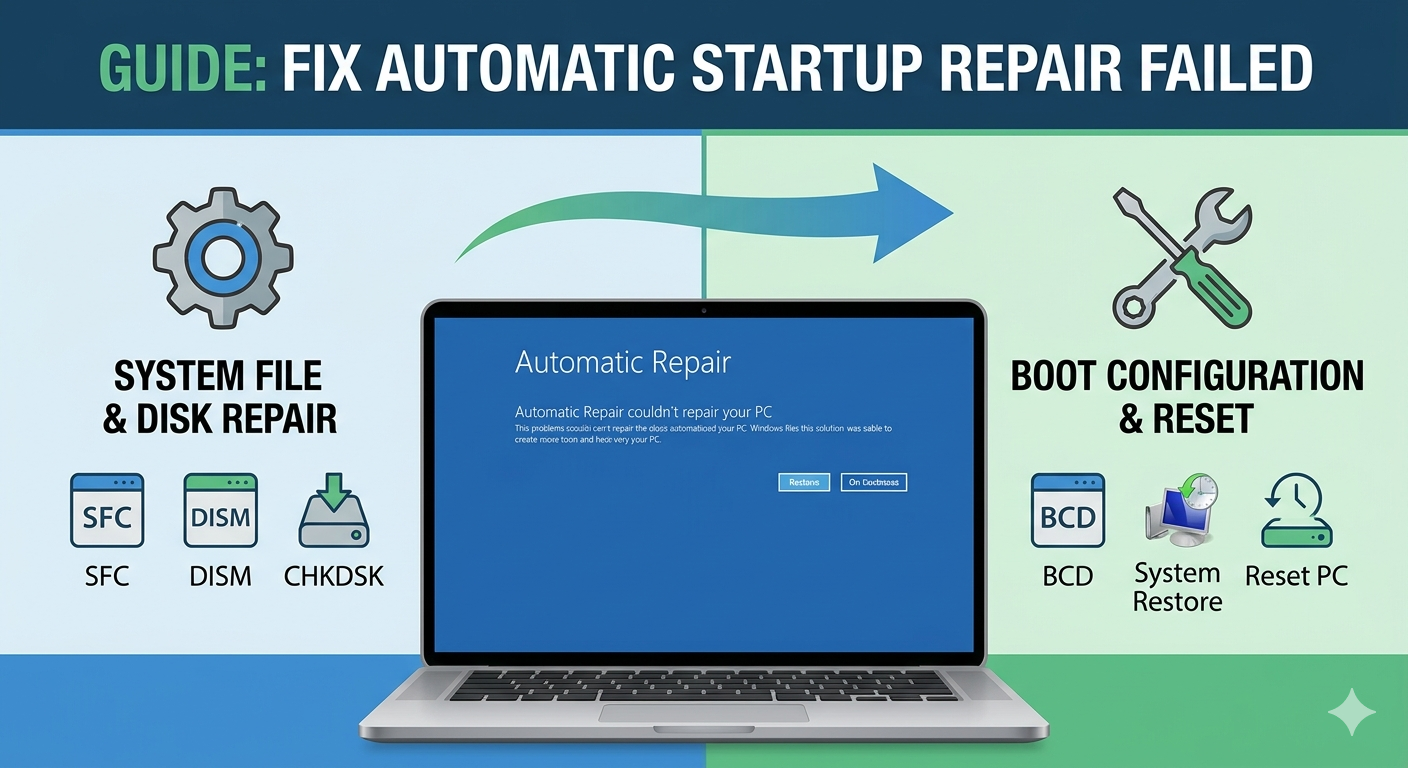
Fix Automatic Startup Repair Failed Issue on Windows
The “Automatic Startup Repair couldn’t repair your PC” error is a frustrating issue that prevents Windows from booting properly. This message usually appears after your system attempts to fix startup problems automatically but fails to resolve them.
When this happens, your computer may get stuck in a startup repair loop, repeatedly trying to diagnose and fix issues without success. This can prevent you from accessing your desktop and using your system normally.
The good news is that this issue is often caused by software-related problems such as corrupted system files, disk errors, or misconfigured boot settings—and it can be fixed using several proven methods.
In this guide, you’ll learn the causes and effective solutions to fix the Automatic Startup Repair couldn’t repair your PC error on Windows 10 and Windows 11.
What Causes This Error?
Understanding the root cause can help you choose the right solution.
Common causes include:
- Corrupted system files
- Damaged boot configuration (BCD)
- Disk errors or bad sectors
- Faulty Windows updates
- Driver conflicts
- Malware or system corruption
These issues can prevent Windows from starting correctly.
Access Advanced Startup Options
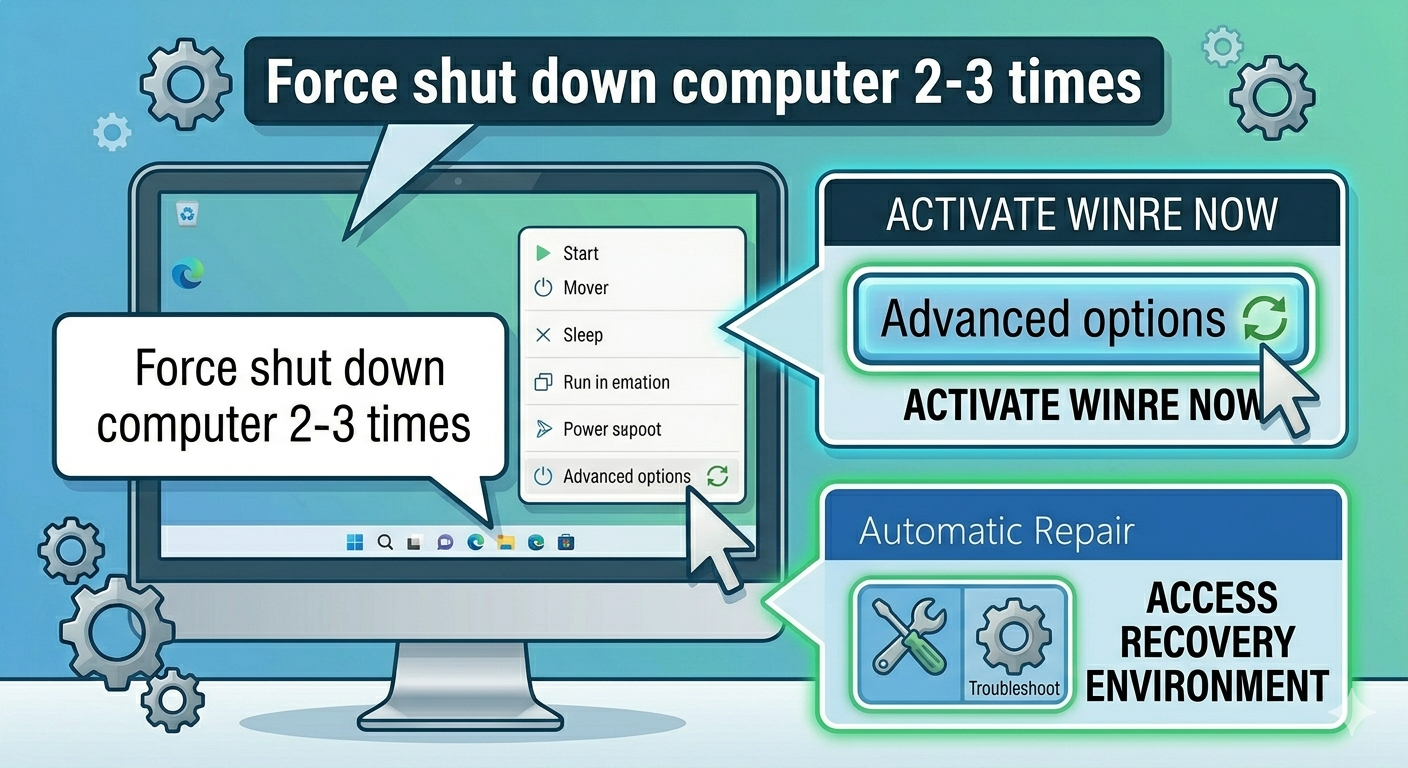
Before applying fixes, you need to access the Windows Recovery Environment (WinRE).
To do this:
- Turn on your computer.
- Force shut it down during boot 2–3 times.
- Windows will enter Automatic Repair.
- Select Advanced options.
From here, you can access troubleshooting tools.
Restart Your Computer
Although basic, restarting may resolve temporary issues.
From WinRE:
- Click Continue or restart your system
If the problem persists, proceed with advanced methods.
Run Startup Repair Again
Sometimes running Startup Repair multiple times can fix the issue.
Steps:
- Go to Advanced options.
- Select Startup Repair.
- Choose your account.
- Enter your password if prompted.
Allow the process to complete and check if the issue is resolved.
Run System File Checker (SFC)
Corrupted system files are a common cause of startup failures.
To run SFC:
- Go to Advanced options > Command Prompt.
- Enter:
sfc /scannow /offbootdir=C:\ /offwindir=C:\Windows
- Press Enter.
Wait for the scan to complete and restart your system.
Use DISM Tool
If SFC does not fix the issue, use DISM to repair the system image.
Steps:
- Open Command Prompt in WinRE.
- Enter:
DISM /Image:C:\ /Cleanup-Image /RestoreHealth
- Press Enter.
Restart your computer after completion.
Repair Boot Configuration Data (BCD)
Damaged boot configuration can prevent Windows from starting.
To rebuild BCD:
- Open Command Prompt.
- Enter the following commands one by one:
bootrec /fixmbr
bootrec /fixboot
bootrec /scanos
bootrec /rebuildbcd
- Press Enter after each command.
Restart your system afterward.
Run CHKDSK
Disk errors can cause startup problems.
To check your disk:
- Open Command Prompt.
- Enter:
chkdsk C: /f /r
- Press Enter.
Allow the scan to complete and restart your system.
Disable Automatic Startup Repair
In some cases, disabling automatic repair can help break the repair loop.
Steps:
- Open Command Prompt in WinRE.
- Enter:
bcdedit /set {default} recoveryenabled No
- Press Enter.
Restart your computer.
Uninstall Recent Updates
If the issue started after a Windows update, uninstalling it may help.
Steps:
- Go to Advanced options.
- Select Uninstall Updates.
- Choose Uninstall latest quality update or feature update.
Restart your computer after removal.
Perform System Restore
System Restore can revert your system to a previous working state.
Steps:
- Go to Advanced options.
- Select System Restore.
- Choose a restore point before the issue occurred.
- Follow the instructions.
This can resolve issues caused by recent changes.
Disable Early Launch Anti-Malware Protection
Sometimes anti-malware drivers can interfere with startup.
To disable:
- Go to Startup Settings in Advanced options.
- Click Restart.
- Press 8 or F8 to disable early launch anti-malware protection.
Check if your system boots normally.
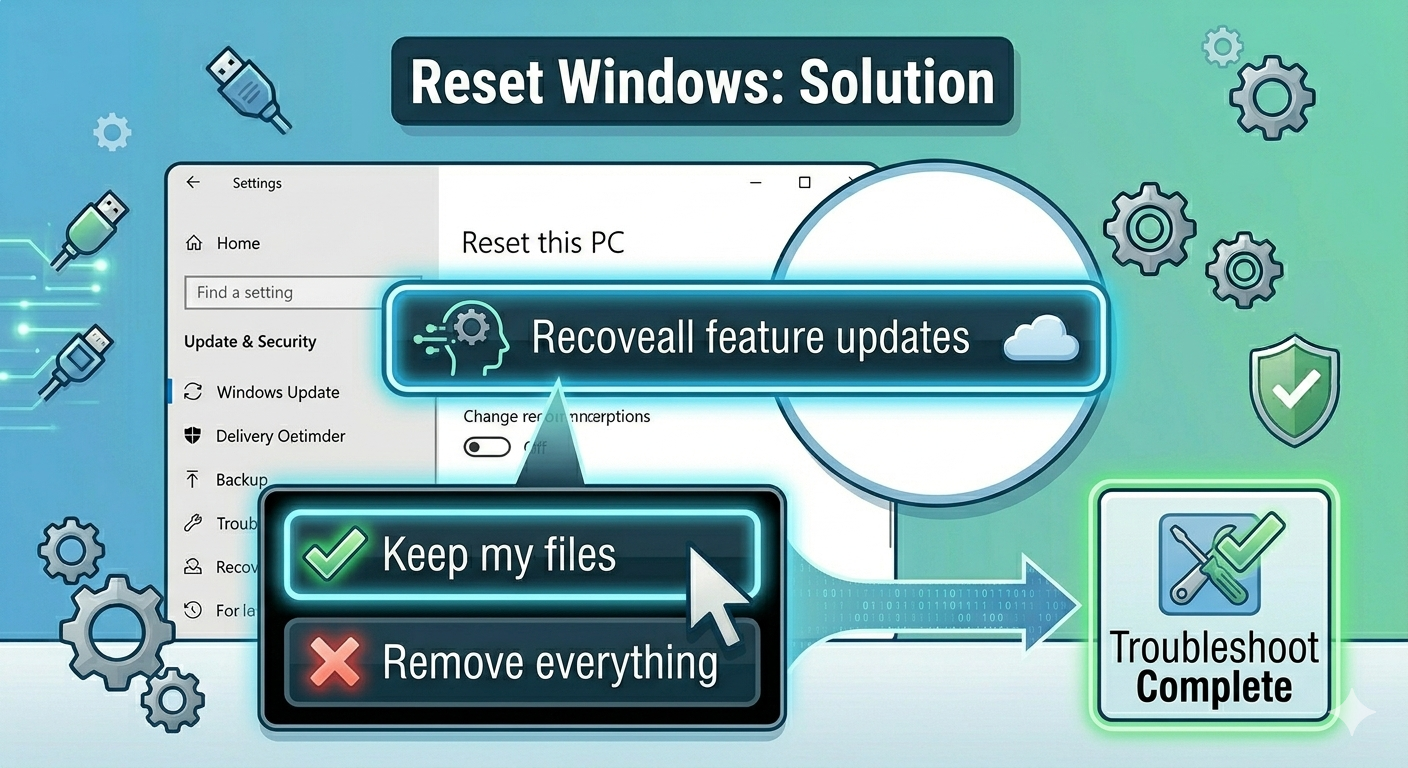
Reset Windows
If none of the methods work, resetting Windows may be necessary.
To reset:
- Go to Advanced options.
- Select Reset this PC.
- Choose whether to keep your files or remove everything.
- Follow the instructions.
Check Hardware Issues
If the problem persists, it may be hardware-related.
You should:
- Check your hard drive health
- Ensure RAM is functioning properly
- Disconnect unnecessary peripherals
Faulty hardware can cause repeated startup failures.
Final Thoughts
The “Automatic Startup Repair couldn’t repair your PC” error can prevent your system from booting, but it is usually fixable with the right troubleshooting steps.
Most users can resolve the issue by repairing system files, rebuilding the boot configuration, or checking disk errors. In more severe cases, system restore or resetting Windows may be required.
Related articles
Fixing the “Kernel Security Check Failure” Error on Windows 10