


Fix the “RPC Server Is Unavailable” Issue in Windows Easily
The “RPC Server Is Unavailable” error is a common issue in Windows that can disrupt various system functions, including printing, network communication, and accessing remote services. This error often appears unexpectedly and can prevent you from completing important tasks.
If you’ve encountered this message on Windows 10 or Windows 11, don’t worry. This guide will explain what the error means, why it happens, and how to fix it step by step.
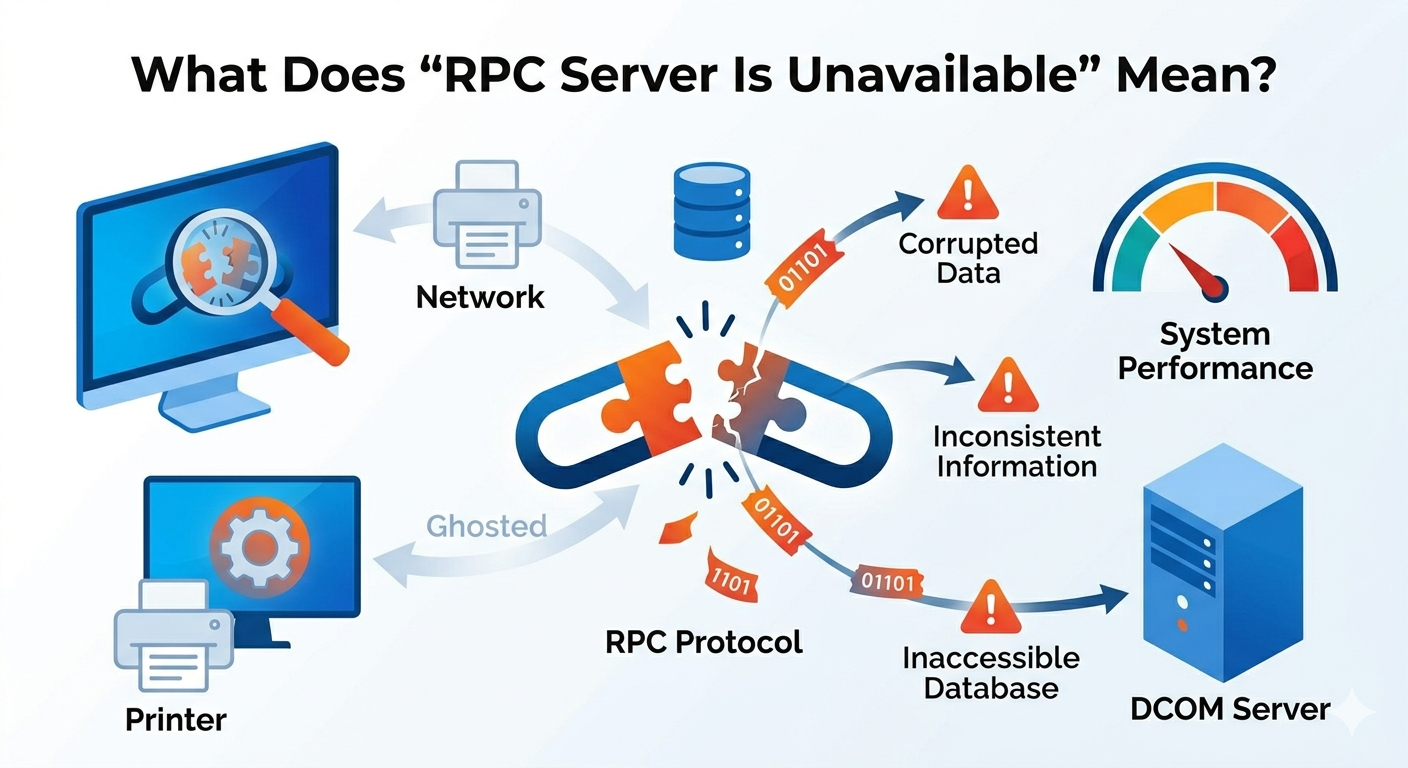
What Does “RPC Server Is Unavailable” Mean?
RPC stands for Remote Procedure Call, a protocol that allows programs to communicate with each other across a network or within the same system. It is a critical component of Windows, used by many services and applications.
When you see the “RPC Server Is Unavailable” error, it means that your system is unable to establish communication with the required service. This can happen due to service failures, network issues, or incorrect configurations.
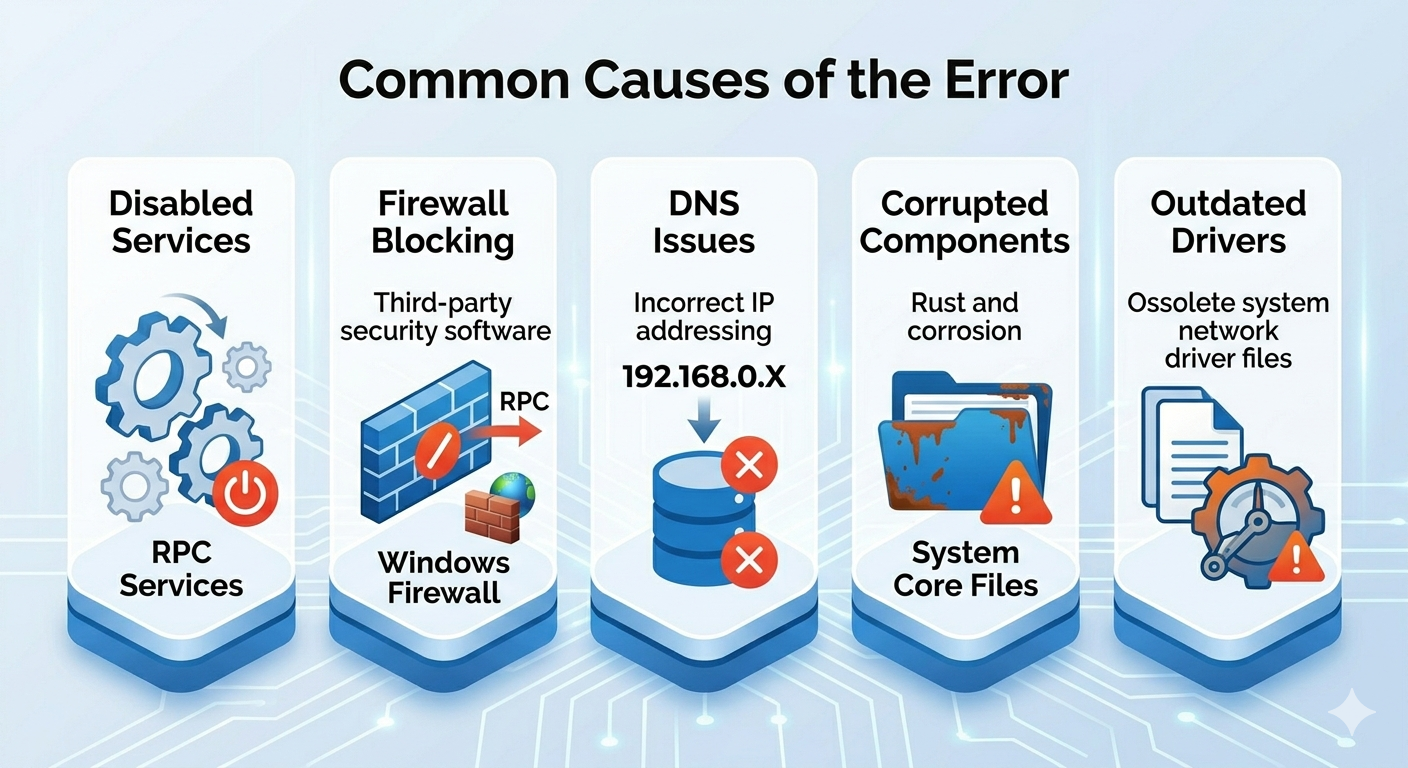
Common Causes of the Error
Understanding the causes can help you fix the issue more effectively.
Disabled RPC Services
If essential services like RPC or DCOM are stopped, the system cannot function properly.
Network Connectivity Issues
Problems with your internet or local network can interrupt communication between services.
Firewall Blocking RPC
Windows Firewall or third-party security software may block RPC traffic.
Incorrect DNS Settings
Improper DNS configuration can prevent systems from locating RPC servers.
Corrupted System Files
Damaged system files can interfere with core Windows processes.
Driver or Update Issues
Outdated drivers or problematic Windows updates can also trigger this error.
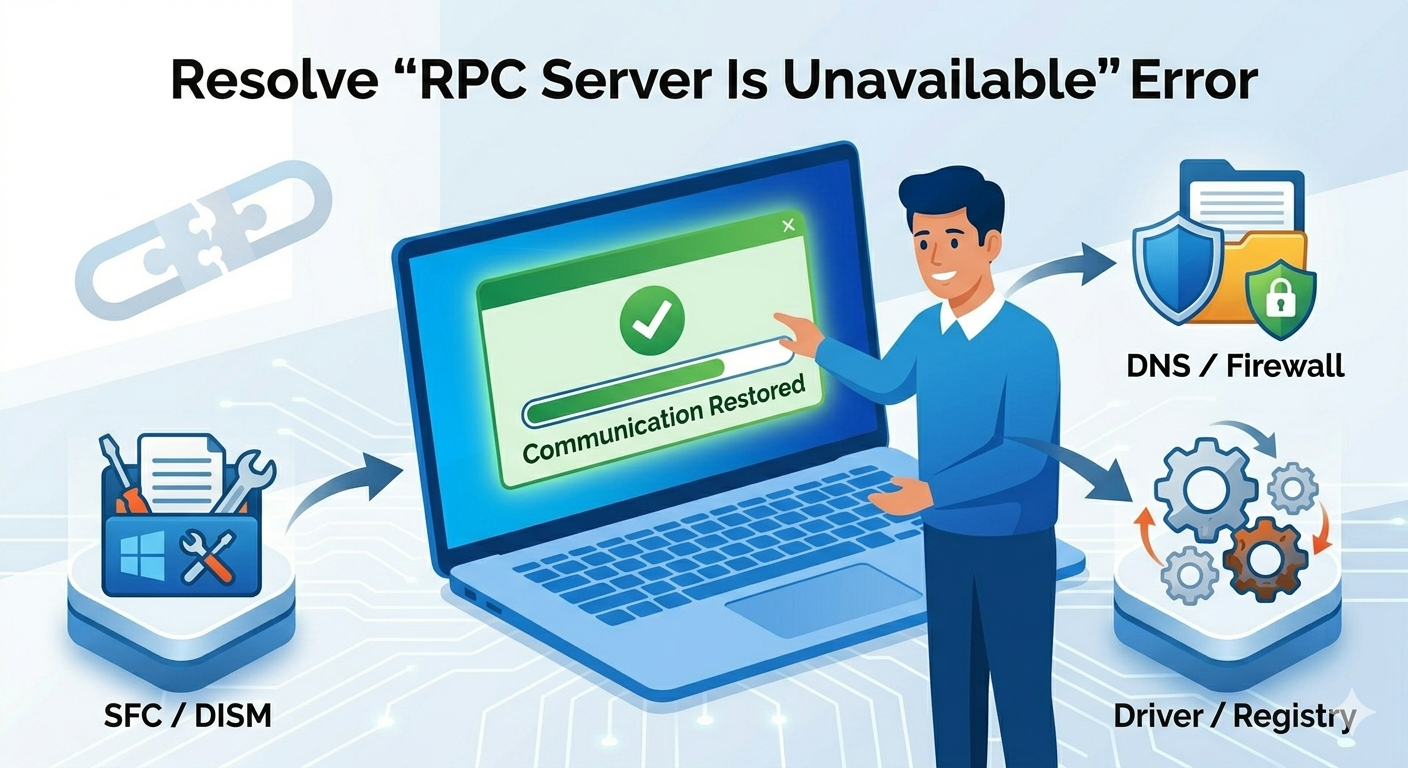
How To Fix “RPC Server Is Unavailable” Error
Below are several effective solutions you can try.
Check RPC Services
The first step is to ensure that required services are running.
Steps to Verify Services
- Press
Windows + R, type services.msc, and press Enter - Locate the following services:
- Remote Procedure Call (RPC)
- DCOM Server Process Launcher
- RPC Endpoint Mapper
- Ensure all are:
- Running
- Set to Automatic
If any service is stopped, right-click and select Start.
Restart Your Computer
A simple restart can fix temporary system glitches.
What to Do
- Save your work
- Restart your PC
- Check if the error persists
This often resolves minor service-related issues.
Check Network Connection
Ensure your network is working properly.
Steps
- Restart your router
- Switch between Wi-Fi and Ethernet
- Test internet connectivity
If you’re on a network environment, ensure the server is reachable.
Configure Windows Firewall
Firewall settings may block RPC communication.
Steps to Allow RPC
- Open Control Panel
- Go to Windows Defender Firewall
- Click Allow an app or feature through Windows Firewall
- Ensure Remote Assistance and related services are enabled
You can also temporarily disable the firewall to test if it’s the cause.
Check DNS Settings
Incorrect DNS settings can cause communication failures.
Steps to Fix DNS
- Open Control Panel → Network and Sharing Center
- Click Change adapter settings
- Right-click your connection and select Properties
- Select Internet Protocol Version 4 (IPv4)
- Set DNS to:
- Preferred: 8.8.8.8
- Alternate: 8.8.4.4
Click OK and restart your connection.
Run System File Checker (SFC)
SFC can repair corrupted system files.
Steps
- Open Command Prompt as administrator
-
Run:
sfc /scannow - Wait for the scan to complete
Restart your system afterward.
Use DISM Tool
DISM can fix deeper system issues.
Steps
- Open Command Prompt as administrator
-
Run:
DISM /Online /Cleanup-Image /RestoreHealth - Wait for the process to finish
Restart your computer.
Update Network Drivers
Outdated drivers can cause communication problems.
Steps
- Open Device Manager
- Expand Network adapters
- Right-click your adapter
- Select Update driver
Restart your PC after updating.
Check Registry Settings
Incorrect registry values can affect RPC functionality.
Steps
- Press
Windows + R, type regedit, and press Enter -
Navigate to:
HKEY_LOCAL_MACHINE\SYSTEM\CurrentControlSet\Services\RpcSs - Ensure the Start value is set to 2 (Automatic)
Be cautious when editing the registry.
Perform a Clean Boot
A clean boot can help identify software conflicts.
Steps
- Press
Windows + R, type msconfig, and press Enter - Go to the Services tab
- Check Hide all Microsoft services
- Click Disable all
- Disable startup programs in Task Manager
- Restart your PC
If the error disappears, a third-party app may be causing it.
Check Windows Updates
Installing updates can fix known bugs.
Steps
- Open Settings
- Go to Windows Update
- Click Check for updates
Install updates and restart your system.
When to Consider Advanced Fixes
If the problem continues, you may need advanced solutions:
- Perform a System Restore
- Reset Windows settings
- Reinstall Windows as a last resort
These methods can resolve deeper system issues.
Tips to Prevent RPC Errors
To avoid encountering this error again:
- Keep Windows updated
- Maintain stable network connections
- Avoid disabling critical services
- Use trusted security software
- Regularly scan for system errors
Final Thoughts
The “RPC Server Is Unavailable” error in Windows can be frustrating, but it is usually caused by service issues, network problems, or misconfigurations. By checking RPC services, adjusting firewall and DNS settings, and repairing system files, you can resolve the issue in most cases.
Related articles
How to Fix Wi-Fi Disconnecting Issues on Windows 10